
QuestradeMCP
Unofficial Questrade MCP server - access your trading accounts and market data in AI conversations.
Documentation
Questrade MCP Server


An unofficial Model Context Protocol (MCP) server for integrating with the Questrade API, providing access to trading accounts, market data, and portfolio information.
> ⚠️ Disclaimer: This is an unofficial, community-built integration and is not affiliated with, endorsed by, or supported by Questrade Inc. Use at your own risk.
Features
- 🔐 Authentication: OAuth 2.0 token management with automatic refresh
- 📊 Account Data: Access accounts, positions, balances, and order history
- 📈 Market Data: Real-time quotes, symbol search, and historical candles
- 🛡️ Error Handling: Comprehensive error handling and logging
- 🔧 TypeScript: Full TypeScript support with proper type definitions
Installation
Option 1: Install from npm (Recommended)
npm install -g questrade-mcp-serverOption 2: Clone and Build
1. Clone this repository
2. Install dependencies:
npm install3. Copy the environment template:
cp .env.example .env4. Configure your Questrade API credentials in `.env`:
QUESTRADE_API_URL=https://api01.iq.questrade.com
   QUESTRADE_REFRESH_TOKEN=your_refresh_token_here
   # QUESTRADE_TOKEN_DIR=/path/to/custom/directory
Getting Questrade API Credentials
For detailed information about Questrade's API authorization, see the official API documentation.
Step 1: Generate API Token
1. Log in to your Questrade account or navigate directly to https://apphub.questrade.com/UI/UserApps.aspx
2. In the top right corner, select "API centre" from the drop-down menu under your login name
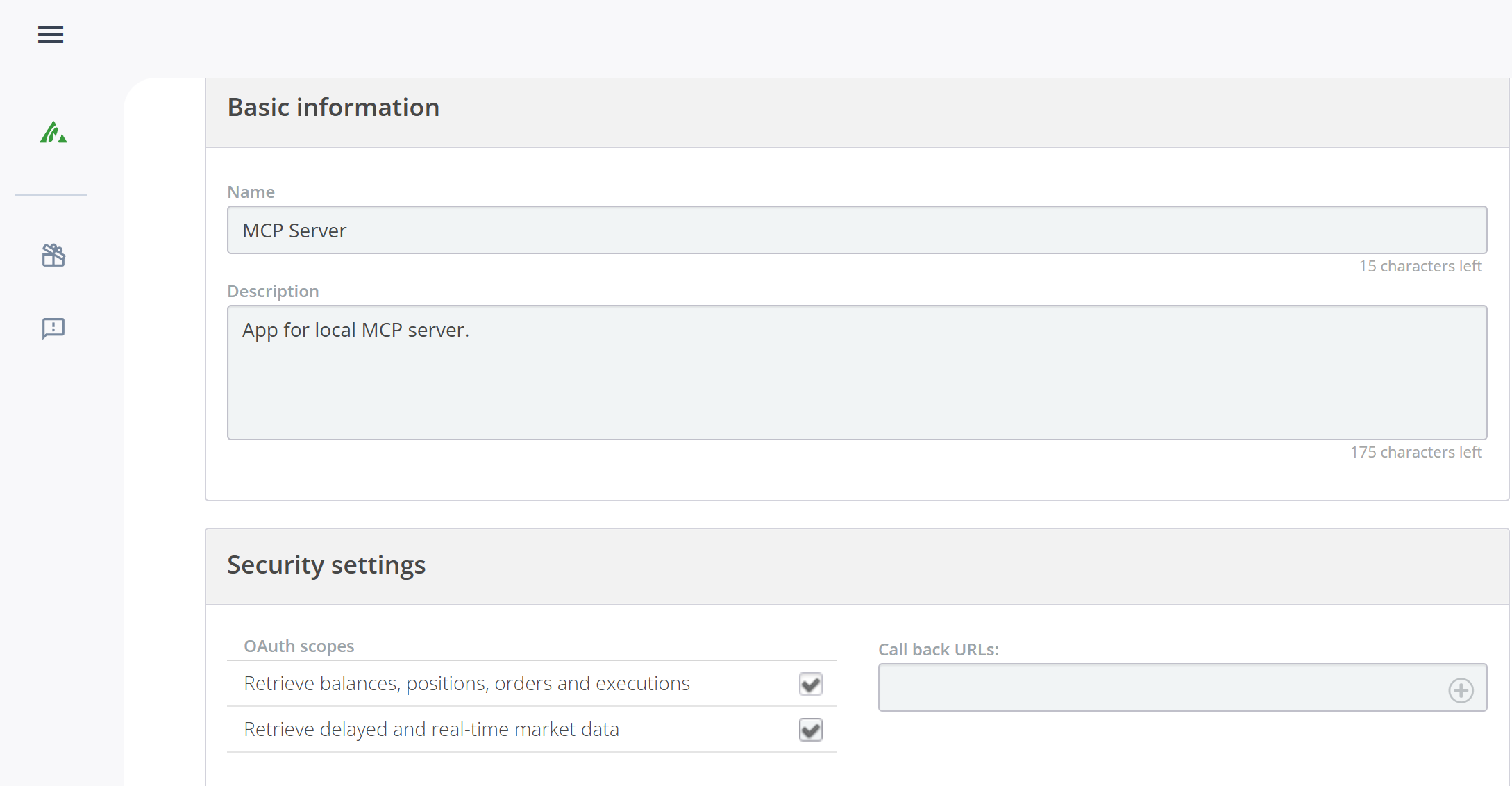
3. Click "Activate API" and agree to the API access agreement
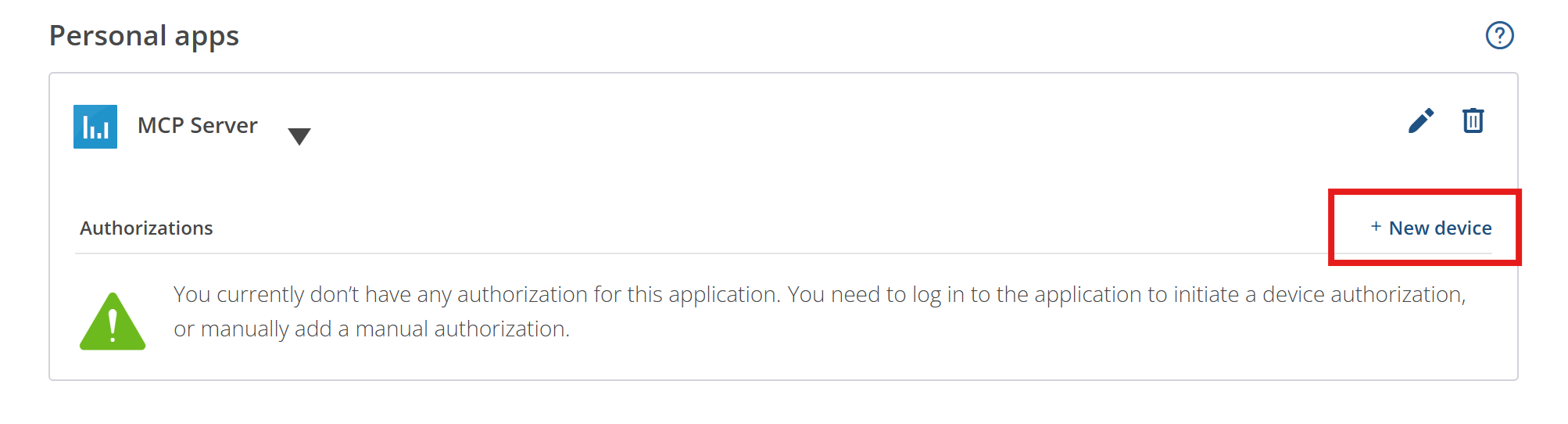
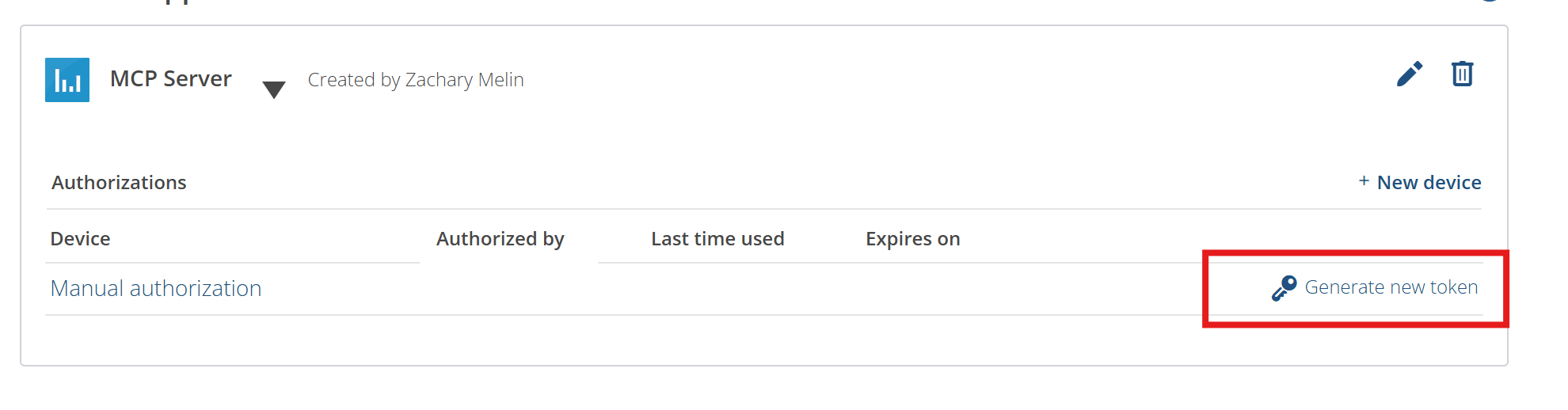
4. Click "Generate new token" for manual authorization
5. Copy the refresh token provided
Step 2: Configure Environment
1. Copy your refresh token to `.env`:
QUESTRADE_REFRESH_TOKEN=your_refresh_token_here2. The MCP server will automatically:
> Important: Refresh tokens are single-use only. The server will attempt to persist new refresh tokens to `~/.questrade-mcp/tokens.json` (configurable via `QUESTRADE_TOKEN_DIR` environment variable), but if a token expires or gets used by another process, you'll need to manually generate a new one following the steps above.
Step 3: Test Your Setup
Verify your token works correctly:
npm run test-connection> Note: If you get a "'tsx' is not recognized" error, the test script will automatically build the project first and use Node.js instead.
Usage
Development
npm run devProduction
npm run build
npm start
Adding to Claude Desktop
1. Find your Claude Desktop config file:
2. Add the MCP server configuration:
Quick setup (Recommended)
{
     "mcpServers": {
       "questrade": {
         "command": "npx",
         "args": ["questrade-mcp-server"],
         "env": {
           "QUESTRADE_REFRESH_TOKEN": "your_refresh_token_here"
         }
       }
     }
   }
Local development build
{
     "mcpServers": {
       "questrade": {
         "command": "node",
         "args": ["/path/to/your/project/dist/index.js"],
         "env": {
           "QUESTRADE_REFRESH_TOKEN": "your_refresh_token_here"
         }
       }
     }
   }
3. If using local build, update the path to match your actual project location
4. Restart Claude Desktop
5. Test the connection by asking Claude to show your Questrade accounts
For detailed setup instructions, see `claude-desktop-config.md`.
Available Tools
Account Management
- `get_accounts` - Get all Questrade accounts
- `get_positions` - Get positions for a specific account
- `get_balances` - Get balances for a specific account
- `get_orders` - Get order history for an account
Market Data
- `search_symbols` - Search for symbols by prefix
- `get_symbol` - Get detailed symbol information
- `get_quotes` - Get real-time quotes for symbols
- `get_candles` - Get historical price data
Authentication
- `refresh_token` - Refresh the API access token
Built-in Prompts
The MCP server includes helpful prompts for common trading analysis tasks:
Portfolio Summary
Prompt: `portfolio_summary`
- Get a comprehensive portfolio analysis with account balances, positions, and performance
- Optional: Specify `accountNumber` (uses first account if not provided)
Stock Analysis
Prompt: `stock_analysis`
- Analyze a specific stock with current quotes, symbol information, and recent performance
- Required: `symbol` (e.g., "AAPL", "TSLA", "MSFT")
Trading Opportunities
Prompt: `trading_opportunities`
- Identify potential trading opportunities based on current positions and market data
- Optional: `accountNumber` (uses first account if not provided)
- Optional: `riskLevel` ("conservative", "moderate", or "aggressive")
Example Usage
Simply ask Claude:
- "Use the portfolio_summary prompt to analyze my trading account"
- "Analyze AAPL stock using the stock_analysis prompt"
- "Show me trading opportunities with conservative risk level"
Tool Examples
Get Accounts
{
  "name": "get_accounts"
}
Get Positions
{
  "name": "get_positions",
  "arguments": {
    "accountNumber": "12345678"
  }
}
Search Symbols
{
  "name": "search_symbols",
  "arguments": {
    "prefix": "AAPL",
    "offset": 0
  }
}
Get Quotes
{
  "name": "get_quotes",
  "arguments": {
    "symbolIds": [8049, 9291]
  }
}
Configuration
The server uses environment variables for configuration:
- `QUESTRADE_API_URL`: Base URL for Questrade API (default: https://api01.iq.questrade.com)
- `QUESTRADE_REFRESH_TOKEN`: Your API refresh token
- `QUESTRADE_TOKEN_DIR`: Custom directory for token storage (default: `~/.questrade-mcp`)
Error Handling
The server includes comprehensive error handling for:
- Invalid or expired tokens (automatic refresh)
- Missing required parameters
- API rate limits and network errors
- Invalid account numbers or symbol IDs
Security Notes
- Never commit your `.env` file to version control
- Access tokens expire after 7 days
- Refresh tokens are automatically used to get new access tokens
- This is an unofficial tool - ensure you comply with Questrade's API terms of service
- Always verify trading decisions independently before executing trades
Development
Project Structure
src/
├── index.ts          # Main MCP server implementation
├── questrade-client.ts # Questrade API client
└── types.ts          # TypeScript type definitions
Building
npm run buildCleaning
npm run cleanLicense
MIT
Frequently asked questions
What is QuestradeMCP?
QuestradeMCP is Unofficial Questrade MCP server - access your trading accounts and market data in AI conversations.
How do I install QuestradeMCP?
Open the GitHub repository and follow its README. Most MCP servers are added to your client's MCP config, then called by your agent.
Is QuestradeMCP open source?
Yes — it is hosted on GitHub at https://github.com/zachmelin/QuestradeMCP and has 6 stars.
Related MCP tools
 firecrawl-mcp-server
🔥 Official Firecrawl MCP Server - Adds powerful web scraping and search to Cursor, Claude and any other LLM clients.
 deep-research
Use any LLMs (Large Language Models) for Deep Research. Support SSE API and MCP server.
 mcp-feedback-enhanced
Enhanced MCP server for interactive user feedback and command execution in AI-assisted development, featuring dual interface support (Web UI and Desktop Application) with intelligent environment detection and cross-platform compatibility.
 papersgpt-for-zotero
A powerful Zotero AI and MCP plugin with ChatGPT, Gemini 3.7, Claude Fable 5, Claude Opus 5, DeepSeek V4, Grok, OpenRouter, Kimi k3, GLM 5.3, SiliconFlow, GPT-oss, Gemma 4, Qwen 3.8
 opendia
Connect your browser to AI models. Just use Dia on Chrome, Arc or Firefox.
 wenyan-mcp
文颜 MCP Server 可以让 AI 自动将 Markdown 文章排版后发布至微信公众号。
Run your own MCP server? See who uses it and what to fix.
Measure it with TrackMCP