
mcp-python
Talk with Your Database
Documentation
Talk with Your Database Using MCP
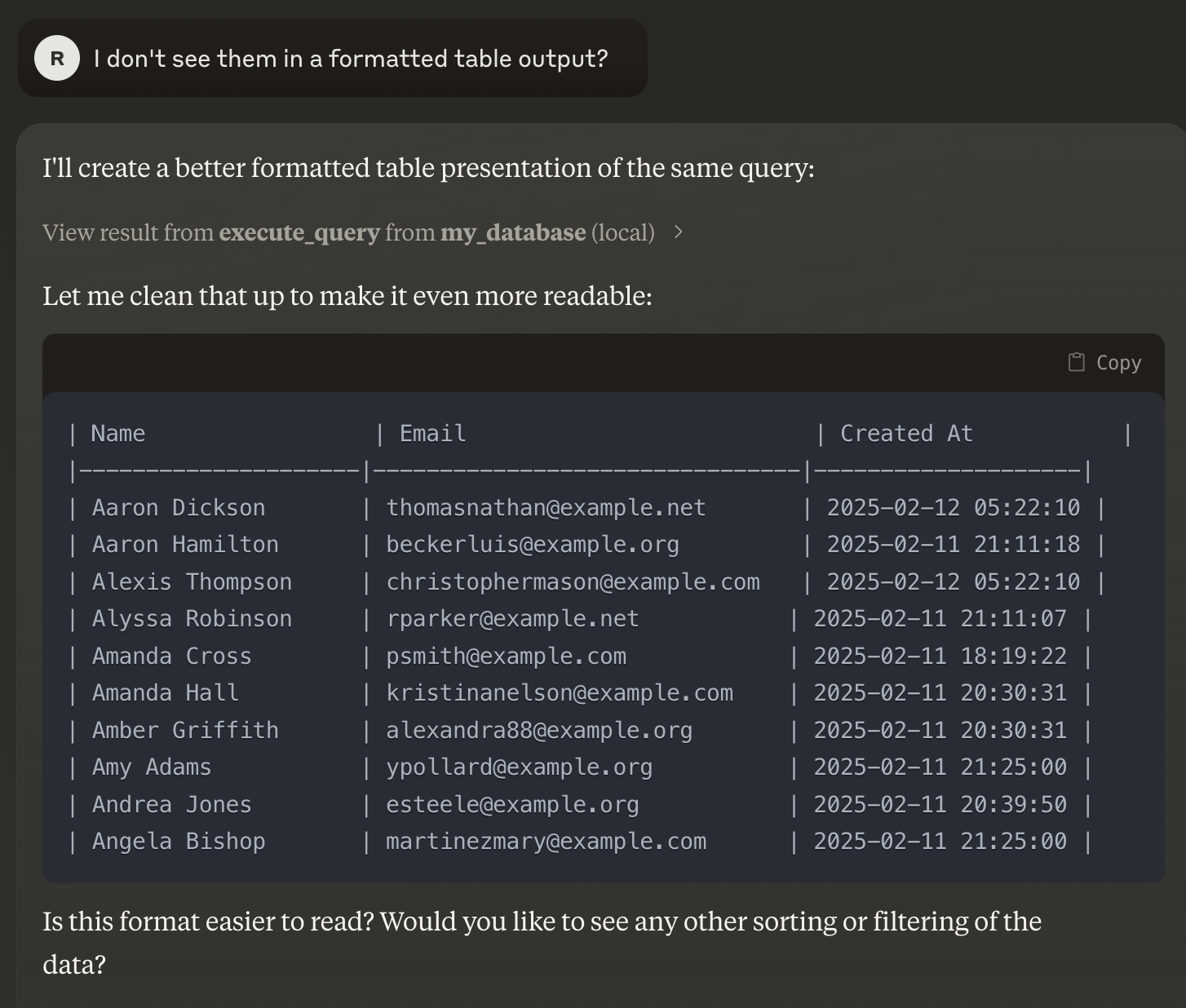
This guide explains how to set up and run your MCP server to interact with your
PostgreSQL database using Claude Desktop. It should also work with MySQL,
MariaDB, SQLite as it uses sqlalchemy under the hood. This project is build on
top of https://github.com/runekaagaard/mcp-alchemy
> Note: This guide assumes you have a basic understanding of Docker,
> environment variables, and CLI usage.
Prerequisites
- Docker Compose:
- Claude Desktop: Download here
- uv: A modern, high-performance Python package manager. If not installed,
follow the instructions below.
1. Set Up Environment Variables
1. Copy and Rename the Environment File
Duplicate the provided `.env.example` file and rename it to `.env`:
cp .env.example .env2. Set Up Claude Desktop
1. Download and Install Claude Desktop
Visit the Claude Desktop download page and
install the application.
3. Launch the PostgreSQL Database with Dummy Data
1. Run Docker Compose
Ensure Docker Compose is installed and run:
docker-compose up -dpopulate it with dummy data.
4. Install `uv` (if not already installed)
1. Install `uv`
Execute the following command to install `uv`:
curl -LsSf https://astral.sh/uv/install.sh | sh5. Configure and Launch the MCP Server
1. Create/Update the MCP Server Configuration
Save the following JSON configuration in your MCP server config file (adjust
paths if necessary):
{
     "mcpServers": {
       "my_database": {
         "command": "uv",
         "args": [
           "--directory",
           "/directory/where/this/app/is/located/app/",
           "run",
           "server.py"
         ],
         "env": {
           "DB_URL": "postgresql://postgres:password@localhost:5432/mydatabase"
         }
       }
     }
   }
`"command"` value to reflect the full path to the executable.
2. Launch the MCP Server
With the configuration in place, the MCP server will automatically start each
time Claude Desktop is launched.
6. Enjoy Your Setup
- Open Claude Desktop.
- The tool will automatically call your MCP server, enabling you to interact
with your database seamlessly.
Summary
1. Set Up Environment Variables: Copy `.env.example` to `.env`.
2. Install and Run Claude Desktop: Download from
3. Launch PostgreSQL with Docker Compose: Run `docker-compose up` to start
the database with dummy data.
4. Install `uv`: Run the provided installation command if necessary.
5. Configure MCP Server: Update the config file and ensure paths and
environment variables are correct.
6. Launch and Enjoy: Start Claude Desktop to begin interacting with your
database via MCP.
If you encounter any issues or need further assistance, please refer to the
relevant documentation or contact your support team.
Happy coding!
Frequently asked questions
What is mcp-python?
mcp-python is Talk with Your Database
How do I install mcp-python?
Open the GitHub repository and follow its README. Most MCP servers are added to your client's MCP config, then called by your agent.
Is mcp-python open source?
Yes — it is hosted on GitHub at https://github.com/rhabraken/mcp-python and has 1 stars.
Related MCP tools
 cognee
Cognee is the open-source AI memory platform for agents. Give your AI agents persistent long-term memory across sessions with a self-hosted knowledge graph engine.
 skyvern
Automate browser based workflows with AI
 hindsight
Hindsight: Agent Memory That Learns
 watermarks-remover
A privacy-first app that strips AI watermarks from content you own.
 Qwen-Agent
Agent framework and applications built upon Qwen>=3.0, featuring Function Calling, MCP, Code Interpreter, RAG, Chrome extension, etc.
 pal-mcp-server
The power of Claude Code / GeminiCLI / CodexCLI + [Gemini / OpenAI / OpenRouter / Azure / Grok / Ollama / Custom Model / All Of The Above] working as one.
Run your own MCP server? See who uses it and what to fix.
Measure it with TrackMCP