MCP Server for Apache Pinot
Documentation
Pinot MCP Server




Table of Contents
- Overview
- Features
- Quick Start
- Configuration Reference
- Docker Build
- Claude Desktop Integration
- Try a Prompt
- Security and Vulnerability Reporting
- Developer Notes
Overview
This project is a Python-based Model Context Protocol (MCP) server for interacting with Apache Pinot. It is built using the FastMCP framework. It is designed to integrate with Claude Desktop to enable real-time analytics and metadata queries on a Pinot cluster.
It allows you to
- List tables, segments, and schema info from Pinot
- Execute read-only SQL queries
- View index/column-level metadata
- Designed to assist business users via Claude integration
- and much more.
Features
- Every tool advertises typed input and output JSON Schemas, MCP risk annotations,
and failure-recovery guidance for agent planning.
- Large query, table, segment-name, and segment-metadata responses use bounded
pages with continuation metadata instead of returning unbounded agent context.
- Read-only SQL is parsed and enforced before execution; validation, permission,
and transient connectivity errors are surfaced as actionable MCP errors.
- Every mutating tool supports
dry_run; always preview the exact target and
payload before applying. Applying requires the preview's short-lived, one-time
confirmation_token, including for table-filter reloads. A preview is not a
guarantee that Pinot will accept the later write.
- Single-purpose schema and table-config inspection tools avoid ambiguous combined
operations: use get_schema and get_table_config independently.
MCP Tool Contract
Tool names are case-sensitive and use underscores. Version 4 renamed four tools
to make every operation verb-first; clients using the former noun-first names must
update their calls.
| Tool | Purpose |
|---|---|
test_connection | Diagnose broker, controller, and query connectivity. |
list_tables | List visible Pinot table names. |
get_schema | Get one table's column schema. |
get_table_config | Get one table's indexing and ingestion configuration. |
get_table_size | Get reported and estimated storage size for one table. |
list_segments | List exact segment names for one table. |
list_segment_metadata | Page through metadata for a table's segments. |
get_segment_index_metadata | Inspect per-column indexes for one exact segment. |
read_query | Run one read-only Pinot SQL query. |
create_schema / update_schema | Preview or apply schema changes. |
create_table_config / update_table_config | Preview or apply table-config changes. |
reload_table_filters | Preview or apply the configured table-filter YAML. |
For every schema, table-config, or table-filter change, first call the same tool
with dry_run=true, present the preview to the user, and call it with
dry_run=false and the preview's one-time confirmation_token only after
confirmation. Editing a table-filter file after preview invalidates its token.
Pinot performs authoritative validation during table/schema apply calls, so a
write can still fail after a successful preview.
Pinot MCP in Action
See Pinot MCP in action below:
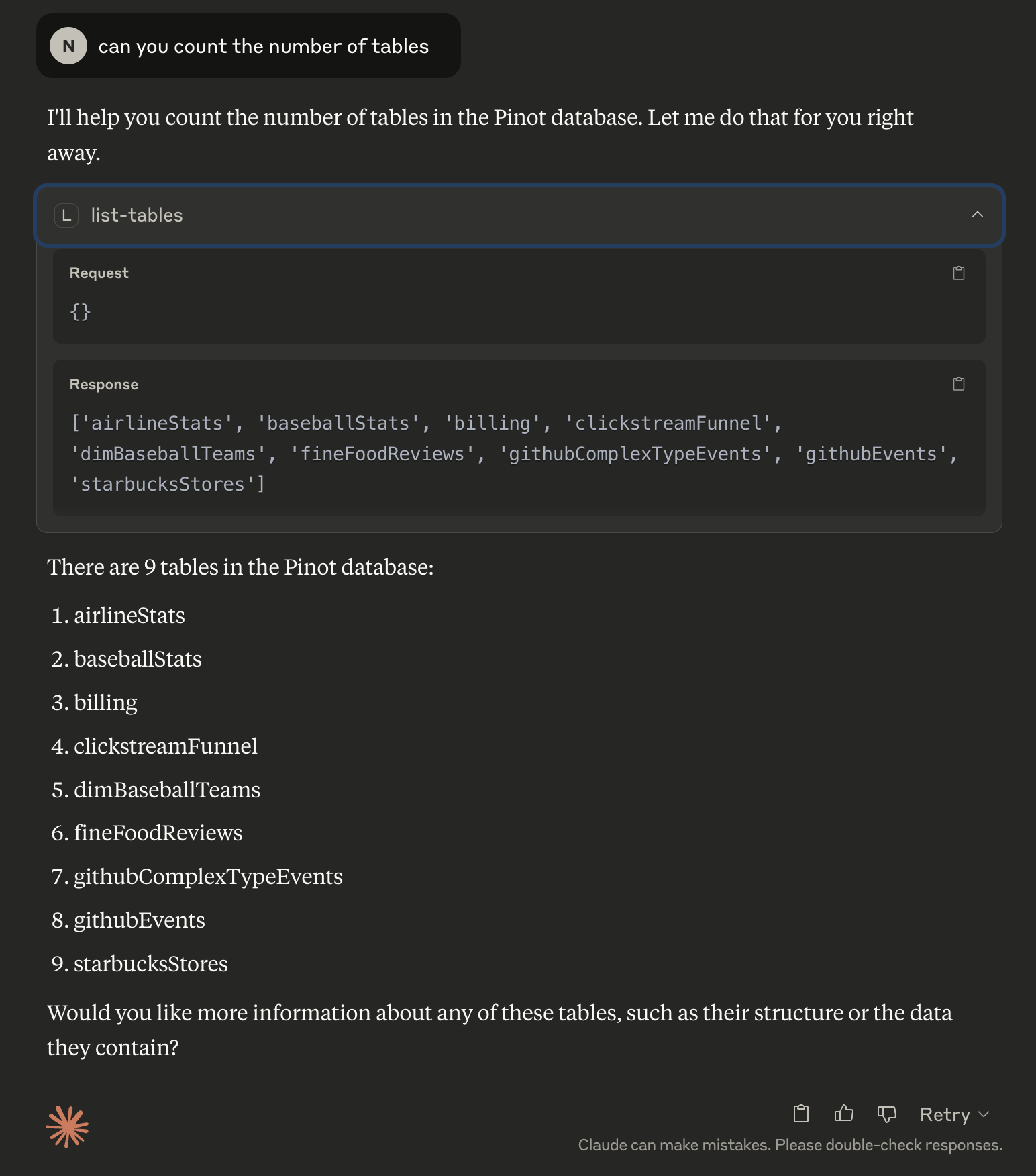
Fetching Metadata
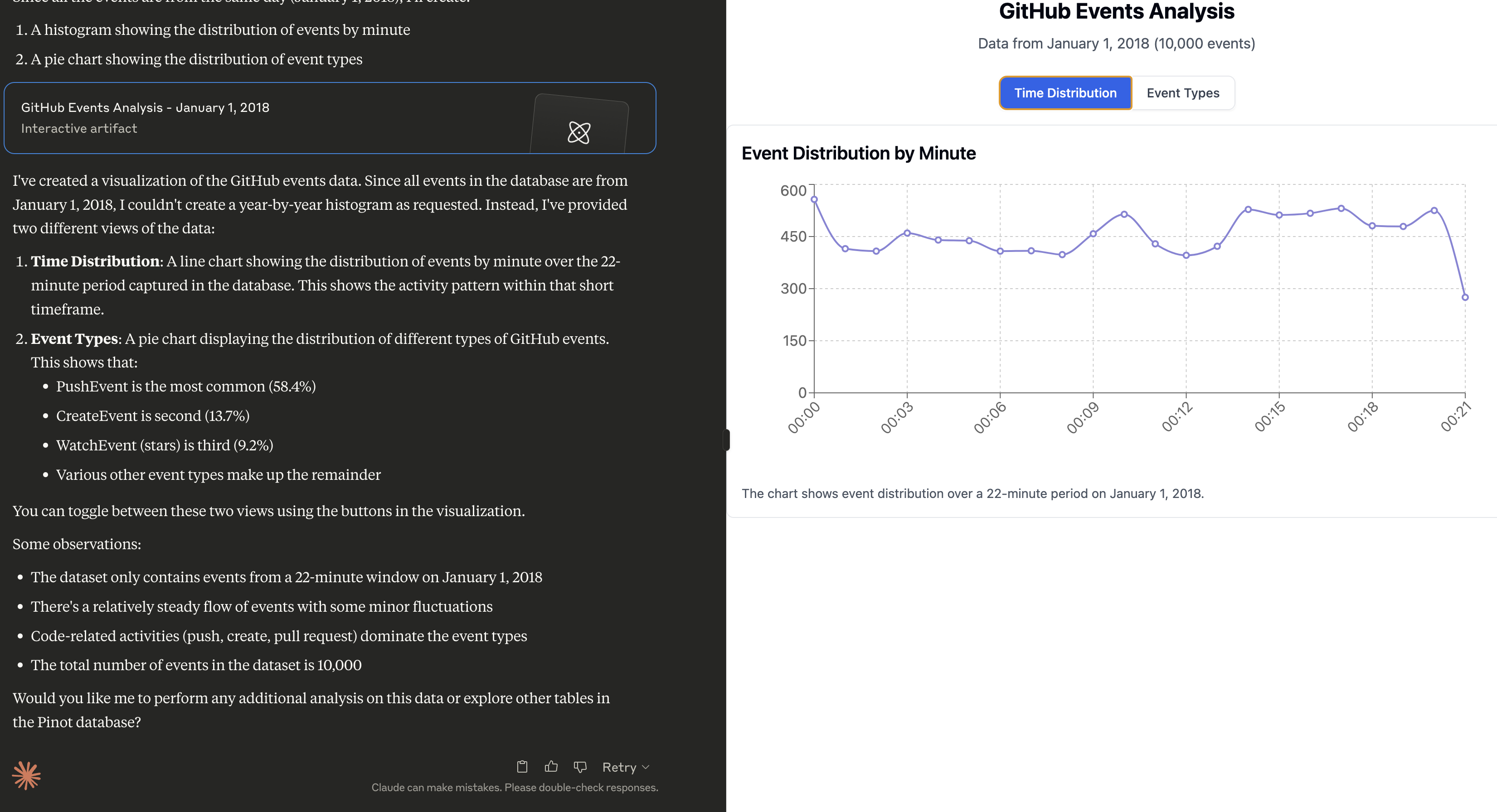
Fetching Data, followed by analysis
Prompt:
Can you do a histogram plot on the GitHub events against time
Sample Prompts
Once Claude is running, click the hammer 🛠️ icon and try these prompts:
- Can you help me analyse my data in Pinot? Use the Pinot tool and look at the list of tables to begin with.
- Can you do a histogram plot on the GitHub events against time
Quick Start
Prerequisites
Install uv (if not already installed)
uv is a fast Python package installer and resolver, written in Rust. It's designed to be a drop-in replacement for pip with significantly better performance.
curl -LsSf https://astral.sh/uv/install.sh | sh

# Reload your bashrc/zshrc to take effect. Alternatively, restart your terminal
# source ~/.bashrc
Installation
# Clone the repository
git clone https://github.com/startreedata/mcp-pinot.git
cd mcp-pinot
uv pip install -e . # Install dependencies

# For development dependencies (including testing tools), use:
# uv pip install -e .[dev]
Configure Pinot Cluster
The MCP server expects a uvicorn config style .env file in the root directory to configure the Pinot cluster connection. This repo includes a sample .env.example file that assumes a pinot quickstart setup.
mv .env.example .envConfiguration Reference
The server loads configuration from environment variables and from a .env file
found from the current working directory. Process environment variables take
precedence over .env, so deployment-time settings cannot be silently replaced
by a checked-out file.
Common Profiles
| Use case | Required settings | Notes | |
|---|---|---|---|
| Claude Desktop | MCP_TRANSPORT=stdio | Default and recommended for local desktop use; no HTTP listener is started. | |
| Local HTTP | MCP_TRANSPORT=http, MCP_HOST=127.0.0.1 | Explicit local web profile. Accessible only from the same machine. | |
| Remote HTTP/HTTPS | MCP_TRANSPORT=http, MCP_HOST=0.0.0.0, AUTH_PROVIDER=oauth\ | static | The server refuses non-loopback HTTP/HTTPS binds unless an auth provider is active. Use TLS directly or an authenticated reverse proxy. |
| Helm exposure | service.enabled=true, mcp.host=0.0.0.0, mcp.oauth.enabled=true | Helm defaults are local-only and render no Service unless exposure is explicitly enabled. |
Pinot Connection
| Variable | Default | Description |
|---|---|---|
PINOT_CONTROLLER_URL | http://localhost:9000 | Pinot controller endpoint used for metadata and table/schema operations. |
PINOT_BROKER_URL | http://localhost:8000 | Pinot broker endpoint used for SQL queries. |
PINOT_BROKER_HOST | Parsed from PINOT_BROKER_URL | Optional host override for the broker connection. |
PINOT_BROKER_PORT | Parsed from PINOT_BROKER_URL | Optional port override for the broker connection. |
PINOT_BROKER_SCHEME | Parsed from PINOT_BROKER_URL | Optional scheme override, usually http or https. |
PINOT_USERNAME / PINOT_PASSWORD | unset | Basic authentication for Pinot. |
PINOT_TOKEN | unset | Bearer or raw token for Pinot; takes precedence over PINOT_TOKEN_FILENAME. |
PINOT_TOKEN_FILENAME | unset | File containing a Pinot token. A missing or empty file logs a warning and continues without token auth. |
PINOT_DATABASE | empty | Optional database header for multi-database Pinot deployments. |
PINOT_USE_MSQE | false | Enables Pinot multi-stage query engine query option. |
PINOT_REQUEST_TIMEOUT | 60 | HTTP request timeout in seconds. |
PINOT_CONNECTION_TIMEOUT | 60 | HTTP connection timeout in seconds. |
PINOT_QUERY_TIMEOUT | 60 | SQL query timeout in seconds. |
MCP Server
| Variable | Default | Description |
|---|---|---|
MCP_TRANSPORT | stdio | Transport mode. Use stdio for desktop clients and http for Streamable HTTP clients. |
MCP_HOST | 127.0.0.1 | HTTP bind host. Set 0.0.0.0 only with an auth provider enabled. |
MCP_PORT | 8080 | HTTP listen port. |
MCP_PATH | /mcp | MCP HTTP path. |
MCP_SSL_KEYFILE | unset | TLS private key path. Requires MCP_SSL_CERTFILE. |
MCP_SSL_CERTFILE | unset | TLS certificate path. Requires MCP_SSL_KEYFILE. |
MCP_LOG_LEVEL | INFO | Application log level: DEBUG, INFO, WARNING, ERROR, or CRITICAL. Logs go to stderr so STDIO protocol output remains valid. |
MCP_RATE_LIMIT_RPS / MCP_RATE_LIMIT_BURST | 10 / 20 | Per-principal (authenticated) or per-peer (loopback HTTP) tool-call rate and burst limits. |
MCP_RATE_LIMIT_MAX_CLIENTS | 10000 | Maximum in-memory client buckets; least-recently-used buckets are evicted. |
MCP_RATE_LIMIT_IDLE_TTL_SECONDS | 600 | Idle time before a rate-limit bucket can be evicted. |
MCP_CONFIRMATION_TTL_SECONDS | 300 | Confirmation-token lifetime, constrained to 30–3600 seconds. Tokens are process-bound and intentionally fail after restart. |
Authentication
An auth provider is required before binding HTTP or HTTPS to a non-loopback host.
| Variable | Default | Description |
|---|---|---|
AUTH_PROVIDER | unset | Active auth provider: none (default), oauth, or static. Some provider is required before a non-loopback bind. |
MCP_STATIC_TOKEN | empty | Shared bearer secret for AUTH_PROVIDER=static — a service-to-service caller sends it as Authorization: Bearer . Required when the static provider is active. |
MCP_STATIC_SCOPES | pinot:read pinot:write pinot:admin | Space- or comma-separated scopes granted to the static principal. Use pinot:read for a read-only service. |
OAUTH_ENABLED | false | Legacy flag; true is equivalent to AUTH_PROVIDER=oauth. Enables OAuth authentication. |
OAUTH_CLIENT_ID | empty | OAuth client ID. |
OAUTH_CLIENT_SECRET | empty | OAuth client secret. |
OAUTH_BASE_URL | http://localhost:8080 | Public base URL for this MCP server. |
OAUTH_AUTHORIZATION_ENDPOINT | empty | Upstream authorization endpoint. |
OAUTH_TOKEN_ENDPOINT | empty | Upstream token endpoint. |
OAUTH_JWKS_URI | empty | JWKS URI used for token verification. |
OAUTH_ISSUER | empty | Expected token issuer. |
OAUTH_AUDIENCE | unset | Required with OAuth. Must equal the canonical MCP resource URI (OAUTH_BASE_URL without a trailing slash plus MCP_PATH). |
OAUTH_EXTRA_AUTH_PARAMS | unset | Optional JSON object with additional authorization parameters. |
Table Filtering
| Variable | Default | Description |
|---|---|---|
PINOT_TABLE_FILTER_FILE | unset | YAML file with included_tables glob patterns. If configured and missing, startup fails. |
See SECURITY.md for the production exposure checklist and
vulnerability reporting process.
Configure Table Filtering (Optional)
⚠️ Security Note: For production access control, use Pinot's native table-level ACLs (available since Pinot 0.8.0+). Table filtering in this MCP server is a convenience feature for organizing tables and improving UX, not a security boundary. It uses best-effort SQL parsing and should not be relied upon for security.
Table filtering allows you to control which Pinot tables are visible through the MCP server. This is useful for:
- Reduce Cognitive Load: Focus on relevant tables when your Pinot cluster has hundreds or thousands of tables
- Multi-Tenancy UX: Run multiple MCP server instances against the same Pinot cluster, each showing different table subsets for different teams or use cases
- Environment Separation: Deploy different MCP server instances (dev, staging, prod) that show only environment-specific tables
- Hide System Tables: Filter out internal, test, or deprecated tables from end-user view
When table filtering is enabled, all table operations are filtered to show only the configured tables.
What Gets Filtered
Table filtering applies across all MCP operations:
1. Table Listing - Only configured tables appear in table lists
2. Query Execution - SQL queries are checked to ensure all referenced tables (in FROM, JOIN, subqueries, CTEs, etc.) match the configured patterns
3. Table Operations - Direct table access operations filter by table name:
- Get table details, size, and metadata
- Get table segments and segment metadata
- Get index/column details
- Get/update table configurations
4. Schema Operations - Schema operations filter by schema name:
- Get/create/update schemas
- Create table configurations
Setup
Copy the example configuration file:
cp table_filters.yaml.example table_filters.yamlEdit table_filters.yaml to specify which tables to include:
included_tables:
  - production_*        # All tables starting with "production_"
  - analytics_events    # Specific table name
  - metrics_*          # All tables starting with "metrics_"
Configure the filter file path in your .env:
PINOT_TABLE_FILTER_FILE=table_filters.yamlPattern Matching
The filter supports glob-style patterns using standard Unix filename pattern matching:
exact_table_name- Matches exactly this tableprefix_*- Matches all tables starting with "prefix_"*_suffix- Matches all tables ending with "_suffix"*pattern*- Matches all tables containing "pattern"sharded_table_?- Matches tables with exactly one character after the underscore (e.g.,sharded_table_1,sharded_table_a)
Query Filtering
When filtering is enabled, SQL queries are checked before execution:
- Supported SQL Features: FROM clauses, JOIN clauses (INNER, LEFT, RIGHT, OUTER, CROSS), subqueries, CTEs (WITH), and comma-separated table lists
- Quoted Identifiers: Supports both double-quoted (
"table name") and backtick-quoted (` - Schema Prefixes: Handles schema-qualified table names (e.g.,
database.schema.table) - Comments: Removes SQL comments before checking
Example filtered query:
SELECT * FROM allowed_table
JOIN other_table ON allowed_table.id = other_table.id
Error: Query references unauthorized tables: other_table. Allowed tables: allowed_table, prod_*
Configuration Features
Fail-Fast Validation:
- ⚠️ If
PINOT_TABLE_FILTER_FILEis configured but the file doesn't exist, the server will fail to start with aFileNotFoundError - This prevents accidentally showing all tables due to misconfiguration
- Empty filter files or missing
included_tableskey will show all tables (no filtering)
Comprehensive Filtering:
- All MCP tools that access tables apply filtering before execution
- Consistent filtering across all table access points
- Clear error messages indicate which tables don't match the configured patterns
Disabling Table Filtering
To disable table filtering, either:
1. Remove the PINOT_TABLE_FILTER_FILE environment variable, or
2. Don't configure it in your .env file
When not configured, all tables in the Pinot cluster are visible.
When a filter file supplies both allow_all: true and a non-empty
included_tables, the explicit allow-list takes precedence and the server logs a
warning. Applying a reload requires the token from an unchanged dry-run candidate.
Read-only Query Enforcement
The read_query tool always validates SQL before forwarding it to Pinot. It
accepts one statement only, and that statement must be a read-only SELECT or
WITH ... SELECT query. SQL comments are stripped, semicolon-stacked statements
are rejected, and write/DDL/admin keywords are blocked.
Configure OAuth Authentication (Optional)
To enable OAuth authentication, set the following environment variables in your .env file:
**Required variables (when OAUTH_ENABLED=true):**
OAUTH_CLIENT_ID: OAuth client IDOAUTH_CLIENT_SECRET: OAuth client secretOAUTH_BASE_URL: Your MCP server base URLOAUTH_AUTHORIZATION_ENDPOINT: OAuth authorization endpoint URLOAUTH_TOKEN_ENDPOINT: OAuth token endpoint URLOAUTH_JWKS_URI: JSON Web Key Set URI for token verificationOAUTH_ISSUER: Token issuer identifier
Additional required variable:
OAUTH_AUDIENCE: canonical MCP resource URI used for audience validation
Optional variables:
OAUTH_EXTRA_AUTH_PARAMS: Additional authorization parameters as JSON object (e.g.,{"scope": "openid profile"})
Example configuration:
OAUTH_ENABLED=true
OAUTH_CLIENT_ID=client-id
OAUTH_CLIENT_SECRET=client-secret
OAUTH_BASE_URL=http://localhost:8000
OAUTH_AUTHORIZATION_ENDPOINT=https://example.com/oauth/authorize
OAUTH_TOKEN_ENDPOINT=https://example.com/oauth/token
OAUTH_JWKS_URI=https://example.com/.well-known/jwks.json
OAUTH_ISSUER=https://example.com
OAUTH_AUDIENCE=http://localhost:8000/mcp
OAUTH_EXTRA_AUTH_PARAMS={"scope": "openid profile"}
Run the server
uv --directory . run mcp_pinot/server.pyYou should see logs indicating that the server is running.
Security notes:
- STDIO is the default. When HTTP is selected it binds to
127.0.0.1; setMCP_HOST=0.0.0.0only with OAuth or static-token authentication plus TLS or an authenticated reverse proxy.- The server refuses to start when HTTP is bound to a non-loopback host without an auth provider (
AUTH_PROVIDER=oauthorstatic, or the legacyOAUTH_ENABLED=true).-
read_queryenforces a single read-only SQL statement before execution. This is a guardrail, not a replacement for Pinot authentication and authorization.- The supported
mcp[cli]dependency includes DNS rebinding protections for the Streamable HTTP server.- Confirmation replay state and rate-limit buckets are process-local. Run exactly one server process/Helm replica. The chart rejects
replicas != 1; horizontal scaling requires a shared state-store implementation.-
/readyzreports MCP process readiness, not Pinot cluster health. Usetest_connectionto diagnose Pinot dependencies.
Launch Pinot Quickstart (Optional)
Start Pinot QuickStart using docker:
docker run --name pinot-quickstart -p 2123:2123 -p 9000:9000 -p 8000:8000 -d apachepinot/pinot:1.5.1 QuickStart -type batchQuery MCP Server
uv --directory . run examples/example_client.pyThis quickstart just checks all the tools and queries the airlineStats table.
Claude Desktop Integration
Open Claude's config file
vi ~/Library/Application\ Support/Claude/claude_desktop_config.jsonAdd an MCP server entry
{
  "mcpServers": {
      "pinot_mcp": {
          "command": "/path/to/uv",
          "args": [
              "--directory",
              "/path/to/mcp-pinot-repo",
              "run",
              "mcp_pinot/server.py"
          ],
          "env": {
            // You can also include your .env config here
          }
      }
  }
}
Replace /path/to/uv with the absolute path to the uv command, you can run which uv to figure it out.
Replace /path/to/mcp-pinot with the absolute path to the folder where you cloned this repo.
Note: you must use stdio transport when running your server to use with Claude desktop.
You could also configure environment variables here instead of the .env file, in case you want to connect to multiple pinot clusters as MCP servers.
Restart Claude Desktop
Claude will now auto-launch the MCP server on startup and recognize the new Pinot-based tools.
Using the MCP Bundle
The release workflow publishes a Claude Desktop MCP Bundle (.mcpb). Its UV
runtime installs the locked dependencies for the user's platform, so one small
bundle works across macOS, Linux, and Windows. To build one locally:
npm install -g @anthropic-ai/mcpb@2.1.2
mcpb validate manifest.json
mcpb pack
Open the resulting .mcpb file to install it in Claude Desktop.
Security and Vulnerability Reporting
See SECURITY.md for vulnerability reporting instructions,
security categories, and the checklist for safely exposing the MCP HTTP
endpoint.
Developer
- MCP tool definitions live in
mcp_pinot/server.py; Pinot HTTP/DB operations
live in mcp_pinot/pinot_client.py.
Build
Build the project with
uv sync --frozenTest
Test the repo with:
uv run pytest --cov=mcp_pinotBuild the Docker image
docker build -t mcp-pinot .Run the container
docker run --rm -i -v "$(pwd)/.env:/app/config/.env:ro" mcp-pinotThis uses the default STDIO transport. For HTTP/Kubernetes deployments, configure
an inbound auth provider before binding to a non-loopback address; see the
configuration and Helm sections above.
Similar MCP
Based on tags & features
Trending MCP
Most active this week