
mcp-simple
MCP Manager
Documentation
MCP Manager
Modern web interface and CLI tool for managing MCP (Model Context Protocol) server configurations.
🌐 Web Interface Preview
Modern Design
The web interface features a beautiful modern design with JetBrains Mono font, providing a clean and professional look:
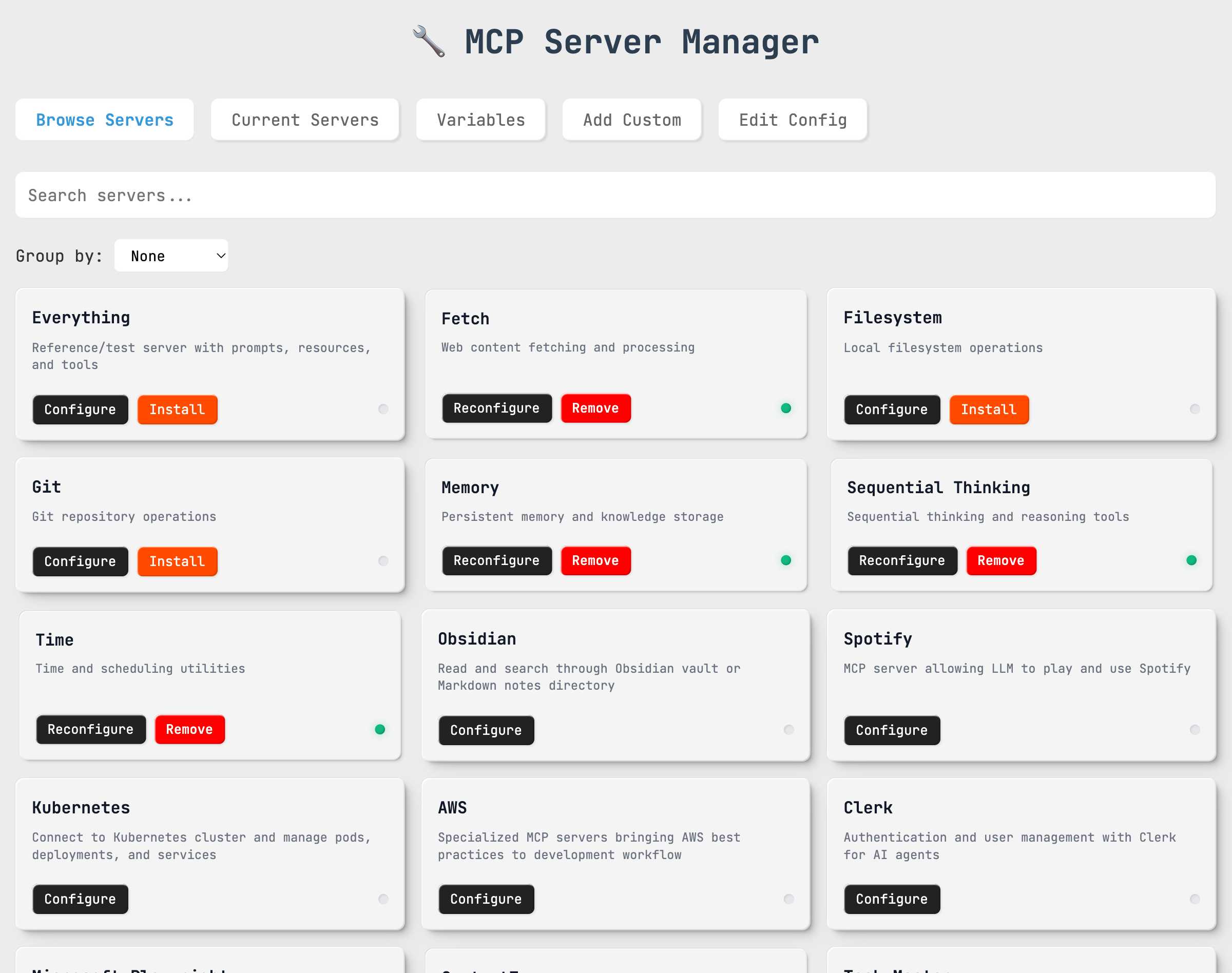
📦 Server Browser - Main View
Browse and install from 35+ pre-configured MCP servers with smart categorization and visual status indicators:
🏷️ Category Organization
Organize servers by functionality for easier navigation and discovery:
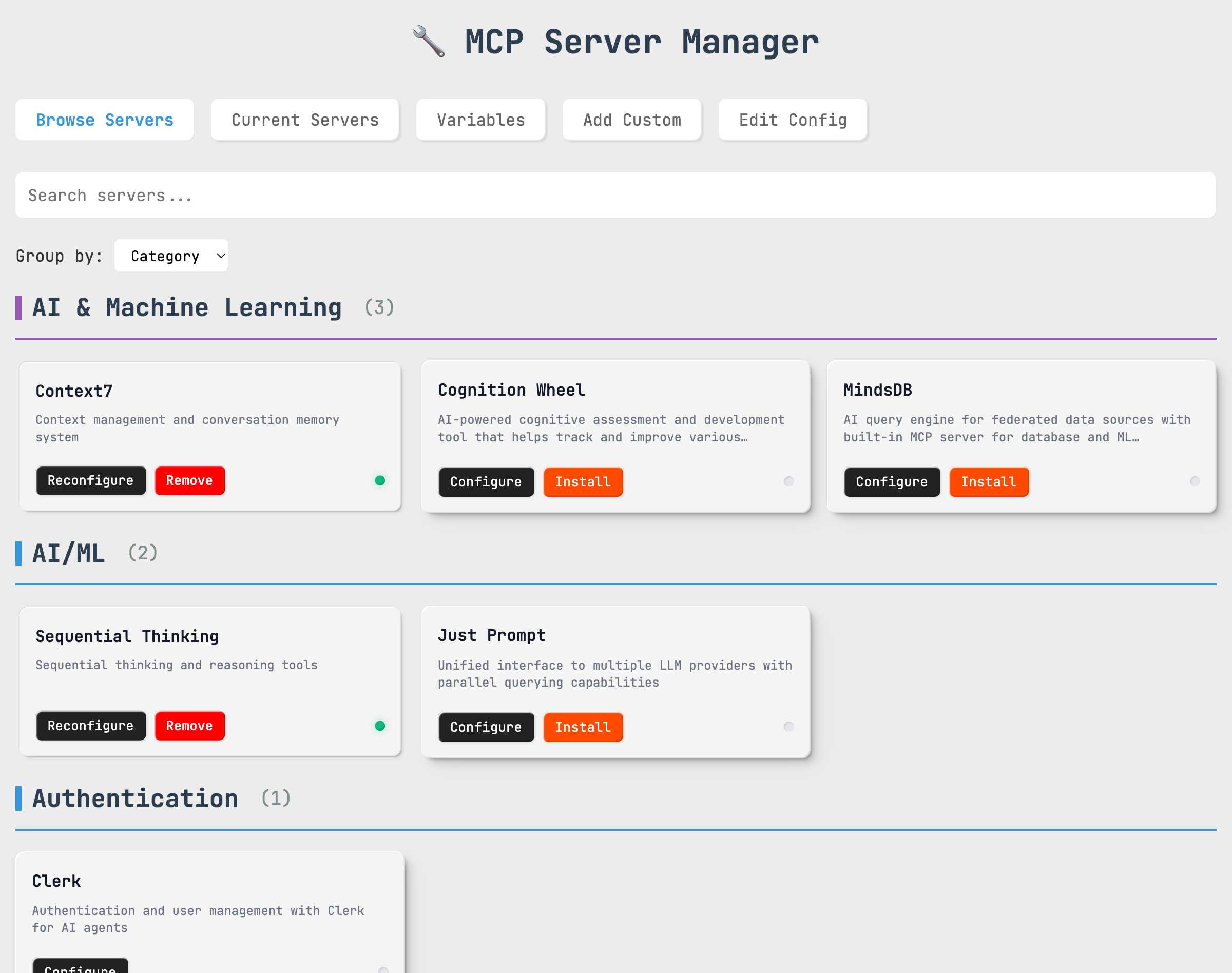
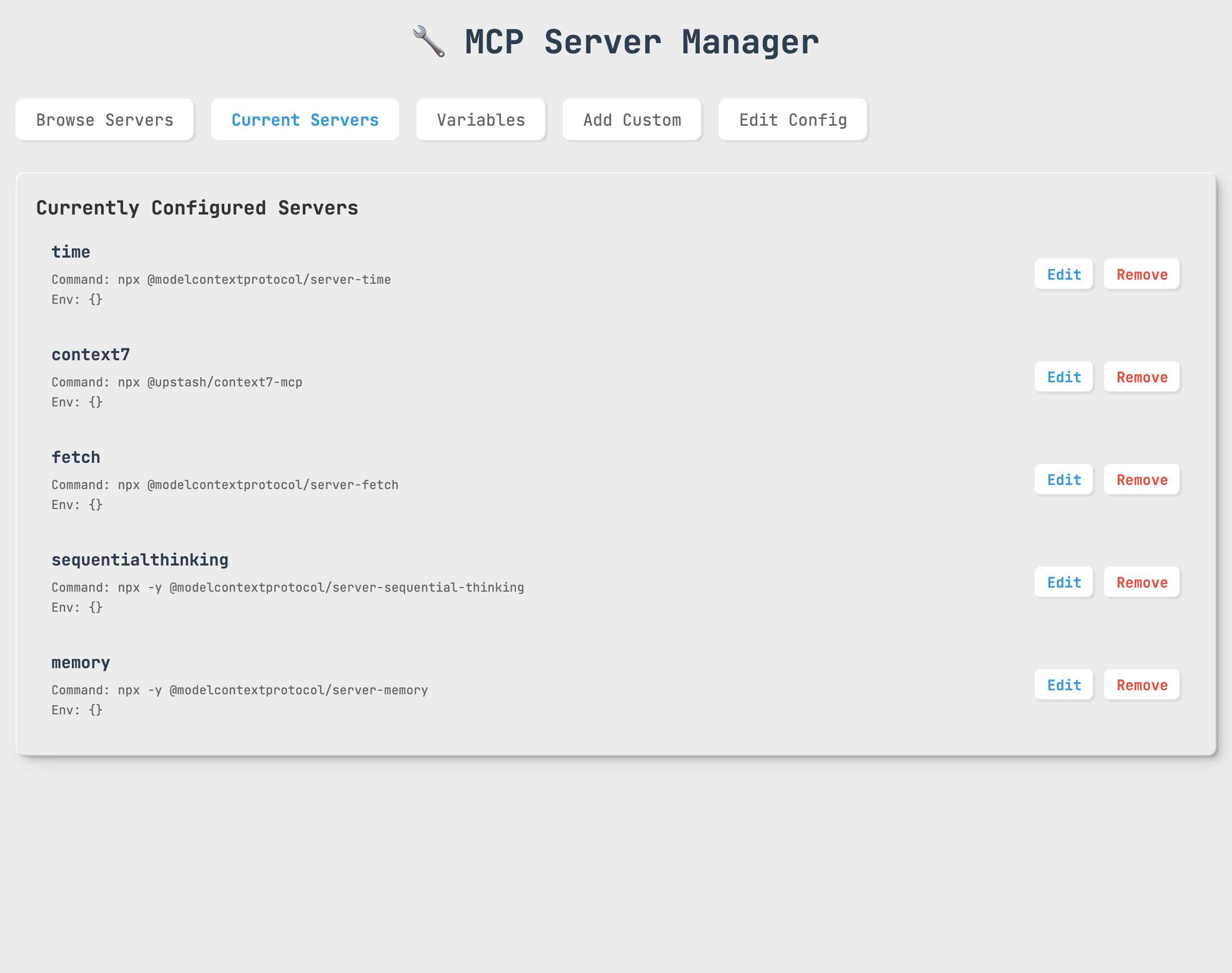
⚙️ Server Management
Manage your installed servers with detailed configuration information:
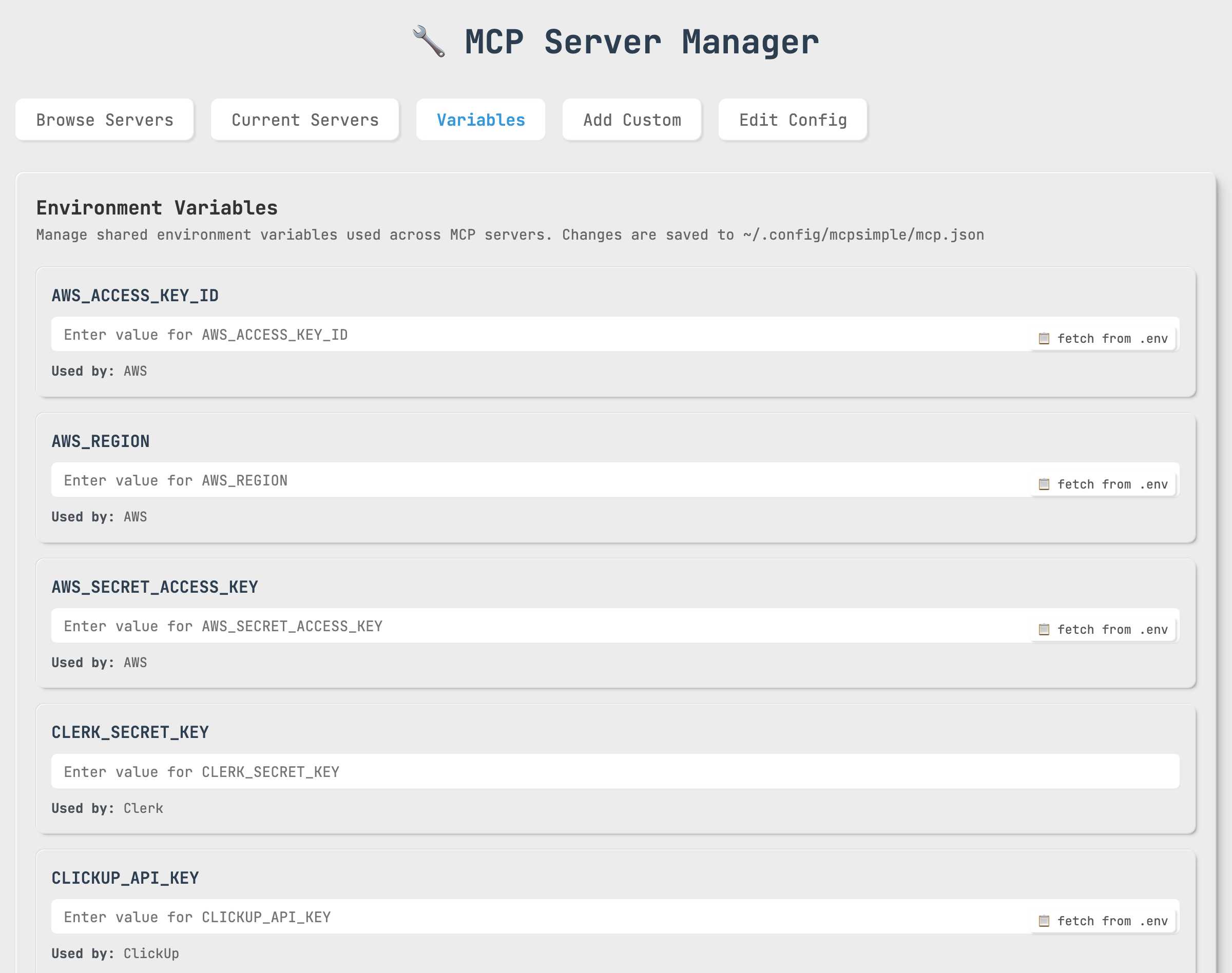
🔧 Environment Variables
Centralized environment variable management with .env file integration:
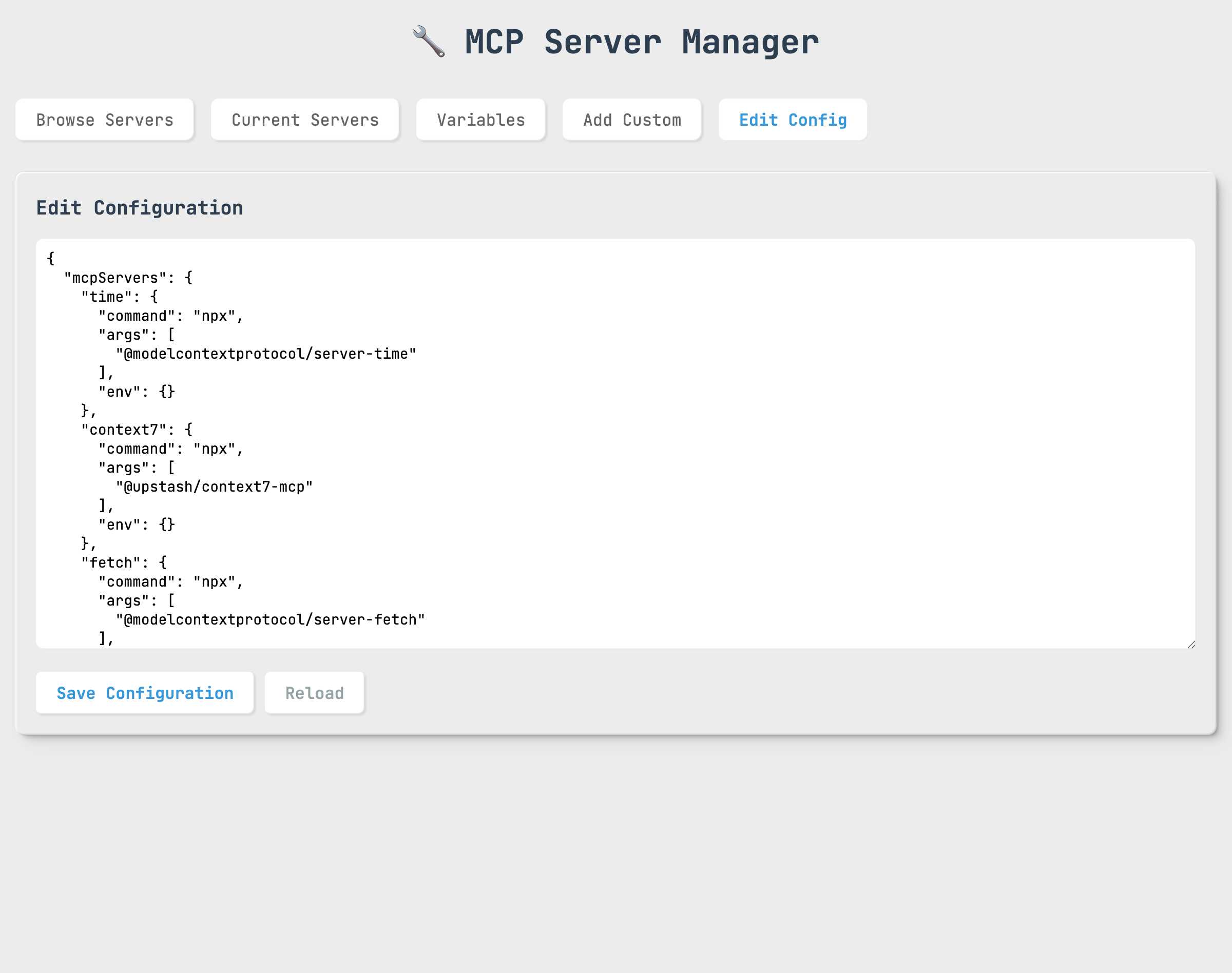
📝 Live Configuration Editor
Edit `.mcp.json` files directly in the browser with syntax highlighting:
Interactive Features
📦 Server Browser
- One-click Installation: Simply click on any server card to install instantly
- Category Organization: Servers grouped by functionality (AI/ML, Databases, Cloud Services, etc.)
- Smart Search: Real-time filtering by name, description, or category
- Status Indicators: Visual dots showing installation status (green = installed, gray = not installed)
⚡ Supafast Installation
Special "S1-S14" servers install with zero configuration:
- S1-S7: Core utilities (Everything, Fetch, Filesystem, Git, Memory, Sequential Thinking, Time)
- S8-S11: Development tools (Playwright, Context7, Task Master, Xcode Build)
- S12-S14: Specialized tools (NixOS, shadcn/ui, Just Prompt)
🔧 Configuration Management
- Visual Config Editor: Edit `.mcp.json` directly in browser with syntax highlighting
- Environment Variables: Manage variables with .env file integration and "Fetch" buttons
- Current Servers: View, edit, and remove installed servers with intuitive controls
🚀 Auto-Update System
- Mandatory Updates: Automatic version checking with enforced updates
- Progress Tracking: Visual feedback during update process
- Seamless Experience: Auto-reload after successful updates
Try the Live Demo
# Install globally
npm install -g @oglabs/mcp

# Launch web interface
@oglabs/mcp --web
The interface automatically opens at `http://localhost:3333` with full functionality.
Installation
Global Installation (Recommended)
npm install -g @oglabs/mcpLocal Installation
npm install @oglabs/mcpUsage
🚀 MCP Server Mode (NEW!)
Tech Stack Detection & MCP Server Recommendations
Transform your package into an intelligent MCP server that automatically detects project technology stacks and recommends the best MCP servers for your project:
@oglabs/mcp --server🔧 MCP Server Tools Available
The MCP server provides 4 powerful tools for AI agents:
1. `recommend-mcp-servers` - Suggests optimal MCP servers based on provided tech stack
2. `search-mcp-servers` - Search through 52+ available MCP servers
3. `get-mcp-server-info` - Get detailed information about specific servers
4. `install-mcp-server` - Install MCP servers directly to .mcp.json with confirmation workflow
📝 Smart Prompts Available
The MCP server also provides intelligent prompts for guided tech stack analysis:
1. `analyze-tech-stack` - Comprehensive project analysis with customizable depth
2. `discover-mcp-servers` - Technology-specific MCP server discovery
3. `setup-project-mcp` - Project setup assistant with team considerations
4. `quick-tech-assessment` - Rapid tech stack assessment from minimal info
5. `confirm-installation` - Interactive confirmation workflow for MCP server installation
🧪 Testing with MCP Inspector
# Start server with MCP Inspector for interactive testing
npm run debug-mcp

# Opens browser at http://localhost:6274
# Provides visual interface to test all MCP tools
📦 Adding to Claude Desktop
Add this configuration to your Claude Desktop `mcp.json`:
{
  "mcpServers": {
    "tech-stack-recommender": {
      "command": "npx",
      "args": ["-y", "@oglabs/mcp", "--server"],
      "env": {}
    }
  }
}
🎯 MCP Server Use Cases
- Prompt-Guided Tech Stack Analysis: Use intelligent prompts for comprehensive project analysis
- Smart MCP Recommendations: Get personalized server suggestions based on LLM-extracted keywords
- Server Discovery: Search and explore available MCP servers by technology
- Interactive Installation: Confirm and install servers one-by-one with environment validation
- Project Setup: Quickly identify what MCP servers would be most useful for any project
🌐 Web Interface Mode (Recommended)
Launch the modern web interface for the best experience:
@oglabs/mcp --webOr if installed locally:
npx @oglabs/mcp --webThe web interface automatically opens in your default browser at `http://localhost:3333` and provides:
🖥️ Interactive CLI Mode
For traditional command-line usage:
@oglabs/mcpOr if installed locally:
npx @oglabs/mcp🚀 Key Features:
- ⚡ Supafast Installation: 14 servers (S1-S14) can be installed instantly without configuration
- 🖱️ One-Click Install: Click directly on server cards to install servers with no required configuration
- 📦 Server Browser: Search and browse 26+ pre-configured MCP servers by category
- ⚙️ Current Servers: View, edit, and manage your configured servers
- ➕ Custom Servers: Add custom MCP server configurations with guided forms
- 📝 Direct Config Editing: Edit `.mcp.json` files directly in the browser
- 🔍 Advanced Search: Filter servers by name, category, or description
- 📱 Responsive Design: Works on desktop, tablet, and mobile devices
- 🎨 Modern UI: Clean design with JetBrains Mono font throughout
🎯 Supafast Servers (No Setup Required):
- S1-S7: Core tools (Everything, Fetch, Filesystem, Git, Memory, Sequential Thinking, Time)
- S8-S11: Development tools (Playwright, Context7, Task Master, Xcode Build)
- S12-S14: Specialized tools (NixOS, shadcn/ui, Just Prompt)
🌐 API Endpoints:
- `GET /api/config` - Retrieve current MCP configuration
- `POST /api/config` - Save MCP configuration
- `GET /api/servers` - Get pre-configured servers database
- `GET /api/variables` - Get saved environment variables
- `POST /api/variables` - Save environment variables
- `GET /api/env-variables` - Get .env file variables
- `GET /api/version-check` - Check for available updates
- `POST /api/auto-update` - Perform automatic update
🎮 Interactive Web Experience:
1. Server Installation Flow:
Browse Servers → Click Card → Instant Install → Status Updates → Ready to Use2. Configuration Workflow:
Current Servers Tab → Edit Server → Update Config → Auto-Save → Live Reload3. Environment Setup:
Variables Tab → Add Variables → Fetch from .env → Auto-Fill → Save4. Auto-Update Process:
Version Check → Update Available → Mandatory Modal → Progress Bar → Auto-ReloadFeatures
🚀 MCP Server Mode (NEW!)
- 🧠 Prompt-Guided Analysis: Use intelligent prompts for comprehensive tech stack analysis
- 🎯 Smart Recommendations: AI-powered MCP server suggestions based on LLM-extracted keywords
- 🔍 Server Discovery: Search through 52+ available MCP servers by technology
- 📋 Interactive Installation: Confirm and install servers one-by-one with validation
- 🔧 4 MCP Tools: recommend-mcp-servers, search-mcp-servers, get-mcp-server-info, install-mcp-server
- 📝 5 Smart Prompts: Guided analysis, discovery, setup, assessment, and installation confirmation
- 🧪 MCP Inspector Support: Interactive testing with visual interface
- 📦 Claude Desktop Ready: Easy integration with Claude Desktop MCP configuration
- 🚀 LLM-Driven Workflow: Prompts first, then tools for optimal recommendations
🌐 Web Mode (Recommended)
- 🎨 Modern Design: Beautiful depth-based UI with soft shadows and JetBrains Mono font
- 📱 Fully Responsive: Optimized for desktop, tablet, and mobile devices
- 🖱️ Interactive Server Cards: Click any card to install, hover for animations
- ⚡ Instant Installation: Supafast servers (S1-S14) install with zero configuration
- 🎯 Smart Status Indicators: Color-coded dots showing installation status
- 🔍 Real-time Search: Filter 26+ servers by name, category, or description
- 📊 Visual Dashboard: Manage installed servers with intuitive controls
- 📝 Live Config Editor: Edit `.mcp.json` directly with syntax highlighting
- 🔗 Environment Integration: .env file support with convenient fetch buttons
- 🚀 Auto-Update System: Mandatory updates with progress tracking
- 🎨 Smooth Animations: Card interactions with CSS transitions and transforms
🖥️ CLI Mode
- 📋 Interactive menu-driven interface
- ⚡ Supafast installation (S1-S14 servers with zero configuration)
- 🔧 35+ pre-configured MCP servers
- ➕ Add custom MCP servers
- ✏️ Edit existing servers
- ❌ Remove servers
- 📄 View current configuration
- 🔍 Search MCP servers
- 🎯 Automatic `.mcp.json` file management
Pre-configured Servers
MCP Manager comes with 35+ verified pre-configured MCP servers including:
- 🗄️ Databases: Supabase, PostgreSQL, Redis, SQLite
- 🛠️ Development Tools: Git, Playwright, Xcode Build, PR Reviewer, NixOS
- ☁️ Cloud Services: AWS, Google Drive Enhanced, SharePoint
- 📁 File Systems: Filesystem, Memory, Fetch
- 🤖 AI/ML: Everything, Sequential Thinking, Context7, Just Prompt, GPT Researcher
- 🎯 Productivity: Task Master, ClickUp, shadcn/ui
- 🎵 Entertainment: Spotify
- 🔐 Authentication: Clerk
- 🚀 Automation: Skyvern
- 📚 Knowledge: Obsidian
Configuration
MCP Manager manages `.mcp.json` files in your current working directory. The configuration format is:
{
  "mcpServers": {
    "serverName": {
      "command": "npx",
      "args": ["-y", "@package/name"],
      "env": {"KEY": "value"}
    }
  }
}
Examples
🌐 Web Interface Examples
Installing a Supafast Server (Zero Config)
1. Launch web interface: `@oglabs/mcp --web`
2. Browse Servers tab → Find any server marked S1-S14
3. Single click the server card → Instant installation ⚡
4. Green status dot appears → Server ready to use
Installing a Regular Server (With Config)
1. Browse Servers tab → Find desired server (e.g., "Supabase")
2. Click Configure button → Configuration modal opens
3. Fill in required environment variables (DATABASE_URL, API_KEY, etc.)
4. Click Install → Server installs with your configuration
5. Current Servers tab → Manage your new server
Managing Environment Variables
1. Variables tab → View all saved variables
2. Fetch from .env button → Auto-populate from local .env file
3. Add/Edit variables → Set API keys, URLs, tokens
4. Save → Variables available across all server configurations
Live Configuration Editing
1. Current Servers tab → See all installed servers
2. Edit button → Modify server configuration in-browser
3. Raw Config tab → Direct `.mcp.json` editing with syntax highlighting
4. Save → Changes applied immediately
Auto-Update Experience
1. Automatic check on app load → Version comparison with npm
2. Mandatory update modal → Cannot be closed if update required
3. "Update Now" button → Progress bar shows update status
4. Auto-reload → Latest version loads automatically
🚀 MCP Server Mode Examples
Using with Claude Desktop
1. Add to Claude Desktop configuration (`~/.config/claude-desktop/mcp.json`):
{
  "mcpServers": {
    "tech-stack-recommender": {
      "command": "npx",
      "args": ["-y", "@oglabs/mcp", "--server"],
      "env": {}
    }
  }
}
2. Restart Claude Desktop to load the new server
3. Example interactions in Claude:
User: "Analyze my current project and recommend MCP servers"
Claude: [uses analyze-tech-stack prompt to guide user analysis] → [user provides tech stack] → [uses recommend-mcp-servers tool with LLM-extracted keywords]
Result: Personalized recommendations based on prompt-guided analysis

User: "I have a React, TypeScript, PostgreSQL project. What MCP servers should I use?"
Claude: [uses recommend-mcp-servers with keywords: languages=["TypeScript"], frameworks=["React"], databases=["PostgreSQL"]]
Result: Curated recommendations for React/TypeScript/PostgreSQL development

User: "Find MCP servers for working with databases"
Claude: [uses search-mcp-servers with query "database"]
Result: List of database-related MCP servers (PostgreSQL, MongoDB, SQLite, etc.)

User: "What does the postgres MCP server do?"
Claude: [uses get-mcp-server-info with serverKey "postgres"]
Result: Detailed information about PostgreSQL MCP server

User: "Install the recommended servers for me"
Claude: [uses confirm-installation prompt with recommended servers] → [guides through confirmation]
User: "Yes, install the filesystem and git servers"
Claude: [uses install-mcp-server tool with confirmed: true for each server]
Result: Servers installed to .mcp.json with success confirmation

**Recommended Workflow (Prompt-First Approach):**
1. Start with analyze-tech-stack prompt for guided analysis
2. LLM extracts keywords from user's project description
3. Use recommend-mcp-servers tool with extracted keywords
4. Use confirm-installation prompt for user approval
5. Install servers one-by-one with install-mcp-server tool

User: "Help me analyze my React project thoroughly"
Claude: [uses analyze-tech-stack prompt with comprehensive depth]
Result: Structured tech stack analysis with MCP recommendations

User: "I need MCP servers for Python development"
Claude: [uses discover-mcp-servers prompt with technology "Python"]
Result: Curated list of Python-specific MCP servers with setup instructions
Testing with MCP Inspector
1. Start the inspector:
npm run debug-mcp2. Open browser at `http://localhost:6274`
3. Test tools and prompts interactively:
Tools:
Prompts:
Direct MCP Server Usage
# Start server (connects via stdio)
@oglabs/mcp --server

# Alternative: Use npm script
npm run mcp-server
Example MCP Server Recommendation Output
{
  "providedTechStack": {
    "languages": ["JavaScript", "TypeScript"],
    "frameworks": ["React", "Express.js"],
    "databases": ["PostgreSQL"],
    "tools": ["Git", "Docker"],
    "deployment": ["Docker"]
  },
  "recommendations": [
    {
      "name": "PostgreSQL MCP Server",
      "key": "postgres",
      "description": "Connect to PostgreSQL databases",
      "reason": "Recommended for PostgreSQL",
      "confidence": 0.9,
      "package": "@modelcontextprotocol/server-postgres",
      "installCommand": "npx -y @modelcontextprotocol/server-postgres"
    },
    {
      "name": "GitHub MCP Server",
      "key": "github",
      "description": "Interact with GitHub repositories",
      "reason": "Recommended for Git",
      "confidence": 0.8,
      "package": "@modelcontextprotocol/server-github",
      "installCommand": "npx -y @modelcontextprotocol/server-github"
    }
  ]
}
Example Prompt Usage
1. Comprehensive Tech Stack Analysis:
Prompt: analyze-tech-stack
Parameters: {
  "projectPath": ".",
  "analysisDepth": "comprehensive",
  "includeRecommendations": true
}
Result: Detailed structured analysis with MCP server recommendations
2. Technology-Specific Discovery:
Prompt: discover-mcp-servers
Parameters: {
  "technology": "React",
  "projectType": "web",
  "includeSetup": true
}
Result: Curated React-specific MCP servers with setup instructions
3. Project Setup Guidance:
Prompt: setup-project-mcp
Parameters: {
  "projectDescription": "E-commerce platform with React frontend and Node.js backend",
  "teamSize": "small",
  "experience": "intermediate",
  "priorities": ["productivity", "testing", "deployment"]
}
Result: Phased MCP server implementation plan with team considerations
4. Quick Assessment:
Prompt: quick-tech-assessment
Parameters: {
  "indicators": "package.json, Dockerfile, .github/workflows, cypress.json",
  "purpose": "mcp-recommendations"
}
Result: Rapid tech stack inference with immediate MCP opportunities
🖥️ CLI Mode Examples
Adding a Pre-configured Server
1. Run `@oglabs/mcp`
2. Select "Add a pre-configured MCP server"
3. Choose from the list (e.g., "PostgreSQL")
4. Follow the prompts for any required configuration
Adding a Custom Server
1. Run `@oglabs/mcp`
2. Select "Add a custom MCP server"
3. Enter the server name, command, and arguments
4. Optionally add environment variables
Removing a Server
1. Run `@oglabs/mcp`
2. Select "Remove an MCP server"
3. Choose the server to remove
🖥️ CLI Interface
For users who prefer command-line interfaces, MCP Manager provides a comprehensive CLI experience:
The CLI offers:
- Interactive Menu: Navigate through options with keyboard
- Server Management: Add, remove, and configure servers
- Search Functionality: Find servers by name or category
- Configuration Editing: Modify settings through prompts
- Cross-Platform: Works on Windows, macOS, and Linux
Available Scripts
📦 Package Scripts
# MCP Server Mode
npm run mcp-server          # Start MCP server directly
npm run debug-mcp           # Start MCP server with inspector

# Star Data Management
npm run fetch-stars         # Fetch GitHub stars for all servers
npm run update-stale-stars  # Update servers with stale star data
npm run update-stars-7d     # Update stars older than 7 days
npm run update-stars-14d    # Update stars older than 14 days
🚀 Quick Start Commands
# Install globally and use
npm install -g @oglabs/mcp

# Different modes
@oglabs/mcp                 # CLI mode
@oglabs/mcp --web           # Web interface
@oglabs/mcp --server        # MCP server mode

# Local development
npx @oglabs/mcp --server    # Local MCP server
npx @oglabs/mcp --web       # Local web interface
Development
# Clone the repository
git clone https://github.com/kmhari/mcp-simple.git
cd mcp-simple

# Install dependencies
npm install

# Available development commands
node mcp-manager.js         # CLI mode
node mcp-manager.js --web   # Web mode
node mcp-manager.js --server # MCP server mode
npm run debug-mcp           # MCP server with inspector
🧪 Testing MCP Server Development
# Start MCP Inspector for development
npm run debug-mcp

# In another terminal, test specific tools
echo '{"tool": "detect-tech-stack", "projectPath": "."}' | node mcp-server.js
License
MIT
Contributing
Contributions are welcome! Please feel free to submit a Pull Request.
Author
Hari (@kmhari)
Frequently asked questions
What is mcp-simple?
mcp-simple is MCP Manager
How do I install mcp-simple?
Open the GitHub repository and follow its README. Most MCP servers are added to your client's MCP config, then called by your agent.
Is mcp-simple open source?
Yes — it is hosted on GitHub at https://github.com/kmhari/mcp-simple and has 4 stars.
Related MCP tools
 firecrawl-mcp-server
🔥 Official Firecrawl MCP Server - Adds powerful web scraping and search to Cursor, Claude and any other LLM clients.
 deep-research
Use any LLMs (Large Language Models) for Deep Research. Support SSE API and MCP server.
 mcp-feedback-enhanced
Enhanced MCP server for interactive user feedback and command execution in AI-assisted development, featuring dual interface support (Web UI and Desktop Application) with intelligent environment detection and cross-platform compatibility.
 papersgpt-for-zotero
A powerful Zotero AI and MCP plugin with ChatGPT, Gemini 3.7, Claude Fable 5, Claude Opus 5, DeepSeek V4, Grok, OpenRouter, Kimi k3, GLM 5.3, SiliconFlow, GPT-oss, Gemma 4, Qwen 3.8
 opendia
Connect your browser to AI models. Just use Dia on Chrome, Arc or Firefox.
 wenyan-mcp
文颜 MCP Server 可以让 AI 自动将 Markdown 文章排版后发布至微信公众号。
Run your own MCP server? See who uses it and what to fix.
Measure it with TrackMCP