🪐 ✨ Model Context Protocol (MCP) Server for Jupyter. Python-based implementation. Trusted by 700+ developers. Trusted by 700+ developers.
Documentation


New in v1.1.0: We are not supporting external
Sandboxes(Datalayer, Kaggle, Monty, Google Colab, Modal...).Setup details on this page
Join the conversation in our Community page - your feedback will help us prioritize features and ensure these integrations work seamlessly for your needs.
📖 Table of Contents
🚀 Key Features
- ⚡ Real-time control: Instantly view notebook changes as they happen.
- 🔁 Smart execution: Automatically adjusts when a cell run fails thanks to cell output feedback.
- 🧠 Context-aware: Understands the entire notebook context for more relevant interactions.
- 📊 Multimodal support: Support different output types, including images, plots, and text.
- 📚 Multi-notebook support: Seamlessly switch between multiple notebooks.
- 🎨 JupyterLab integration: Enhanced UI integration like automatic notebook opening.
- 🤝 MCP-compatible: Works with any MCP client, such as Claude Desktop, Cursor, Windsurf, and more.
- 🔍 Observability: Built-in hook system with OpenTelemetry integration for tracing tool calls and kernel executions.
Compatible with any Jupyter deployment (local, JupyterHub, ...) and with Datalayer hosted Notebooks.
🔧 MCP Overview
🔧 Tools Overview
The server provides a rich set of tools for interacting with Jupyter notebooks, categorized as follows.
For more details on each tool, their parameters, and return values, please refer to the official Tools documentation.
Server and Runtime Management Tools
| Name | Description |
|---|---|
list_files | List files and directories in the Jupyter server's file system. |
list_kernels | List all available and running kernel sessions on the Jupyter server. |
launch_sandbox | Launch a sandbox runtime (eval/docker/jupyter/datalayer/kaggle/colab/monty/modal) as an alternative execution backend for execute_code. Supports variant-specific options including GPU flavor for supported backends. Requires the jupyter_mcp_sandboxes extension. |
list_sandboxes | List launched sandbox runtimes and their state (active flag, variant, status, and selected runtime options). Requires the jupyter_mcp_sandboxes extension. |
use_sandbox | Select or clear the active sandbox used by execute_code, enabling dynamic routing between kernel-backed and sandbox-backed execution. Requires the jupyter_mcp_sandboxes extension. |
terminate_sandbox | Stop and unregister a launched sandbox runtime. Requires the jupyter_mcp_sandboxes extension. |
connect_to_jupyter | Connect to a Jupyter server dynamically without restarting the MCP server. *Not available when running as Jupyter extension. Useful for switching servers dynamically or avoiding hardcoded configuration.* Read more |
Multi-Notebook Management Tools
| Name | Description |
|---|---|
use_notebook | Connect to a notebook file, create a new one, or switch between notebooks. |
list_notebooks | List all notebooks available on the Jupyter server and their status |
restart_notebook | Restart the kernel for a specific managed notebook. |
unuse_notebook | Disconnect from a specific notebook and release its resources. |
read_notebook | Read notebook cells source content with brief or detailed format options. |
Cell Operations and Execution Tools
| Name | Description |
|---|---|
read_cell | Read the full content (Metadata, Source and Outputs) of a single cell. |
insert_cell | Insert a new code or markdown cell at a specified position. |
delete_cell | Delete a cell at a specified index. |
move_cell | Move a cell from one position to another within a notebook. |
clear_cell_output | Clear the outputs and execution count of a single code cell. |
overwrite_cell_source | Overwrite the source code of an existing cell. |
edit_cell_source | Apply surgical find-and-replace edits to a cell's source without full rewrite. |
execute_cell | Execute a cell with timeout, supports multimodal output including images. |
insert_execute_code_cell | Insert a new code cell and execute it in one step. |
execute_code | Execute code directly in the active backend (kernel by default, or active sandbox if selected), supports magic commands and shell commands. When the selected sandbox supports streaming execution, progress/output events are consumed and returned in order. |
JupyterLab Integration
*Available only when JupyterLab mode is enabled. It is enabled by default.*
When running in JupyterLab mode, Jupyter MCP Server integrates with jupyter-mcp-tools to expose additional JupyterLab commands as MCP tools. By default, the following tools are enabled:
| Name | Description |
|---|---|
notebook_run-all-cells | Execute all cells in the current notebook sequentially |
notebook_get-selected-cell | Get information about the currently selected cell |
📚 Learn how to customize additional tools
You can now customize which tools from jupyter-mcp-tools are available using the allowed_jupyter_mcp_tools configuration parameter. This allows you to enable additional notebook operations, console commands, file management tools, and more.
# Example: Enable additional tools via command-line
jupyter lab --port 4040 --IdentityProvider.token MY_TOKEN --JupyterMCPServerExtensionApp.allowed_jupyter_mcp_tools="notebook_run-all-cells,notebook_get-selected-cell,notebook_append-execute,console_create"
For the complete list of available tools and detailed configuration instructions, please refer to the Additional Tools documentation.
📝 Prompt Overview
The server also supports prompt feature of MCP, providing a easy way for user to interact with Jupyter notebooks.
| Name | Description |
|---|---|
jupyter-cite | Cite specific cells from specified notebook (like @ in Coding IDE or CLI) |
For more details on each prompt, their input parameters, and return content, please refer to the official Prompt documentation.
🏁 Getting Started
For comprehensive setup instructions—including Streamable HTTP transport, running as a Jupyter Server extension and advanced configuration—check out our documentation. Or, get started quickly with JupyterLab and STDIO transport here below.
1. Set Up Your Environment
pip install jupyterlab==4.4.1 jupyter-collaboration==4.0.2 jupyter-mcp-tools>=0.1.4 ipykernel pycrdt[!TIP]
To confirm your environment is correctly configured:
1. Open a notebook in JupyterLab
1. Type some content in any cell (code or markdown)
1. Observe the tab indicator: you should see an "×" appear next to the notebook name, indicating unsaved changes
1. Wait a few seconds—the "×" should automatically change to a "●" without manually saving
This automatic saving behavior confirms that the real-time collaboration features are working properly, which is essential for MCP server integration.
2. Start JupyterLab
# Start JupyterLab on port 8888, allowing access from any IP and setting a token
jupyter lab --port 8888 --IdentityProvider.token MY_TOKEN --ip 0.0.0.0
[!NOTE]
If you are running notebooks through JupyterHub instead of JupyterLab as above, refer to our JupyterHub setup guide.
3. Configure Your Preferred MCP Client
Next, configure your MCP client to connect to the server. We offer two primary methods—choose the one that best fits your needs:
- **📦 Using
uvx(Recommended for Quick Start):** A lightweight and fast method usinguv. Ideal for local development and first-time users. - **🐳 Using
Docker(Recommended for Production):** A containerized approach that ensures a consistent and isolated environment, perfect for production or complex setups.
📦 Using uvx (Quick Start)
First, install uv:
pip install uv
uv --version
# should be 0.6.14 or higher
See more details on uv installation.
Then, configure your client:
{
  "mcpServers": {
    "jupyter": {
      "command": "uvx",
      "args": ["jupyter-mcp-server@latest"],
      "env": {
        "JUPYTER_URL": "http://localhost:8888",
        "JUPYTER_TOKEN": "MY_TOKEN",
        "ALLOW_IMG_OUTPUT": "true"
      }
    }
  }
}
🐳 Using Docker (Production)
On macOS and Windows:
{
  "mcpServers": {
    "jupyter": {
      "command": "docker",
      "args": [
        "run", "-i", "--rm",
        "-e", "JUPYTER_URL",
        "-e", "JUPYTER_TOKEN",
        "-e", "ALLOW_IMG_OUTPUT",
        "datalayer/jupyter-mcp-server:latest"
      ],
      "env": {
        "JUPYTER_URL": "http://host.docker.internal:8888",
        "JUPYTER_TOKEN": "MY_TOKEN",
        "ALLOW_IMG_OUTPUT": "true"
      }
    }
  }
}
On Linux:
{
  "mcpServers": {
    "jupyter": {
      "command": "docker",
      "args": [
        "run", "-i", "--rm",
        "-e", "JUPYTER_URL",
        "-e", "JUPYTER_TOKEN",
        "-e", "ALLOW_IMG_OUTPUT",
        "--network=host",
        "datalayer/jupyter-mcp-server:latest"
      ],
      "env": {
        "JUPYTER_URL": "http://localhost:8888",
        "JUPYTER_TOKEN": "MY_TOKEN",
        "ALLOW_IMG_OUTPUT": "true"
      }
    }
  }
}
[!TIP]
1. Port Configuration: Ensure the
portin your Jupyter URLs matches the one used in thejupyter labcommand. For simplified config, set this inJUPYTER_URL.1. Server Separation: Use
JUPYTER_URLwhen both services are on the same server, or set individual variables for advanced deployments. The different URL variables exist because some deployments separate notebook storage (DOCUMENT_URL) from kernel execution (RUNTIME_URL).1. Authentication: In most cases, document and runtime services use the same authentication token. Use
JUPYTER_TOKENfor simplified config or setDOCUMENT_TOKENandRUNTIME_TOKENindividually for different credentials.1. Notebook Path: The
DOCUMENT_IDparameter specifies the path to the notebook the MCP client default to connect. It should be relative to the directory where JupyterLab was started. If you omitDOCUMENT_ID, the MCP client can automatically list all available notebooks on the Jupyter server, allowing you to select one interactively via your prompts.1. Image Output: Set
ALLOW_IMG_OUTPUTtofalseif your LLM does not support mutimodel understanding.
For detailed instructions on configuring various MCP clients—including Claude Desktop, VS Code, Cursor, Cline, and Windsurf — see the Clients documentation.
🧩 Sandbox Variants
By default, code executes through the code-sandboxes jupyter variant against
a Jupyter Server (SANDBOX_VARIANT=jupyter). Setting SANDBOX_VARIANT to any
other value uses another code-sandboxes
engine via the sandbox's plain kernel client when the selected variant exposes
one, so the same notebook tools can run code on additional backends.
Sandbox features are provided by the optional jupyter_mcp_sandboxes extension.
To expose sandbox lifecycle tools (launch_sandbox, list_sandboxes,
use_sandbox, terminate_sandbox) or run any non-jupyter sandbox variant,
install it with pip install jupyter_mcp_sandboxes.
| Engine | SANDBOX_VARIANT | Extra install | Key variables |
|---|---|---|---|
| Jupyter Server (default) | jupyter | — | JUPYTER_URL, JUPYTER_TOKEN |
| JupyterHub | jupyter | — | RUNTIME_URL, RUNTIME_TOKEN |
| Datalayer | datalayer | jupyter-mcp-server[datalayer] | RUNTIME_URL, RUNTIME_TOKEN, SANDBOX_ENVIRONMENT |
| Kaggle | kaggle | jupyter-mcp-server[kaggle] | Default batch mode: Kaggle credentials (KAGGLE_API_TOKEN or kaggle.json). Interactive mode: RUNTIME_URL + (KAGGLE_API_TOKEN/RUNTIME_TOKEN or RUNTIME_ID). Optional accelerator: SANDBOX_GPU. |
| Google Colab | colab | jupyter-mcp-server[colab] | RUNTIME_URL, RUNTIME_ID, RUNTIME_PROXY_TOKEN |
| Monty | monty | jupyter-mcp-server[monty] | — |
| Modal | modal | jupyter-mcp-server[modal] | Modal credentials |
1. Jupyter Server
The default engine. Point the server at a running Jupyter Server:
pip install jupyter-mcp-server"env": {
"JUPYTER_URL": "http://localhost:8888",
"JUPYTER_TOKEN": "MY_TOKEN"
}2. JupyterHub
JupyterHub uses the same jupyter engine, targeting a user's single-user server.
Authenticate with a JupyterHub API token that has the access:servers scope:
"env": {
  "RUNTIME_URL": "https://your-jupyterhub.domain/user/",
  "RUNTIME_TOKEN": "your-jupyterhub-api-token",
  "DOCUMENT_URL": "https://your-jupyterhub.domain/user/",
  "DOCUMENT_TOKEN": "your-jupyterhub-api-token"
}
See the JupyterHub setup guide for full details.
3. Datalayer
Execute on the Datalayer cloud runtime with GPU support
and persistence:
pip install "jupyter-mcp-server[datalayer]""env": {
"SANDBOX_VARIANT": "datalayer",
"RUNTIME_URL": "https://prod1.datalayer.run",
"RUNTIME_TOKEN": "your-datalayer-token",
"SANDBOX_ENVIRONMENT": "python-cpu-env"
}4. Kaggle
Execute against Kaggle. By default, when no runtime URL/channels are provided,
the server uses the transparent Kaggle batch path from code-sandboxes.
If runtime values are provided, it uses Kaggle interactive kernel mode.
pip install "jupyter-mcp-server[kaggle]""env": {
"SANDBOX_VARIANT": "kaggle",
"KAGGLE_API_TOKEN": "...",
"SANDBOX_GPU": "T4"
}To force interactive runtime mode, provide RUNTIME_URL and either:
KAGGLE_API_TOKEN/RUNTIME_TOKEN(create kernel), orRUNTIME_ID/RUNTIME_CHANNELS_URL(connect existing kernel).
Supported Kaggle accelerator values include:
NvidiaTeslaP100, NvidiaTeslaT4, NvidiaTeslaT4Highmem, NvidiaL4,
NvidiaL4X1, NvidiaTeslaA100, NvidiaH100, and NvidiaRtxPro6000.
Aliases such as P100 and T4 are accepted.
Note: Kaggle free-tier availability usually includes
P100andT4. Otheraccelerators are commonly restricted to specific competitions or internal
Kaggle workloads.
5. Google Colab
Execute against a Google Colab runtime. Install the extra and provide the values
from an active Colab notebook session:
pip install "jupyter-mcp-server[colab]""env": {
"SANDBOX_VARIANT": "colab",
"RUNTIME_URL": "https://8080-m-s-kkb-...-d.us-east1-0.prod.colab.dev",
"RUNTIME_ID": "a1b2c3d4-....",
"RUNTIME_PROXY_TOKEN": "ya29...."
}The proxy token (
colab-runtime-proxy-token) is short-lived; refresh it when itexpires.
You can also pass RUNTIME_CHANNELS_URL with the Colab channels WebSocket URL
and let the server derive RUNTIME_URL and RUNTIME_ID.
6. Monty
Execute in Monty, a secure in-process Python
interpreter — ideal for short, safe LLM snippets. No credentials required.
pip install "jupyter-mcp-server[monty]""env": {
"SANDBOX_VARIANT": "monty"
}Monty supports only a subset of Python; third-party libraries and rich display
outputs are not available.
7. Modal
Execute in a Modal cloud sandbox. Install the
extra and configure Modal credentials:
pip install "jupyter-mcp-server[modal]"
modal token new
For local development, modal token new is usually enough because the Modal SDK
loads credentials from ~/.modal.toml.
If you run in CI/CD, containers, or hosted runners, set both environment
variables below.
"env": {
  "SANDBOX_VARIANT": "modal",
  "MODAL_TOKEN_ID": "ak-...",
  "MODAL_TOKEN_SECRET": "as-..."
}
Why both variables? Modal uses a token pair for environment-based auth:
MODAL_TOKEN_ID: public token identifier.MODAL_TOKEN_SECRET: secret half paired with that id.
Providing only one is insufficient for authentication.
If needed, export both values from your local Modal config:
python -  You can also select the engine on the command line with
> `--sandbox-variant`, `--runtime-proxy-token`, and `--sandbox-environment`.

## 🧪 Testing

Run the test suite:
pytest tests/
Required environment variables for tests:
- None for the default local suite.
Optional environment variables:
- `TEST_MCP_SERVER`: `true`/`false` toggle for standalone MCP server mode tests (default `true`).
- `TEST_JUPYTER_SERVER`: `true`/`false` toggle for Jupyter extension mode tests (default `true`).
- `DATALAYER_API_KEY`: required only for Datalayer cloud smoke/integration tests.
- `DATALAYER_RUN_URL`: optional custom Datalayer runtime URL for datalayer engine tests.
- `SANDBOX_ENVIRONMENT`: optional cloud environment override (for example `ai-agents-env`).
## ✅ Best Practices
- Interact with LLMs that supports multimodal input (like Gemini 2.5 Pro) to fully utilize advanced multimodal understanding capabilities.
- Use a MCP client that supports returning image data and can parse it (like Cursor, Gemini CLI, etc.), as some clients may not support this feature.
- Break down complex task (like the whole data science workflow) into multiple sub-tasks (like data cleaning, feature engineering, model training, model evaluation, etc.) and execute them step-by-step.
- Provide clearly structured prompts and rules (👉 Visit our [Prompt Templates](prompt/README.md) to get started)
- Provide as much context as possible (like already installed packages, field explanations for existing datasets, current working directory, detailed task requirements, etc.).
## 🤝 Contributing
We welcome contributions of all kinds! Here are some examples:
- 🐛 Bug fixes
- 📝 Improvements to existing features
- 🔧 New feature development
- 📚 Documentation improvements and prompt templates
For detailed instructions on how to get started with development and submit your contributions, please see our [**Contributing Guide**](CONTRIBUTING.md).
### Our Contributors
[](https://github.com/datalayer/jupyter-mcp-server/graphs/contributors)
## 📚 Resources
Looking for blog posts, videos, or other materials about Jupyter MCP Server?
👉 Visit the [**Resources section**](https://jupyter-mcp-server.datalayer.tech/resources) in our documentation for more!
[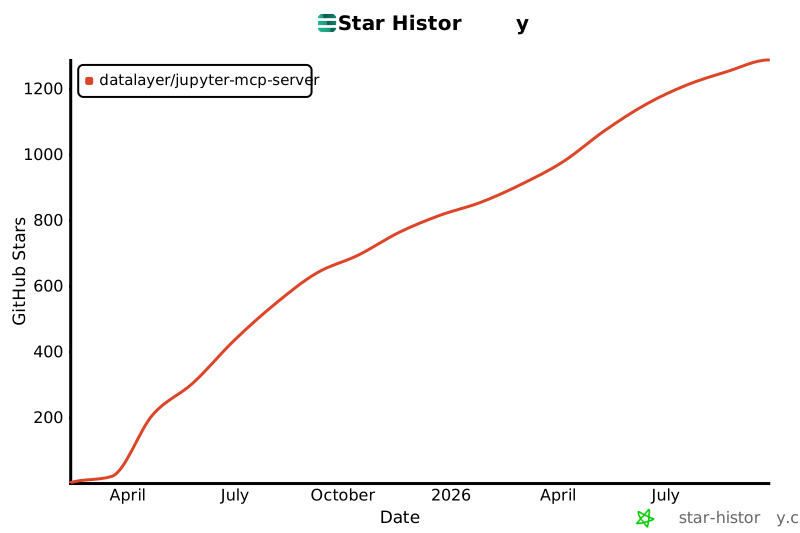](https://star-history.com/#datalayer/jupyter-mcp-server&type=Date)
______________________________________________________________________Similar MCP
Based on tags & features
Trending MCP
Most active this week