Shell and coding agent on claude desktop app for the Model Context Protocol. Enhance AI assistants with powerful integrations. Python-based implementation.
Documentation
Shell and Coding agent for Claude and other mcp clients
Empowering chat applications to code, build and run on your local machine.
wcgw is an MCP server with tightly integrated shell and code editing tools.
⚠️ Warning: This MCP server provides unfiltered access to your machine's shell and files. It does not restrict LLMs from executing arbitrary commands or making unintended changes. This tool can be misused by attackers or run dangerous commands if the AI hallucinates. Run this repository only if you fully understand and accept the risks associated with running AI agents with no restrictions.
As of 2026 the reason you could use wcgw is that it provides fully interactive shell experience that you and the agent both can control (including sending key-strokes).
Combined with the wcgw vscode extension that attaches the agent's shell in your editor, you can get the best agentic shell experience that is out there.
The file editing tricks and the general minimalism also helps agent be more productive.




Demo
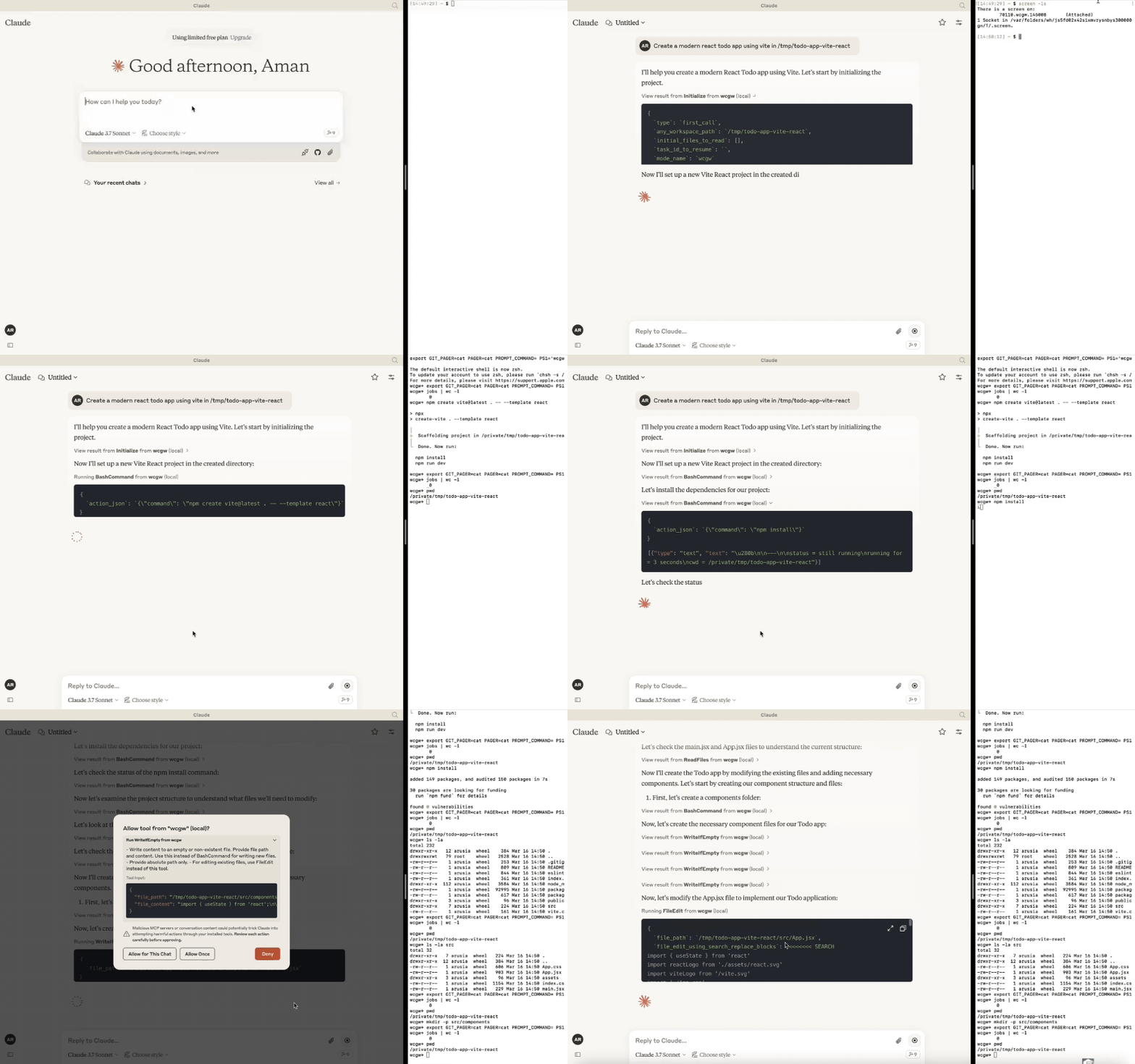
Updates
- [6 Oct 2025] Model can now run multiple commands in background. ZSH is now a supported shell. Multiplexing improvements.
- [27 Apr 2025] Removed support for GPTs over relay server. Only MCP server is supported in version >= 5.
- [24 Mar 2025] Improved writing and editing experience for sonnet 3.7, CLAUDE.md gets loaded automatically.
- [16 Feb 2025] You can now attach to the working terminal that the AI uses. See the "attach-to-terminal" section below.
- [15 Jan 2025] Modes introduced: architect, code-writer, and all powerful wcgw mode.
- [8 Jan 2025] Context saving tool for saving relevant file paths along with a description in a single file. Can be used as a task checkpoint or for knowledge transfer.
- [29 Dec 2024] Syntax checking on file writing and edits is now stable. Made
initializetool call useful; sending smart repo structure to claude if any repo is referenced. Large file handling is also now improved.
- [9 Dec 2024] Vscode extension to paste context on Claude app
🚀 Highlights
- ⚡ Create, Execute, Iterate: Ask claude to keep running compiler checks till all errors are fixed, or ask it to keep checking for the status of a long running command till it's done.
- ⚡ Large file edit: Supports large file incremental edits to avoid token limit issues. Smartly selects when to do small edits or large rewrite based on % of change needed.
- ⚡ Syntax checking on edits: Reports feedback to the LLM if its edits have any syntax errors, so that it can redo it.
- ⚡ Interactive Command Handling: Supports interactive commands using arrow keys, interrupt, and ansi escape sequences.
- ⚡ File protections:
- The AI needs to read a file at least once before it's allowed to edit or rewrite it. This avoids accidental overwrites.
- Avoids context filling up while reading very large files. Files get chunked based on token length.
- On initialisation the provided workspace's directory structure is returned after selecting important files (based on .gitignore as well as a statistical approach)
- File edit based on search-replace tries to find correct search block if it has multiple matches based on previous search blocks. Fails otherwise (for correctness).
- File edit has spacing tolerant matching, with warning on issues like indentation mismatch. If there's no match, the closest match is returned to the AI to fix its mistakes.
- Using Aider-like search and replace, which has better performance than tool call based search and replace.
- ⚡ Shell optimizations:
- Current working directory is always returned after any shell command to prevent AI from getting lost.
- Command polling exits after a quick timeout to avoid slow feedback. However, status checking has wait tolerance based on fresh output streaming from a command. Both of these approach combined provides a good shell interaction experience.
- Supports multiple concurrent background commands alongside the main interactive shell.
- ⚡ Saving repo context in a single file: Task checkpointing using "ContextSave" tool saves detailed context in a single file. Tasks can later be resumed in a new chat asking "Resume
task id". The saved file can be used to do other kinds of knowledge transfer, such as taking help from another AI. - ⚡ Easily switch between various modes:
- Ask it to run in 'architect' mode for planning. Inspired by adier's architect mode, work with Claude to come up with a plan first. Leads to better accuracy and prevents premature file editing.
- Ask it to run in 'code-writer' mode for code editing and project building. You can provide specific paths with wild card support to prevent other files getting edited.
- By default it runs in 'wcgw' mode that has no restrictions and full authorisation.
- More details in Modes section
- ⚡ Runs in multiplex terminal Use vscode extension or run
screen -xto attach to the terminal that the AI runs commands on. See history or interrupt process or interact with the same terminal that AI uses. - ⚡ Automatically load CLAUDE.md/AGENTS.md Loads "CLAUDE.md" or "AGENTS.md" file in project root and sends as instructions during initialisation. Instructions in a global "~/.wcgw/CLAUDE.md" or "~/.wcgw/AGENTS.md" file are loaded and added along with project specific CLAUDE.md. The file name is case sensitive. CLAUDE.md is attached if it's present otherwise AGENTS.md is attached.
Claude setup (using mcp)
Mac and linux
First install uv using homebrew brew install uv
(Important: use homebrew to install uv. Otherwise make sure uv is present in a global location like /usr/bin/)
Then create or update claude_desktop_config.json (~/Library/Application Support/Claude/claude_desktop_config.json) with following json.
{
  "mcpServers": {
    "wcgw": {
      "command": "uvx",
      "args": ["--python", "3.12", "wcgw@latest"]
    }
  }
}
Then restart claude app.
Optional: Force a specific shell
To use a specific shell (bash or zsh), add the --shell argument:
{
  "mcpServers": {
    "wcgw": {
      "command": "uvx",
      "args": ["--python", "3.12", "wcgw@latest", "--shell", "/bin/bash"]
    }
  }
}
_If there's an error in setting up_
- If there's an error like "uv ENOENT", make sure
uvis installed. Then run 'which uv' in the terminal, and use its output in place of "uv" in the configuration. - If there's still an issue, check that
uv tool run --python 3.12 wcgwruns in your terminal. It should have no output and shouldn't exit. - Try removing ~/.cache/uv folder
- Try using
uvversion0.6.0for which this tool was tested. - Debug the mcp server using
npx @modelcontextprotocol/inspector@0.1.7 uv tool run --python 3.12 wcgw
Windows on wsl
This mcp server works only on wsl on windows.
To set it up, install uv
Then add or update the claude config file %APPDATA%\Claude\claude_desktop_config.json with the following
{
  "mcpServers": {
    "wcgw": {
      "command": "wsl.exe",
      "args": ["uvx", "--python", "3.12", "wcgw@latest"]
    }
  }
}
When you encounter an error, execute the command wsl uv --python 3.12 wcgw in command prompt. If you get the error /bin/bash: line 1: uv: command not found, it means uv was not installed globally and you need to point to the correct path of uv.
1. Find where uv is installed:
whereis uvExample output:
2. Test the full path works:wsl /home/mywsl/.local/bin/uv tool run --python 3.12 wcgw
3. Update the config with the full path:{
"mcpServers": {
"wcgw": {
"command": "wsl.exe",
"args": ["/home/mywsl/.local/bin/uv", "tool", "run", "--python", "3.12", "wcgw"]
}
}
}
Replace `/home/mywsl/.local/bin/uv` with your actual uv path from step 1.
### Usage
Wait for a few seconds. You should be able to see this icon if everything goes right.

over here

Then ask claude to execute shell commands, read files, edit files, run your code, etc.
#### Task checkpoint or knowledge transfer
- You can do a task checkpoint or a knowledge transfer by attaching "KnowledgeTransfer" prompt using "Attach from MCP" button.
- On running "KnowledgeTransfer" prompt, the "ContextSave" tool will be called saving the task description and all file content together in a single file. An id for the task will be generated.
- You can in a new chat say "Resume ''", the AI should then call "Initialize" with the task id and load the context from there.
- Or you can directly open the file generated and share it with another AI for help.
#### Modes
There are three built-in modes. You may ask Claude to run in one of the modes, like "Use 'architect' mode"
| **Mode** | **Description** | **Allows** | **Denies** | **Invoke prompt** |
|-----------------|-----------------------------------------------------------------------------|---------------------------------------------------------|----------------------------------------------|----------------------------------------------------------------------------------------------------|
| **Architect** | Designed for you to work with Claude to investigate and understand your repo. | Read-only commands | FileEdit and Write tool | Run in mode='architect' |
| **Code-writer** | For code writing and development | Specified path globs for editing or writing, specified commands | FileEdit for paths not matching specified glob, Write for paths not matching specified glob | Run in code writer mode, only 'tests/**' allowed, only uv command allowed |
| **wcgw\*\* | Default mode with everything allowed | Everything | Nothing | No prompt, or "Run in wcgw mode" |
Note: in code-writer mode either all commands are allowed or none are allowed for now. If you give a list of allowed commands, Claude is instructed to run only those commands, but no actual check happens. (WIP)
#### Attach to the working terminal to investigate
NEW: the [vscode extension](https://marketplace.visualstudio.com/items?itemName=AmanRusia.wcgw) now automatically attach the running terminal
if workspace path matches.
If you've `screen` command installed, wcgw runs on a screen instance automatically. If you've started wcgw mcp server, you can list the screen sessions:
`screen -ls`
And note down the wcgw screen name which will be something like `93358.wcgw.235521` where the last number is in the hour-minute-second format.
You can then attach to the session using `screen -x 93358.wcgw.235521`
You may interrupt any running command safely.
You can interact with the terminal safely, for example for entering passwords, or entering some text. (Warning: If you run a new command, any new LLM command will interrupt it.)
You shouldn't exit the session using `exit `or Ctrl-d, instead you should use `ctrl+a+d` to safely detach without destroying the screen session.
Include the following in ~/.screenrc for better scrolling experiencedefscrollback 10000
termcapinfo xterm* ti@:te@
### [Optional] Vs code extension
https://marketplace.visualstudio.com/items?itemName=AmanRusia.wcgw
Commands:
- Select a text and press `cmd+'` and then enter instructions. This will switch the app to Claude and paste a text containing your instructions, file path, workspace dir, and the selected text.
## Examples

## Using mcp server over docker
First build the docker image `docker build -t wcgw https://github.com/rusiaaman/wcgw.git`
Then you can update `/Users/username/Library/Application Support/Claude/claude_desktop_config.json` to have{
"mcpServers": {
"wcgw": {
"command": "docker",
"args": [
"run",
"-i",
"--rm",
"--mount",
"type=bind,src=/Users/username/Desktop,dst=/workspace/Desktop",
"wcgw"
]
}
}
}
## Tools

The server provides the following MCP tools:

**Shell Operations:**

- `Initialize`: Reset shell and set up workspace environment
  - Parameters: `any_workspace_path` (string), `initial_files_to_read` (string[]), `mode_name` ("wcgw"|"architect"|"code_writer"), `task_id_to_resume` (string)
- `BashCommand`: Execute shell commands with timeout control
  - Parameters: `command` (string), `wait_for_seconds` (int, optional)
  - Parameters: `send_text` (string) or `send_specials` (["Enter"|"Key-up"|...]) or `send_ascii` (int[]), `wait_for_seconds` (int, optional)

**File Operations:**

- `ReadFiles`: Read content from one or more files
  - Parameters: `file_paths` (string[])
- `WriteIfEmpty`: Create new files or write to empty files
  - Parameters: `file_path` (string), `file_content` (string)
- `FileEdit`: Edit existing files using search/replace blocks
  - Parameters: `file_path` (string), `file_edit_using_search_replace_blocks` (string)
- `ReadImage`: Read image files for display/processing
  - Parameters: `file_path` (string)

**Project Management:**

- `ContextSave`: Save project context and files for Knowledge Transfer or saving task checkpoints to be resumed later
  - Parameters: `id` (string), `project_root_path` (string), `description` (string), `relevant_file_globs` (string[])

All tools support absolute paths and include built-in protections against common errors. See the [MCP specification](https://modelcontextprotocol.io/) for detailed protocol information.
Similar MCP
Based on tags & features
Trending MCP
Most active this week