Port's MCP Server
Documentation
⚠️ This Repository is No Longer Maintained
[!WARNING]
This repository has been deprecated and is no longer actively maintained or supported.
No further updates, bug fixes, or security patches will be provided.
Migrate to Port's Remote MCP Server
We strongly encourage all users to migrate to Port's Remote MCP Server, which is the actively maintained and supported solution.
The Remote MCP Server offers full feature parity and ongoing improvements backed by the Port team.
---
Port MCP Server
The Port IO MCP server is a Model Context Protocol (MCP) server, enabling advanced automations and natual language interactions for developers and AI applications.
What You Can Do With Port MCP
Find Information Quickly
- Get entity details - "Who is the owner of service X?"
- Check on-call status - "Who is on call right now?"
- Get catalog insights - "How many services do we have in production?"
Analyze Scorecards
- Identify weak points - "Which services are failing for the gold level and why?"
- Get compliance status - "Show me all services that don't meet our security requirements"
- Improve quality - "What do I need to fix to reach the next scorecard level?"
Create Resources
- Build scorecards - "Create a new scorecard called 'Security Posture' with levels Basic, Silver, and Gold"
- Define rules - "Add a rule that requires services to have a team owner to reach the Silver level"
- Setup quality gates - "Create a rule that checks if services have proper documentation"
Manage Permissions & RBAC
- Fetch action permissions - "What are the current permission settings for this action?"
- Update action policies - "Configure approval workflows for the deployment action"
- Configure dynamic permissions - "Set up team-based access control for this action"
We're continuously expanding Port MCP's capabilities. Have a suggestion? We'd love to hear your feedback on our roadmap!
Installation
Prerequisites
Before you begin, you'll need:
1. Create a Port Account (if you don't have one):
- Visit Port.io
- Sign up for an account
2. Obtain Port Credentials:
- Navigate to your Port dashboard
- Go to Settings > Credentials
- Save both the Client ID and Client Secret
3. Installation Requirements:
[!NOTE]
You will also need to provide your Port region, which is either EU or US. If not provided, the default is EU.
Installation methods
Port MCP Server can be installed using two methods:
Package Installation (uvx)
Use our official Port MCP server package with uvx for easy installation and management.
Step-by-Step Installation Guide
1. Create a Python Virtual Environment (Recommended)
python -m venv venv2. Activate the Virtual Environment
# On Linux/macOS:
   source venv/bin/activate

   # On Windows:
   venv\Scripts\activate
3. Install the UV Package Manager
# Using Homebrew (macOS/Linux):
   brew install uv

   # Or using pip:
   pip install uv
4. Verify UV Installation
which uv5. Set Required Environment Variables
export PORT_CLIENT_ID="your_port_client_id"
   export PORT_CLIENT_SECRET="your_port_client_secret"
   export PORT_REGION="EU"  # or "US"
6. Set Python Path (if using virtual environment)
export PYTHONPATH="/path/to/your/venv/bin/python"7. Run the MCP Server
uvx mcp-server-port --client-id your_port_client_id --client-secret your_port_client_secret --region EU --log-level DEBUG8. Verify Server is Running
You should start seeing logs from the server. You can also check the log file:
cat /tmp/port-mcp.logDocker Installation
Use our official Docker image:
docker pull ghcr.io/port-labs/port-mcp-server:latestSee below for detailed instructions on each MCP client.
Additional configurations
You can pass these additional arguments for more advanced configuration:
| Configuration Parameter | UVX Flag | Docker Environment Variable | Description | Default Value |
|---|---|---|---|---|
| Log Level | log-level | PORT_LOG_LEVEL | Controls the level of log output | ERROR |
| API Validation | api-validation-enabled | PORT_API_VALIDATION_ENABLED | Controls if API schema should be validated and fail if it's not valid | False |
Usage with Claude Desktop
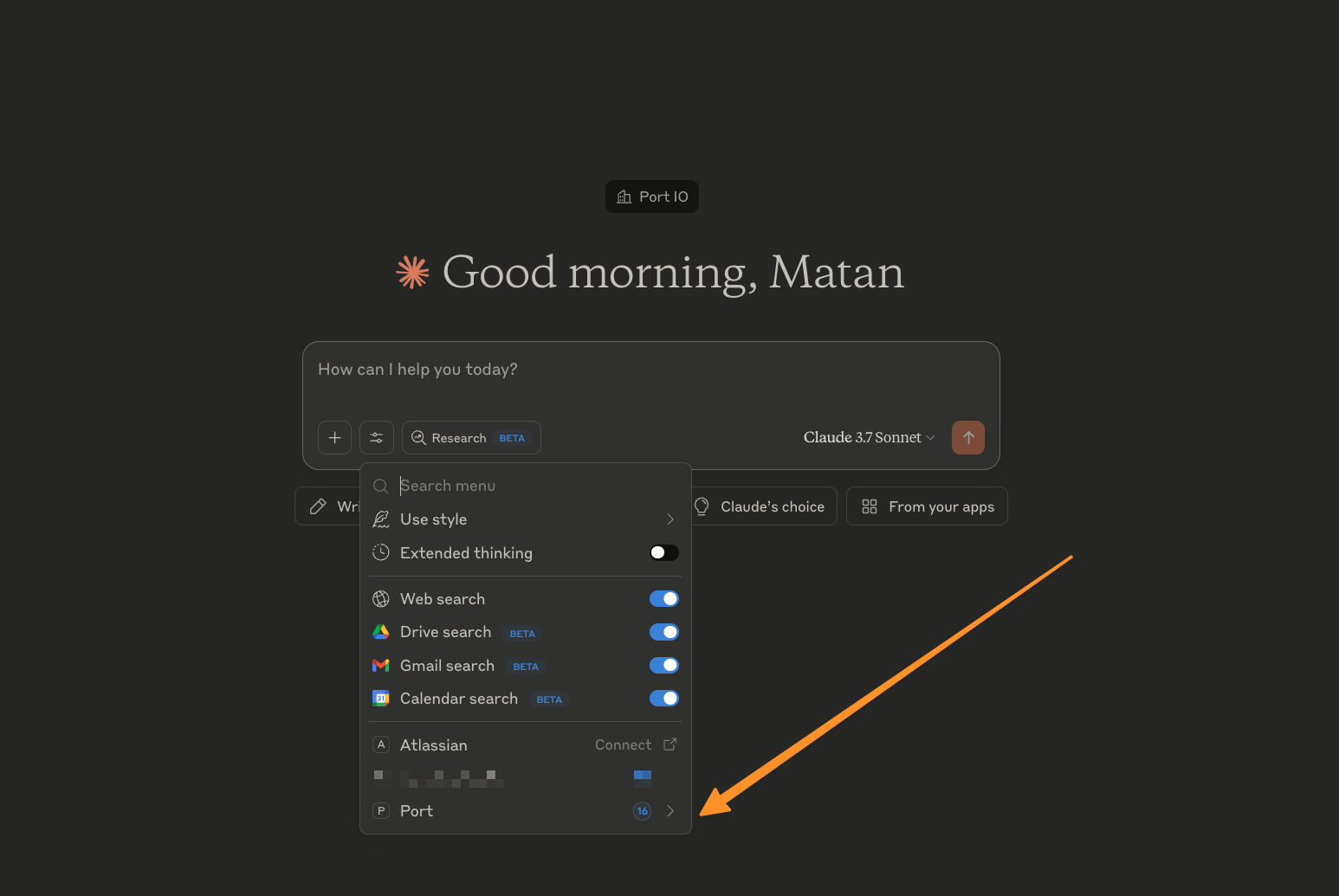
1. Go to Settings > Developer and click on "Edit config".
2. Edit the claude_desktop_config.json file and add the below configuration based on the installation method.
3. Save the file and restart Claude.
4. In a new chat, check the Tools section and you'll see Port available tools.
Docker
[!TIP]
Consider using the full path to Docker (e.g.,
/usr/local/bin/docker) instead of justdocker. You can find this path by runningwhich dockerin your terminal. Using the full path helps avoid PATH resolution issues and ensures consistent behavior across different shell environments.
{
  "mcpServers": {
    "port": {
      "command": "docker",
      "args": [
               "run",
                "-i",
                "--rm",
                "-e",
                "PORT_CLIENT_ID",
                "-e",
                "PORT_CLIENT_SECRET",
                "-e",
                "PORT_REGION",
                "-e",
                "PORT_LOG_LEVEL",
                "ghcr.io/port-labs/port-mcp-server:latest"
              ],
              "env": {
                "PORT_CLIENT_ID": "",
                "PORT_CLIENT_SECRET": "",
                "PORT_REGION": "",
                "PORT_LOG_LEVEL": ""
              }
    }
  }
}
uvx
[!NOTE]
If you want to run the command from a virtual Python environment, add a
PYTHONPATHvariable to theenvobject with its path, e.g.,/path/to/your/venv/bin/python.
{
  "mcpServers": {
    "Port": {
          "command": "uvx",
          "args": [
              "mcp-server-port@0.2.8",
              "--client-id",
              "",
              "--client-secret",
              "",
              "--region",
              ""
          ],
          "env": {
              "PORT_CLIENT_ID": "",
              "PORT_CLIENT_SECRET": "",
              "PORT_REGION": "",
              "PYTHONPATH": "/Users/matangrady/.venv-port-mcp/bin/python"
          }
      }
  }
}
Usage with Cursor
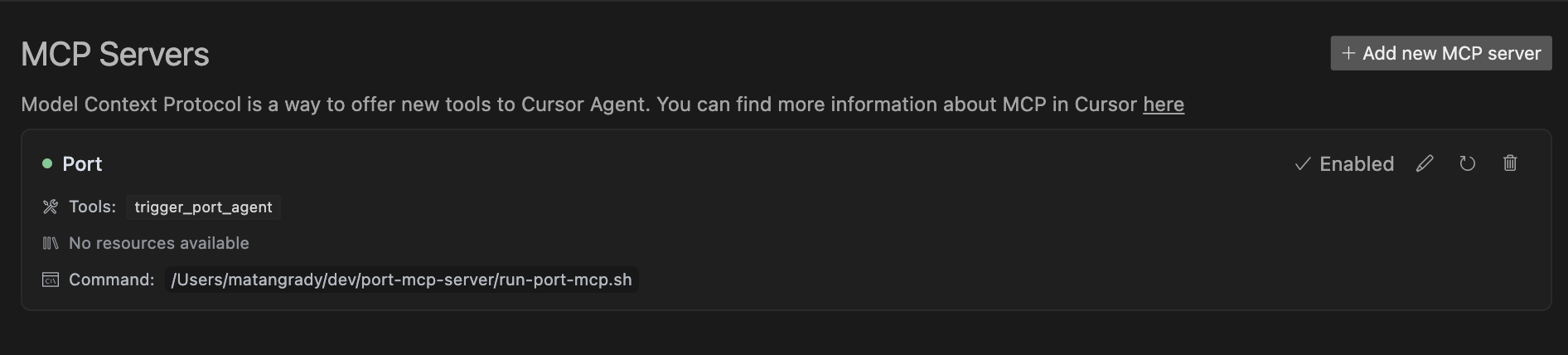
1. Go to Cursor > Settings > Cursor Settings.
2. Click on the MCP tab, and "Add new global MCP server".
2. Edit the mcp.json file and add the below configuration based on the installation method.
3. Save the file and return to Cursor Settings.
4. You will see the new Port server and its available tools.
Docker
[!TIP]
Consider using the full path to Docker (e.g.,
/usr/local/bin/docker) instead of justdocker. You can find this path by runningwhich dockerin your terminal. Using the full path helps avoid PATH resolution issues and ensures consistent behavior across different shell environments.
{
  "mcpServers": {
    "port": {
      "command": "docker",
      "args": [
               "run",
                "-i",
                "--rm",
                "-e",
                "PORT_CLIENT_ID",
                "-e",
                "PORT_CLIENT_SECRET",
                "-e",
                "PORT_REGION",
                "-e",
                "PORT_LOG_LEVEL",
                "ghcr.io/port-labs/port-mcp-server:latest"
              ],
              "env": {
                "PORT_CLIENT_ID": "",
                "PORT_CLIENT_SECRET": "",
                "PORT_REGION": "",
                "PORT_LOG_LEVEL": ""
              }
    }
  }
}
uvx
[!NOTE]
If you want to run the command from a virtual Python environment, add a
PYTHONPATHvariable to theenvobject with its path, e.g.,/path/to/your/venv/bin/python.
{
  "mcpServers": {
    "Port": {
          "command": "uvx",
          "args": [
              "mcp-server-port@0.2.8",
              "--client-id",
              "",
              "--client-secret",
              "",
              "--region",
              ""
          ],
          "env": {
              "PORT_CLIENT_ID": "",
              "PORT_CLIENT_SECRET": "",
              "PORT_REGION": "",
              "PYTHONPATH": "/Users/matangrady/.venv-port-mcp/bin/python"
          }
      }
  }
}
Usage with VS Code
[!TIP]
VS Code can automatically discover MCP servers already installed in Cursor and Claude.
[!NOTE]
For quick installation, use the one-click install buttons and select where to add the MCP configuration. Make sure to replace the placeholders with your Port credentials.
For manual installation follow these steps:
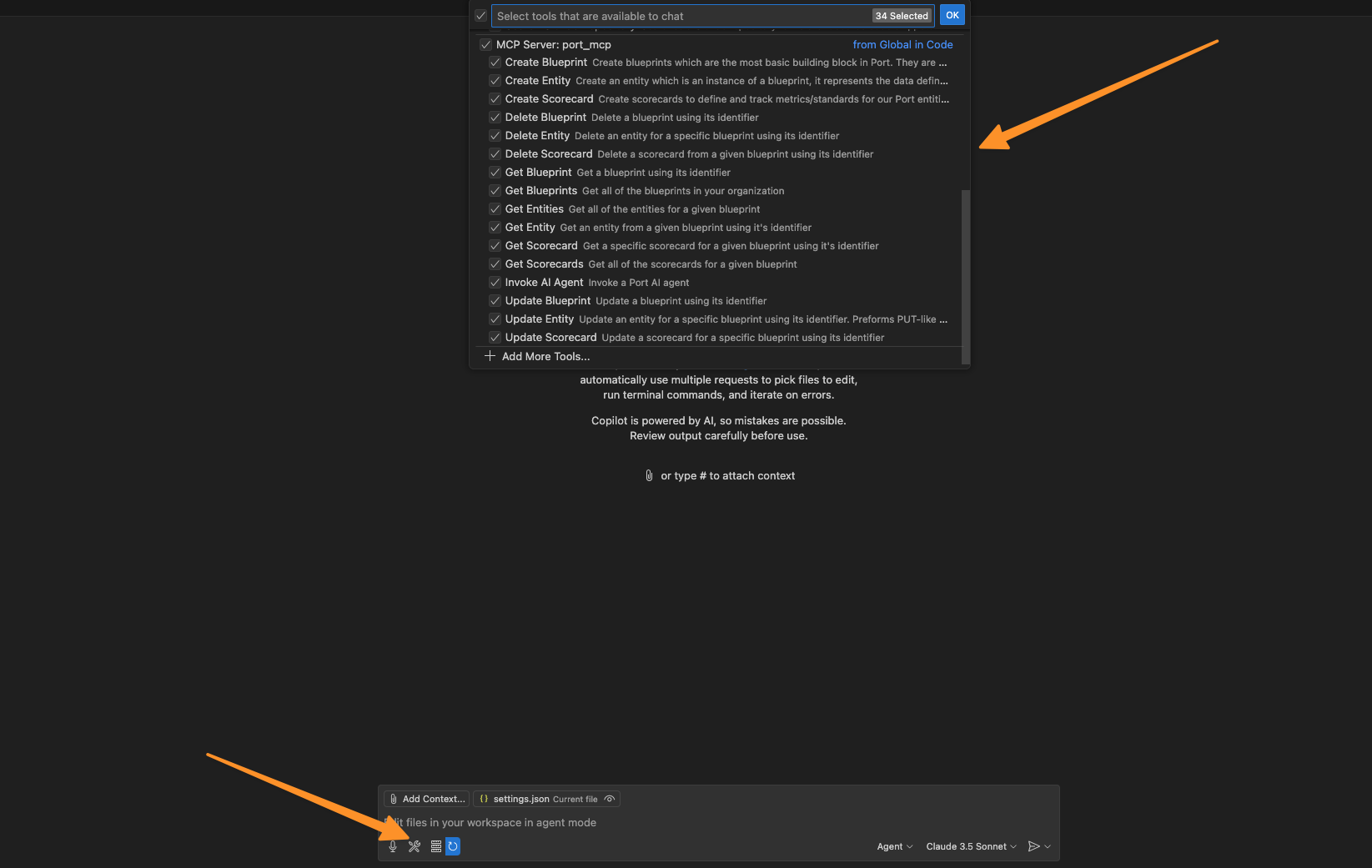
1. Go to the Command Palette by pressing Cmd + Shift + P / Ctrl + Shift + P.
2. Type Preferences: Open User Settings (JSON) and press enter.
2. Edit the settings.json file and add the below configuration under the mcp>servers.
3. Use Copilot in Agent mode, make sure the server is running and see its available Port tools.
Docker
[!TIP]
Consider using the full path to Docker (e.g.,
/usr/local/bin/docker) instead of justdocker. You can find this path by runningwhich dockerin your terminal. Using the full path helps avoid PATH resolution issues and ensures consistent behavior across different shell environments.
"Port": {
      "type": "stdio",
      "command": "docker",
      "args": [
          "run",
          "-i",
          "--rm",
          "-e",
          "PORT_CLIENT_ID",
          "-e",
          "PORT_CLIENT_SECRET",
          "-e",
          "PORT_REGION",
          "ghcr.io/port-labs/port-mcp-server:latest"
      ],
      "env": {
          "PORT_CLIENT_ID": "",
          "PORT_CLIENT_SECRET": "",
          "PORT_REGION": ""
      }
  }
uvx
[!NOTE]
If you want to run the command from a virtual Python environment, add a
PYTHONPATHvariable to theenvobject with its path, e.g.,/path/to/your/venv/bin/python.
"Port": {
      "type": "stdio",
      "command": "uvx",
      "args": [
          "mcp-server-port@0.2.8",
          "--client-id",
          "",
          "--client-secret",
          "",
          "--region",
          ""
      ],
      "env": {
          "PORT_CLIENT_ID": "",
          "PORT_CLIENT_SECRET": "",
          "PORT_REGION": ""
      }
  }
Usage with Neovim (mcphub.nvim)
To use Port MCP Server in Neovim, use the plugin mcphub.nvim with one of the supported LLM extensions, such as Avante or CodeCompanion.
Once installed, add Port's MCP server configuration:
1. Access the servers config with the command :MCPHub and navigate to the Config tab, or open the servers config file directly, usually located at ~/.config/mcphub/servers.json.
2. Add the configuration for Port MCP Server under the mcpServers section (see below).
3. Save the configuration file.
4. Make sure you have the environment variables PORT_CLIENT_ID and PORT_CLIENT_SECRET set in your Neovim environment.
5. Restart the servers by opening the MCPHub view with :MCPHub and triggering the restart command with R.
6. You should see the server running and accessible from the MCPHub view. To verify, use the @mcp tool in your LLM extension. For example, prompt: @mcp list my blueprints.
Check the mcphub.nvim documentation for more details on how to use it.
Docker Configuration Example for mcphub.nvim
[!NOTE]
Make sure that you have the environment variables
PORT_CLIENT_IDandPORT_CLIENT_SECRETset with your Port credentials.
{
    "mcpServers": {
        "port": {
            "command": "docker",
            "args": [
                "run",
                "-i",
                "--rm",
                "-e",
                "PORT_CLIENT_ID",
                "-e",
                "PORT_CLIENT_SECRET",
                "-e",
                "PORT_REGION",
                "ghcr.io/port-labs/port-mcp-server:latest"
            ],
            "env": {
                "PORT_REGION": "EU",
                "PORT_CLIENT_ID": "",
                "PORT_CLIENT_SECRET": ""
            }
        }
    }
}
uvx Configuration Example for mcphub.nvim
[!NOTE]
Make sure that you have the environment variables
PORT_CLIENT_IDandPORT_CLIENT_SECRETset with your Port credentials.
{
    "mcpServers": {
        "port": {
            "command": "uvx",
            "args": [
                "mcp-server-port@0.2.8",
                "--client-id",
                "PORT_CLIENT_ID",
                "--client-secret",
                "PORT_CLIENT_SECRET",
                "--region",
                "PORT_REGION"
            ],
            "env": {
                "PORT_CLIENT_ID": "",
                "PORT_CLIENT_SECRET": "",
                "PORT_REGION": "EU"
            }
        }
    }
}
Available Tools
Blueprint Tools
1. get_blueprints
- Retrieve a list of all blueprints from Port
- Optional inputs:
detailed(boolean, default: false): Return complete schema details for each blueprint- Returns: Formatted text representation of all available blueprints
2. get_blueprint
- Retrieve information about a specific blueprint by its identifier
- Required inputs:
blueprint_identifier(string): The unique identifier of the blueprint to retrieve- Optional inputs:
detailed(boolean, default: true): Return complete schema details
3. create_blueprint
- Create a new blueprint in Port
- Required inputs:
- Various fields including identifier, title, properties, etc.
- Returns: The created blueprint object
4. update_blueprint
- Update an existing blueprint
- Required inputs:
identifier(string): The unique identifier of the blueprint to update- Various fields to update
- Returns: The updated blueprint object
5. delete_blueprint
- Delete a blueprint from Port
- Required inputs:
blueprint_identifier(string): The unique identifier of the blueprint to delete- Returns: Success status
Entity Tools
1. get_entities
- Retrieve all entities for a given blueprint
- Required inputs:
blueprint_identifier(string): The identifier of the blueprint to get entities for- Optional inputs:
detailed(boolean, default: false): Return complete entity details including properties
2. get_entity
- Retrieve information about a specific entity
- Required inputs:
blueprint_identifier(string): The identifier of the blueprint the entity belongs toentity_identifier(string): The unique identifier of the entity to retrieve- Optional inputs:
detailed(boolean, default: true): Return complete entity details
3. create_entity
- Create a new entity for a specific blueprint
- Required inputs:
blueprint_identifier(string): The identifier of the blueprint to create the entity forentity(object): The entity data following the blueprint schema
4. update_entity
- Update an existing entity
- Required inputs:
blueprint_identifier(string): The identifier of the blueprint the entity belongs toentity_identifier(string): The unique identifier of the entity to updateentity(object): The updated entity data
5. delete_entity
- Delete an entity
- Required inputs:
blueprint_identifier(string): The identifier of the blueprint the entity belongs toentity_identifier(string): The unique identifier of the entity to delete- Optional inputs:
delete_dependents(boolean, default: false): If true, also deletes all dependencies
Scorecard Tools
1. get_scorecards
- Retrieve all scorecards from Port
- Optional inputs:
detailed(boolean, default: false): Return complete scorecard details
2. get_scorecard
- Retrieve information about a specific scorecard by its identifier
- Required inputs:
scorecard_id(string): The unique identifier of the scorecard to retrieveblueprint_id(string, optional): The identifier of the blueprint the scorecard belongs to
3. create_scorecard
- Create a new scorecard for a specific blueprint
- Required inputs:
blueprint_id(string): The identifier of the blueprint to create the scorecard foridentifier(string): The unique identifier for the new scorecardtitle(string): The display title of the scorecardlevels(list): List of levels for the scorecard- Optional inputs:
rules(list): List of rules for the scorecarddescription(string): Description for the scorecard
4. update_scorecard
- Update an existing scorecard
- Required inputs:
blueprint_identifier(string): The identifier of the blueprint the scorecard belongs toscorecard_identifier(string): The unique identifier of the scorecard to update- Various fields to update (title, levels, rules, etc.)
- Returns: The updated scorecard object
5. delete_scorecard
- Delete a scorecard from Port
- Required inputs:
blueprint_identifier(string): The identifier of the blueprint the scorecard belongs toscorecard_identifier(string): The unique identifier of the scorecard to delete- Returns: Success status
AI Agents Tool
1. invoke_ai_agent
- Invoke a Port AI agent with a specific prompt
- Required inputs:
prompt(string): The prompt to send to the AI agent- Returns: Invocation status and message from the AI agent
Local Development
For developing and testing new functionalities locally before publishing a new version, you can configure your MCP client (e.g., Cursor) to use your local cloned repository.
Prerequisites
1. Clone the repository: If you haven't already, clone the port-mcp-server repository to your local machine.
2. Set up the environment:
- Navigate to the cloned repository's root directory.
- Run
make install. This command should set up a virtual environment (venv) and install all necessary dependencies. - Ensure the virtual environment is created (usually in a
.venvdirectory within the repository).
Configuration Example
Below is an example of how you might configure your local development server. You'll need to replace the placeholder paths with the actual paths on your system.
Important:
- The
commandshould point to the Python executable within your local repository's virtual environment. - The
PYTHONPATHin theenvobject should point to the root directory of your cloned repository.
{
  "mcpServers": {
    "port_local": {
      "command": "/path/to/your/port-mcp-server/.venv/bin/python", // Replace with the actual path to the venv Python
      "args": [
        "-m",
        "src",
        "--client-id",
        "",
        "--client-secret",
        "",
        "--region",
        "", // e.g., EU or US
        "--log-level",
        "DEBUG" // Or your preferred log level
      ],
      "env": {
        "PORT_CLIENT_ID": "",
        "PORT_CLIENT_SECRET": "",
        "PORT_REGION": "",
        "PORT_LOG_LEVEL": "DEBUG",
        "PYTHONPATH": "/path/to/your/port-mcp-server" // Replace with the actual path to your repository
      }
    }
  }
}
After setting this up, your MCP client will use your local version of the server, allowing you to test changes from your current branch.
Feedback and Roadmap
We're continuously improving Port MCP and would love to hear from you! Please share your feedback and feature requests on our roadmap page.
Troubleshooting
If you encounter authentication errors, verify that:
1. Your Port credentials are correctly set in the arguments.
2. You have the necessary permissions.
3. The credentials are properly copied to your configuration.
License
This MCP server is licensed under the MIT License. This means you are free to use, modify, and distribute the software, subject to the terms and conditions of the MIT License.
Similar MCP
Based on tags & features
Trending MCP
Most active this week