Model Context Protocol Servers for Milvus Python-based implementation.
Documentation
MCP Server for Milvus
The Model Context Protocol (MCP) is an open protocol that enables seamless integration between LLM applications and external data sources and tools. Whether you're building an AI-powered IDE, enhancing a chat interface, or creating custom AI workflows, MCP provides a standardized way to connect LLMs with the context they need.
This repository contains a MCP server that provides access to Milvus vector database functionality.
Prerequisites
Before using this MCP server, ensure you have:
- Python 3.10 or higher
- A running Milvus instance (local or remote)
- uv installed (recommended for running the server)
Usage
The recommended way to use this MCP server is to run it directly with uv without installation. This is how both Claude Desktop and Cursor are configured to use it in the examples below.
If you want to clone the repository:
git clone https://github.com/zilliztech/mcp-server-milvus.git
cd mcp-server-milvus
Then you can run the server directly:
uv run src/mcp_server_milvus/server.py --milvus-uri http://localhost:19530Alternatively you can change the .env file in the src/mcp_server_milvus/ directory to set the environment variables and run the server with the following command:
uv run src/mcp_server_milvus/server.pyImportant: the .env file will have higher priority than the command line arguments.
Running Modes
The server supports two running modes: stdio (default) and SSE (Server-Sent Events).
Stdio Mode (Default)
- Description: Communicates with the client via standard input/output. This is the default mode if no mode is specified.
- Usage:
uv run src/mcp_server_milvus/server.py --milvus-uri http://localhost:19530SSE Mode
- Description: Uses HTTP Server-Sent Events for communication. This mode allows multiple clients to connect via HTTP and is suitable for web-based applications.
- Usage:
uv run src/mcp_server_milvus/server.py --sse --milvus-uri http://localhost:19530 --port 8000--sse: Enables SSE mode.--port: Specifies the port for the SSE server (default: 8000).
- Debugging in SSE Mode:
If you want to debug in SSE mode, after starting the SSE service, enter the following command:
mcp dev src/mcp_server_milvus/server.pyThe output will be similar to:
% mcp dev src/mcp_server_milvus/merged_server.py
  Starting MCP inspector...
  ⚙️ Proxy server listening on port 6277
  🔍 MCP Inspector is up and running at http://127.0.0.1:6274 🚀
You can then access the MCP Inspector at http://127.0.0.1:6274 for testing.
Streamable HTTP Mode
- Description: Uses HTTP with streaming support for communication. This is the recommended transport for production deployments and supports both stateful and stateless operation.
- Usage:
uv run src/mcp_server_milvus/server.py --streamable-http --milvus-uri http://localhost:19530 --port 8000--streamable-http: Enables Streamable HTTP mode.--port: Specifies the port for the server (default: 8000).--stateless: Optional flag for stateless mode (no session persistence).
- Stateless Mode:
uv run src/mcp_server_milvus/server.py --streamable-http --stateless --milvus-uri http://localhost:19530 --port 8000Supported Applications
This MCP server can be used with various LLM applications that support the Model Context Protocol:
- Claude Desktop: Anthropic's desktop application for Claude
- Cursor: AI-powered code editor with MCP support
- Custom MCP clients: Any application implementing the MCP client specification
Usage with Claude Desktop
Configuration for Different Modes
SSE Mode Configuration
Follow these steps to configure Claude Desktop for SSE mode:
1. Install Claude Desktop from https://claude.ai/download.
2. Open your Claude Desktop configuration file:
- macOS:
~/Library/Application Support/Claude/claude_desktop_config.json
3. Add the following configuration for SSE mode:
{
  "mcpServers": {
    "milvus-sse": {
      "url": "http://your_sse_host:port/sse",
      "disabled": false,
      "autoApprove": []
    }
  }
}
Streamable HTTP Mode Configuration
{
  "mcpServers": {
    "milvus-streamable-http": {
      "url": "http://your_host:port/mcp",
      "disabled": false,
      "autoApprove": []
    }
  }
}
4. Restart Claude Desktop to apply the changes.
Stdio Mode Configuration
For stdio mode, follow these steps:
1. Install Claude Desktop from https://claude.ai/download.
2. Open your Claude Desktop configuration file:
- macOS:
~/Library/Application Support/Claude/claude_desktop_config.json
3. Add the following configuration for stdio mode:
{
  "mcpServers": {
    "milvus": {
      "command": "/PATH/TO/uv",
      "args": [
        "--directory",
        "/path/to/mcp-server-milvus/src/mcp_server_milvus",
        "run",
        "server.py",
        "--milvus-uri",
        "http://localhost:19530"
      ]
    }
  }
}
4. Restart Claude Desktop to apply the changes.
Usage with Cursor
Cursor also supports MCP tools. You can integrate your Milvus MCP server with Cursor by following these steps:
Integration Steps
1. Open Cursor Settings > MCP
2. Click on Add new global MCP server
3. After clicking, it will automatically redirect you to the mcp.json file, which will be created if it doesn’t exist
Configuring the mcp.json File
For Stdio Mode:
Overwrite the mcp.json file with the following content:
{
  "mcpServers": {
    "milvus": {
      "command": "/PATH/TO/uv",
      "args": [
        "--directory",
        "/path/to/mcp-server-milvus/src/mcp_server_milvus",
        "run",
        "server.py",
        "--milvus-uri",
        "http://127.0.0.1:19530"
      ]
    }
  }
}
For SSE Mode:
1. Start the service by running the following command:
uv run src/mcp_server_milvus/server.py --sse --milvus-uri http://your_sse_host --port portNote: Replace
http://your_sse_hostwith your actual SSE host address andportwith the specific port number you’re using.
2. Once the service is up and running, overwrite the mcp.json file with the following content:
{
       "mcpServers": {
         "milvus-sse": {
           "url": "http://your_sse_host:port/sse",
           "disabled": false,
           "autoApprove": []
         }
       }
   }
For Streamable HTTP Mode:
1. Start the service:
uv run src/mcp_server_milvus/server.py --streamable-http --milvus-uri http://your_host --port port2. Update mcp.json:
{
     "mcpServers": {
       "milvus-streamable-http": {
         "url": "http://your_host:port/mcp",
         "disabled": false,
         "autoApprove": []
       }
     }
   }
Completing the Integration
After completing the above steps, restart Cursor or reload the window to ensure the configuration takes effect.
Verifying the Integration
To verify that Cursor has successfully integrated with your Milvus MCP server:
1. Open Cursor Settings > MCP
2. Check if "milvus", "milvus-sse", or "milvus-streamable-http" appear in the list (depending on the mode you have chosen)
3. Confirm that the relevant tools are listed (e.g., milvus_list_collections, milvus_vector_search, etc.)
4. If the server is enabled but shows an error, check the Troubleshooting section below
Available Tools
The server provides the following tools:
Search and Query Operations
milvus_text_search: Search for documents using full text search
- Parameters:
collection_name: Name of collection to searchquery_text: Text to search forlimit: The maximum number of results to return (default: 5)output_fields: Fields to include in resultsdrop_ratio: Proportion of low-frequency terms to ignore (0.0-1.0) (default: 0.2)milvus_vector_search: Perform vector similarity search on a collection- Parameters:
collection_name: Name of collection to searchvector: Query vectorvector_field: Field name for vector search (default: "vector")limit: The maximum number of results to return (default: 5)output_fields: Fields to include in resultsfilter_expr: Filter expressionmetric_type: Distance metric (COSINE, L2, IP) (default: "COSINE")radius: Optional lower bound for range search (default: None)range_filter: Optional upper bound for range search (default: None)milvus_hybrid_search: Perform hybrid search on a collection- Parameters:
collection_name: Name of collection to searchquery_text: Text query for searchtext_field: Field name for text searchvector: Vector of the text queryvector_field: Field name for vector searchlimit: The maximum number of results to return (default: 5)output_fields: Fields to include in resultsfilter_expr: Filter expressionsparse_radius: Optional lower bound for sparse range search (default: None)sparse_range_filter: Optional upper bound for sparse range search (default: None)dense_radius: Optional lower bound for dense range search (default: None)dense_range_filter: Optional upper bound for dense range search (default: None)milvus_text_similarity_search: Perform text similarity search on a collection
Note: This tool is only supported in Milvus 2.6.0 and above. And you need to set the embedding function at the Milvus server. See Embedding Function for more details.
- Parameters:
collection_name: Name of collection to searchquery_text: Text query for similarity searchanns_field: Field name for text searchlimit: The maximum number of results to return (default: 5)output_fields: Fields to include in resultsmetric_type: Distance metric (COSINE, L2, IP) (default: "COSINE")filter_expr: Optional filter expressionradius: Optional lower bound for range search (default: None)range_filter: Optional upper bound for range search (default: None)milvus_query: Query collection using filter expressions- Parameters:
collection_name: Name of collection to queryfilter_expr: Filter expression (e.g. 'age > 20')output_fields: Fields to include in resultslimit: The maximum number of results to return (default: 10)
Collection Management
milvus_list_collections: List all collections in the database
milvus_create_collection: Create a new collection with quick setup or customized schema
- Parameters:
collection_name: Name for the new collectionauto_id: whether to auto generate id, default to Truedimension: vector dimension, default to 768; for quick setup and will be ignored iffield_schemais providedprimary_field_name: name of the primary field, default to "id"; for quick setup and will be ignored iffield_schemais providedvector_field_name: name of the vector field, default to "vector"; for quick setup and will be ignored iffield_schemais providedmetric_type: metric type, default to "COSINE"; for quick setup and will be ignored iffield_schemais providedfield_schema: List of field schema, each element is a dictionary with the following keys:name: name of the fieldtype: type of the fieldindex_params: Optional list of index parameters, each element is a dictionary with the following keys:field_name: name of the field to indexindex_type: index type**kwargs: other optional index parametersother_kwargs: Additional keyword arguments for the collection creation
milvus_load_collection: Load a collection into memory for search and query
- Parameters:
collection_name: Name of collection to loadreplica_number: Number of replicas (default: 1)
milvus_release_collection: Release a collection from memory- Parameters:
collection_name: Name of collection to release
milvus_get_collection_info: Lists detailed information like schema, properties, collection ID, and other metadata of a specific collection.- Parameters:
collection_name: Name of the collection to get detailed information about
Data Operations
milvus_insert_data: Insert data into a collection
- Parameters:
collection_name: Name of collectiondata: Dictionary mapping field names to lists of values
milvus_delete_entities: Delete entities from a collection based on filter expression- Parameters:
collection_name: Name of collectionfilter_expr: Filter expression to select entities to delete
Environment Variables
MILVUS_URI: Milvus server URI (can be set instead of --milvus-uri)MILVUS_TOKEN: Optional authentication tokenMILVUS_DB: Database name (defaults to "default")
Development
To run the server directly:
uv run server.py --milvus-uri http://localhost:19530Examples
Using Claude Desktop
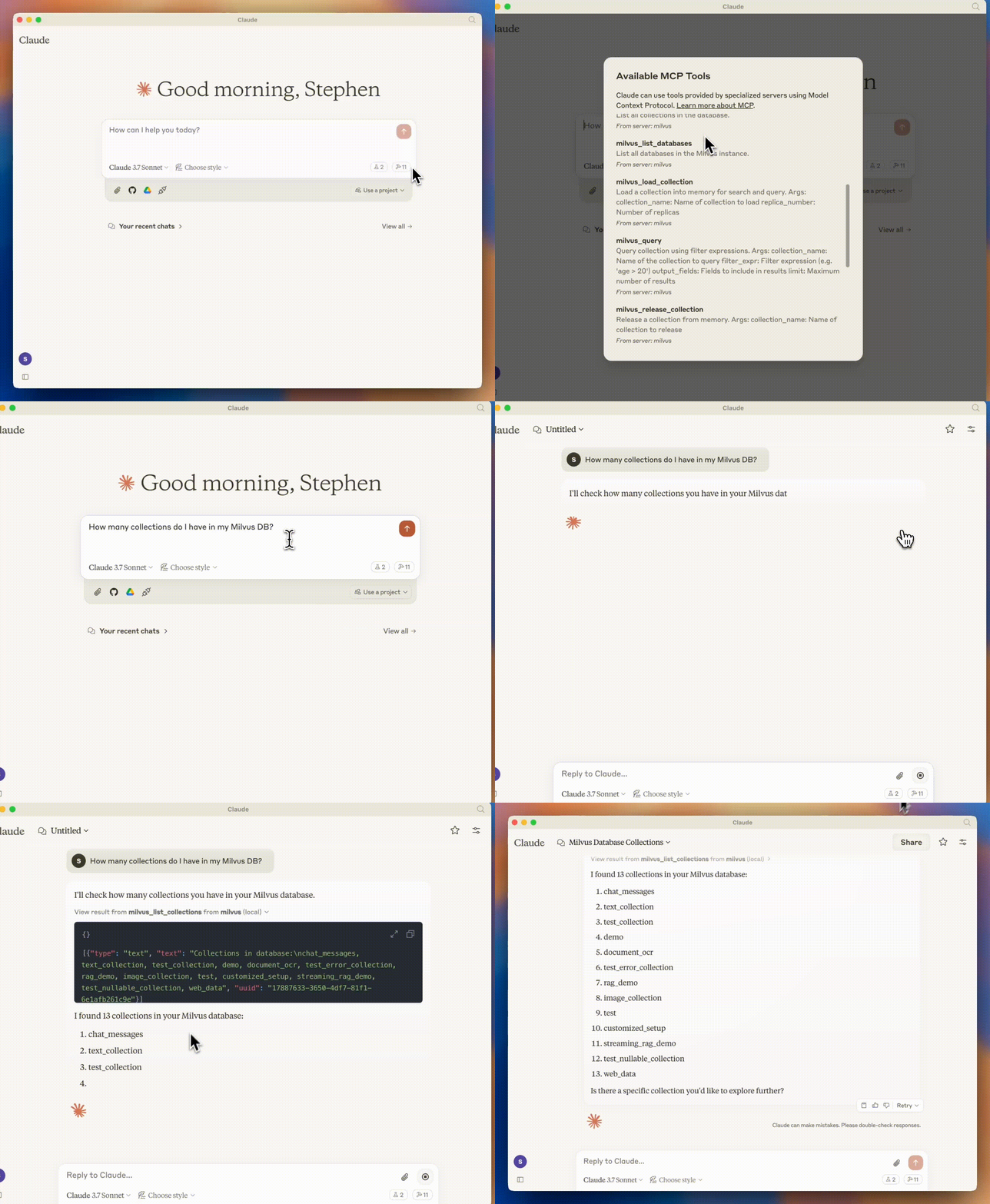
Example 1: Listing Collections
What are the collections I have in my Milvus DB?Claude will then use MCP to check this information on your Milvus DB.
I'll check what collections are available in your Milvus database.

Here are the collections in your Milvus database:

1. rag_demo
2. test
3. chat_messages
4. text_collection
5. image_collection
6. customized_setup
7. streaming_rag_demo
Example 2: Searching for Documents
Find documents in my text_collection that mention "machine learning"Claude will use the full-text search capabilities of Milvus to find relevant documents:
I'll search for documents about machine learning in your text_collection.

> View result from milvus-text-search from milvus (local)

Here are the documents I found that mention machine learning:
[Results will appear here based on your actual data]
Using Cursor
Example: Creating a Collection
In Cursor, you can ask:
Create a new collection called 'articles' in Milvus with fields for title (string), content (string), and a vector field (128 dimensions)Cursor will use the MCP server to execute this operation:
I'll create a new collection called 'articles' with the specified fields.

Collection 'articles' has been created successfully with the following schema:
- title: string
- content: string
- vector: float vector[128]
Troubleshooting
Common Issues
Connection Errors
If you see errors like "Failed to connect to Milvus server":
1. Verify your Milvus instance is running: docker ps (if using Docker)
2. Check the URI is correct in your configuration
3. Ensure there are no firewall rules blocking the connection
4. Try using 127.0.0.1 instead of localhost in the URI
Authentication Issues
If you see authentication errors:
1. Verify your MILVUS_TOKEN is correct
2. Check if your Milvus instance requires authentication
3. Ensure you have the correct permissions for the operations you're trying to perform
Tool Not Found
If the MCP tools don't appear in Claude Desktop or Cursor:
1. Restart the application
2. Check the server logs for any errors
3. Verify the MCP server is running correctly
4. Press the refresh button in the MCP settings (for Cursor)
Getting Help
If you continue to experience issues:
1. Check the GitHub Issues for similar problems
2. Join the Milvus Community Discord for support
3. File a new issue with detailed information about your problem
Similar MCP
Based on tags & features
Trending MCP
Most active this week