Typescript based Model Context Procotol (MCP) Server for Open Database Connectivity (ODBC)
Documentation
OpenLink MCP Server for ODBC
This document covers the set up and use of a generic ODBC server for the Model Context Protocol (MCP), referred to as an mcp-odbc server. It has been developed to provide Large Language Models with transparent access to ODBC-accessible data sources via a Data Source Name configured for a specific ODBC Connector (also called an ODBC Driver).
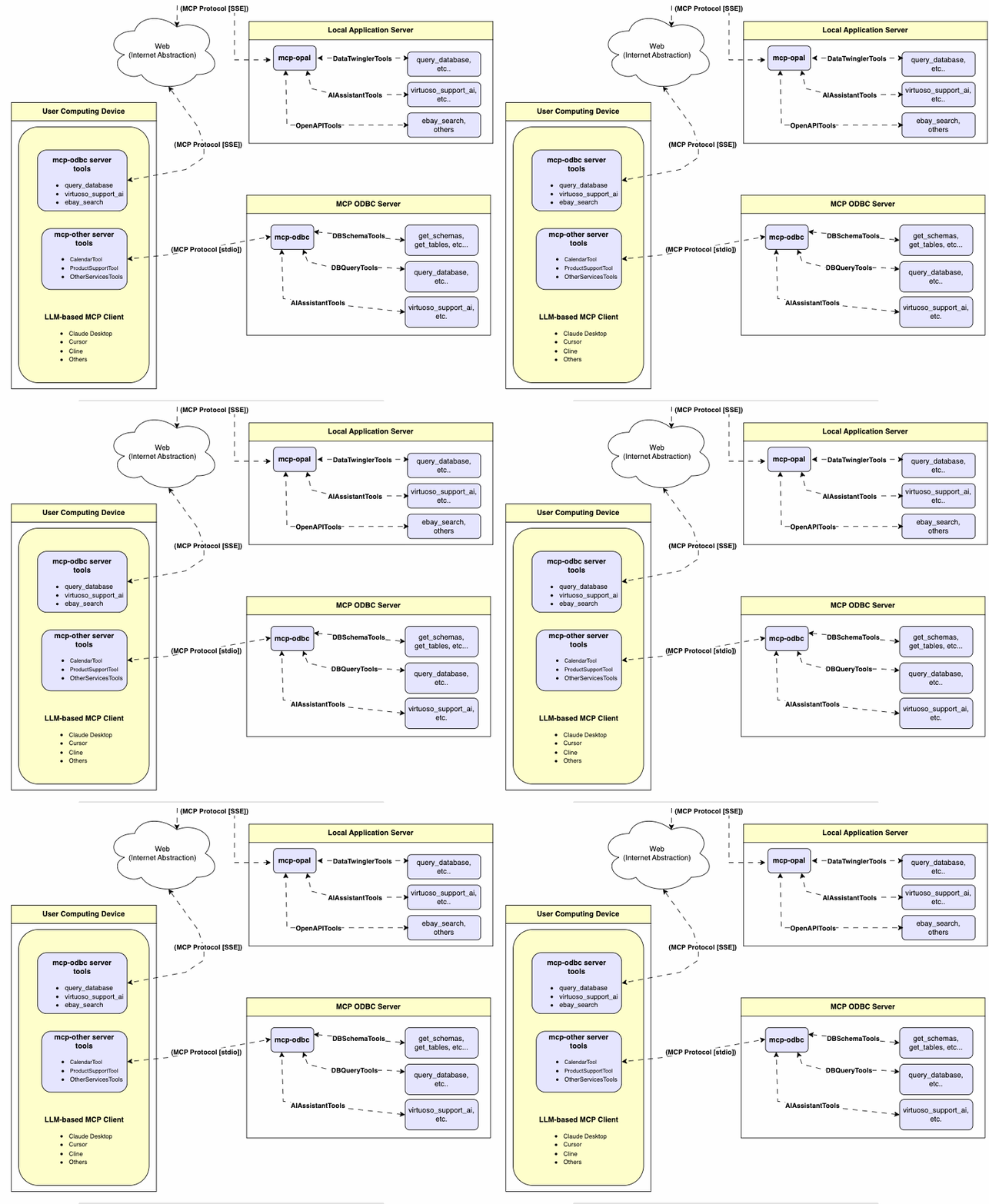
Server Implementation
This MCP Server for ODBC is a small TypeScript layer built on top of node-odbc. It routes calls to the host system's local ODBC Driver Manager via node.js (specifically using npx for TypeScript).
Operating Environment Set Up & Prerequisites
While the examples that follow are oriented toward the Virtuoso ODBC Connector, this guide will also work with other ODBC Connectors. We *strongly* encourage code contributions and submissions of usage demos related to other database management systems (DBMS) for incorporation into this project.
Key System Components
1. Check the node.js version. If it's not 21.1.0 or higher, upgrade or install explicitly using:
nvm install v21.1.02. Install MCP components using:
npm install @modelcontextprotocol/sdk zod tsx odbc dotenv3. Set the nvm version using:
nvm alias default 21.1.0Installation
1. Run
git clone https://github.com/OpenLinkSoftware/mcp-odbc-server.git2. Change directory
cd mcp-odbc-server3. Run
npm init -y4. Run
npm install @modelcontextprotocol/sdk zod tsx odbc dotenvunixODBC Runtime Environment Checks
1. Check installation configuration (i.e., location of key INI files) by running:
odbcinst -j2. List available data source names (DSNs) by running:
odbcinst -q -sEnvironment Variables
As good security practice, you should use the .env file situated in the same directory as the mcp-ser to set bindings for the ODBC Data Source Name (ODBC_DSN), the User (ODBC_USER), the Password (ODBC_PWD), the ODBC INI (ODBCINI), and, if you want to use the OpenLink AI Layer (OPAL) via ODBC, the target Large Language Model (LLM) API Key (API_KEY).
API_KEY=sk-xxx
ODBC_DSN=Local Virtuoso
ODBC_USER=dba
ODBC_PASSWORD=dba
ODBCINI=/Library/ODBC/odbc.ini
Usage
Tools
After successful installation, the following tools will be available to MCP client applications.
Overview
| name | description |
|---|---|
get_schemas | List database schemas accessible to connected database management system (DBMS). |
get_tables | List tables associated with a selected database schema. |
describe_table | Provide the description of a table associated with a designated database schema. This includes information about column names, data types, null handling, autoincrement, primary key, and foreign keys |
filter_table_names | List tables associated with a selected database schema, based on a substring pattern from the q input field. |
query_database | Execute a SQL query and return results in JSON Lines (JSONL) format. |
execute_query | Execute a SQL query and return results in JSON Lines (JSONL) format. |
execute_query_md | Execute a SQL query and return results in Markdown table format. |
spasql_query | Execute a SPASQL query and return results. |
sparql_query | Execute a SPARQL query and return results. |
virtuoso_support_ai | Interact with the Virtuoso Support Assistant/Agent — a Virtuoso-specific feature for interacting with LLMs |
Detailed Description
- **
get_schemas** - Retrieve and return a list of all schema names from the connected database.
- Input parameters:
user(string, optional): Database username. Defaults to"demo".password(string, optional): Database password. Defaults to"demo".dsn(string, optional): ODBC data source name. Defaults to"Local Virtuoso".- Returns a JSON string array of schema names.
- **
get_tables** - Retrieve and return a list containing information about tables in a specified schema. If no schema is provided, uses the connection's default schema.
- Input parameters:
schema(string, optional): Database schema to filter tables. Defaults to connection default.user(string, optional): Database username. Defaults to"demo".password(string, optional): Database password. Defaults to"demo".dsn(string, optional): ODBC data source name. Defaults to"Local Virtuoso".- Returns a JSON string containing table information (e.g.,
TABLE_CAT,TABLE_SCHEM,TABLE_NAME,TABLE_TYPE).
- **
filter_table_names** - Filters and returns information about tables whose names contain a specific substring.
- Input parameters:
q(string, required): The substring to search for within table names.schema(string, optional): Database schema to filter tables. Defaults to connection default.user(string, optional): Database username. Defaults to"demo".password(string, optional): Database password. Defaults to"demo".dsn(string, optional): ODBC data source name. Defaults to"Local Virtuoso".- Returns a JSON string containing information for matching tables.
- **
describe_table** - Retrieve and return detailed information about the columns of a specific table.
- Input parameters:
schema(string, required): The database schema name containing the table.table(string, required): The name of the table to describe.user(string, optional): Database username. Defaults to"demo".password(string, optional): Database password. Defaults to"demo".dsn(string, optional): ODBC data source name. Defaults to"Local Virtuoso".- Returns a JSON string describing the table's columns (e.g.,
COLUMN_NAME,TYPE_NAME,COLUMN_SIZE,IS_NULLABLE).
- **
query_database** - Execute a standard SQL query and return the results in JSON format.
- Input parameters:
query(string, required): The SQL query string to execute.user(string, optional): Database username. Defaults to"demo".password(string, optional): Database password. Defaults to"demo".dsn(string, optional): ODBC data source name. Defaults to"Local Virtuoso".- Returns query results as a JSON string.
- **
query_database_md** - Execute a standard SQL query and return the results formatted as a Markdown table.
- Input parameters:
query(string, required): The SQL query string to execute.user(string, optional): Database username. Defaults to"demo".password(string, optional): Database password. Defaults to"demo".dsn(string, optional): ODBC data source name. Defaults to"Local Virtuoso".- Returns query results as a Markdown table string.
- **
query_database_jsonl** - Execute a standard SQL query and return the results in JSON Lines (JSONL) format (one JSON object per line).
- Input parameters:
query(string, required): The SQL query string to execute.user(string, optional): Database username. Defaults to"demo".password(string, optional): Database password. Defaults to"demo".dsn(string, optional): ODBC data source name. Defaults to"Local Virtuoso".- Returns query results as a JSONL string.
- **
spasql_query** - Execute a SPASQL (SQL/SPARQL hybrid) query return results. This is a Virtuoso-specific feature.
- Input parameters:
query(string, required): The SPASQL query string.max_rows(number, optional): Maximum number of rows to return. Defaults to20.timeout(number, optional): Query timeout in milliseconds. Defaults to30000, i.e., 30 seconds.user(string, optional): Database username. Defaults to"demo".password(string, optional): Database password. Defaults to"demo".dsn(string, optional): ODBC data source name. Defaults to"Local Virtuoso".- Returns the result from the underlying stored procedure call (e.g.,
Demo.demo.execute_spasql_query).
- **
sparql_query** - Execute a SPARQL query and return results. This is a Virtuoso-specific feature.
- Input parameters:
query(string, required): The SPARQL query string.format(string, optional): Desired result format. Defaults to'json'.timeout(number, optional): Query timeout in milliseconds. Defaults to30000, i.e., 30 seconds.user(string, optional): Database username. Defaults to"demo".password(string, optional): Database password. Defaults to"demo".dsn(string, optional): ODBC data source name. Defaults to"Local Virtuoso".- Returns the result from the underlying function call (e.g.,
"UB".dba."sparqlQuery").
- **
virtuoso_support_ai** - Utilizes a Virtuoso-specific AI Assistant function, passing a prompt and optional API key. This is a Virtuoso-specific feature.
- Input parameters:
prompt(string, required): The prompt text for the AI function.api_key(string, optional): API key for the AI service. Defaults to"none".user(string, optional): Database username. Defaults to"demo".password(string, optional): Database password. Defaults to"demo".dsn(string, optional): ODBC data source name. Defaults to"Local Virtuoso".- Returns the result from the AI Support Assistant function call (e.g.,
DEMO.DBA.OAI_VIRTUOSO_SUPPORT_AI).
Basic Installation Testing & Troubleshooting
MCP Inspector Tool
Canonical MCP Inspector Tool Edition
1. Start the inspector from the mcp-server directory/folder using the following command:
ODBCINI=/Library/ODBC/odbc.ini npx -y @modelcontextprotocol/inspector npx tsx ./src/main.ts2. Click on the "Connect" button, then click on the "Tools" tab to get started.
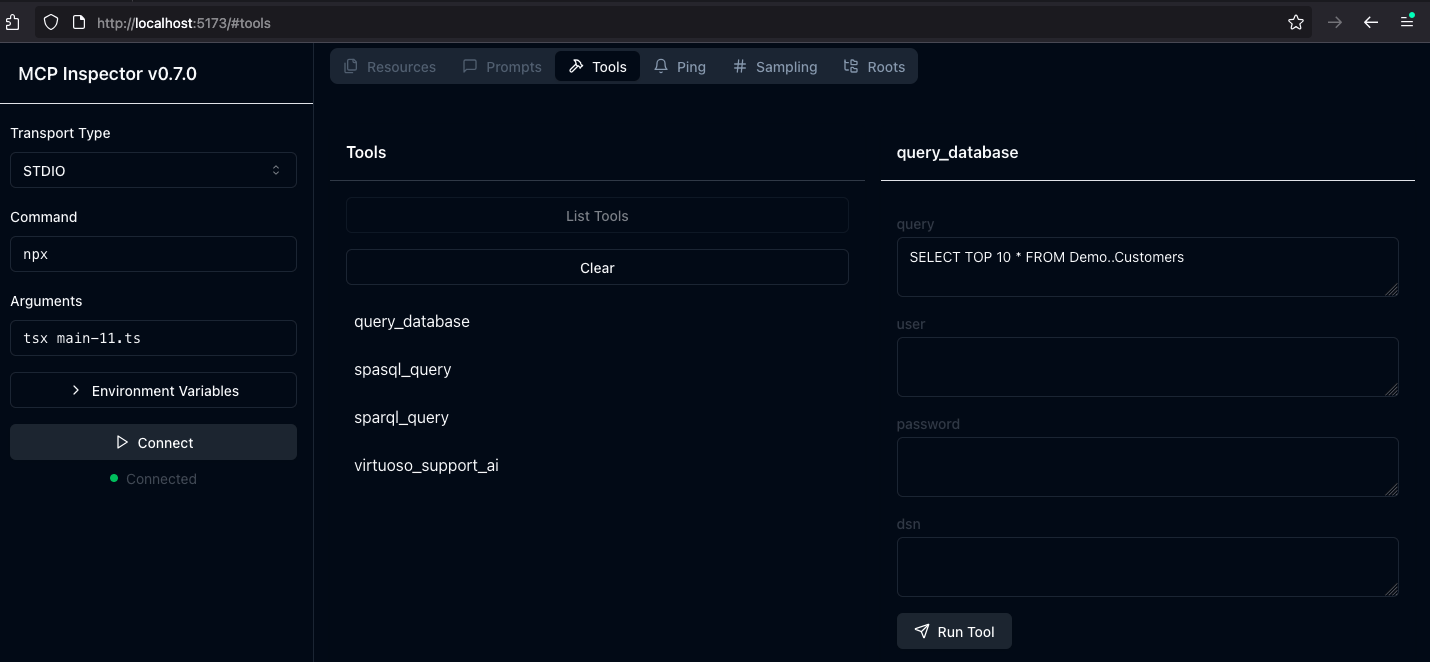
OpenLink MCP Inspector Tool Edition
This is a fork of the canonical edition that includes a JSON handling bug fix related to use with this MCP Server.
1. run
git clone git@github.com:OpenLinkSoftware/inspector.git
   cd inspector
2. run
npm run start3. Provide the following value in the Arguments input field of MCP Inspectors UI from http://localhost:6274
tsx /path/to/mcp-odbc-server/src/main.ts4. Click on the Connect button to initialize your session with the designated MCP Server
Apple Silicon (ARM64) Compatibility with MCP ODBC Server Issues
Node x86_64 vs arm64 Conflict Issue
The x86_64 rather than arm64 edition of node may be in place, but the ODBC bridge and MCP server are arm64-based components.
You can solve this problem by performing the following steps:
1. Uninstall the x86_64 edition of node by running:
nvm uninstall 21.1.02. Run the following command to confirm your current shell is in arm64 mode:
arch- if that returns x86_64, then run the following command to change the active mode:
arch arm643. Install the arm64 edition of node by running:
nvm install 21.1.0Node to ODBC Bridge Layer Incompatibility
When attempting to use a Model Context Protocol (MCP) ODBC Server on Apple Silicon machines, you may encounter architecture mismatch errors. These occur because the Node.js ODBC native module (odbc.node) is compiled for ARM64 architecture, but the x86_64-based edition of the unixODBC runtime is being loaded.
Typical error message:
Error: dlopen(...odbc.node, 0x0001): tried: '...odbc.node' (mach-o file, but is an incompatible architecture (have 'x86_64', need 'arm64e' or 'arm64'))You solve this problem by performing the following steps:
1. Verify your Node.js is running in ARM64 mode:
node -p "process.arch" # Should output: `arm64`2. Install unixODBC for ARM64:
# Verify Homebrew is running in ARM64 mode
   which brew  # Should point to /opt/homebrew/bin/brew

   # Remove existing unixODBC
   brew uninstall --force unixodbc

   # Install ARM64 version
   arch -arm64 brew install unixodbc
3. Rebuild the Node.js ODBC module for ARM64:
# Navigate to your project
   cd /path/to/mcp-odbc-server

   # Remove existing module
   rm -rf node_modules/odbc

   # Set architecture environment variable
   export npm_config_arch=arm64

   # Reinstall with force build
   npm install odbc --build-from-source
4. Verify the module is now ARM64:
file node_modules/odbc/lib/bindings/napi-v8/odbc.node
   # Should show "arm64" instead of "x86_64"
Key Points
- Both unixODBC and the
Node.jsODBC module must be ARM64-compatible - Using environment variables (
export npm_config_arch=arm64) is more reliable thannpm configcommands - Always verify architecture with the
filecommand ornode -p "process.arch" - When using Homebrew on Apple Silicon, commands can be prefixed with
arch -arm64to force use of ARM64 binaries
MCP Application Usage
Claude Desktop Configuration
The path for this config file is: ~{username}/Library/Application Support/Claude/claude_desktop_config.json.
{
    "mcpServers": {
        "ODBC": {
            "command": "/path/to/.nvm/versions/node/v21.1.0/bin/node",
            "args": [
                "/path/to/mcp-odbc-server/node_modules/.bin/tsx",
                "/path/to/mcp-odbc-server/src/main.ts"
            ],
            "env": {
                "ODBCINI": "/Library/ODBC/odbc.ini",
                "NODE_VERSION": "v21.1.0",
                "PATH": "~/.nvm/versions/node/v21.1.0/bin:${PATH}"
            },
            "disabled": false,
            "autoApprove": []
        }
    }
}
Claude Desktop Usage
1. Start the application.
2. Apply configuration (from above) via Settings | Developer user interface.
3. Ensure you have a working ODBC connection to a Data Source Name (DSN).
4. Present a prompt requesting query execution, e.g.,
Execute the following query: SELECT TOP * from Demo..Customers 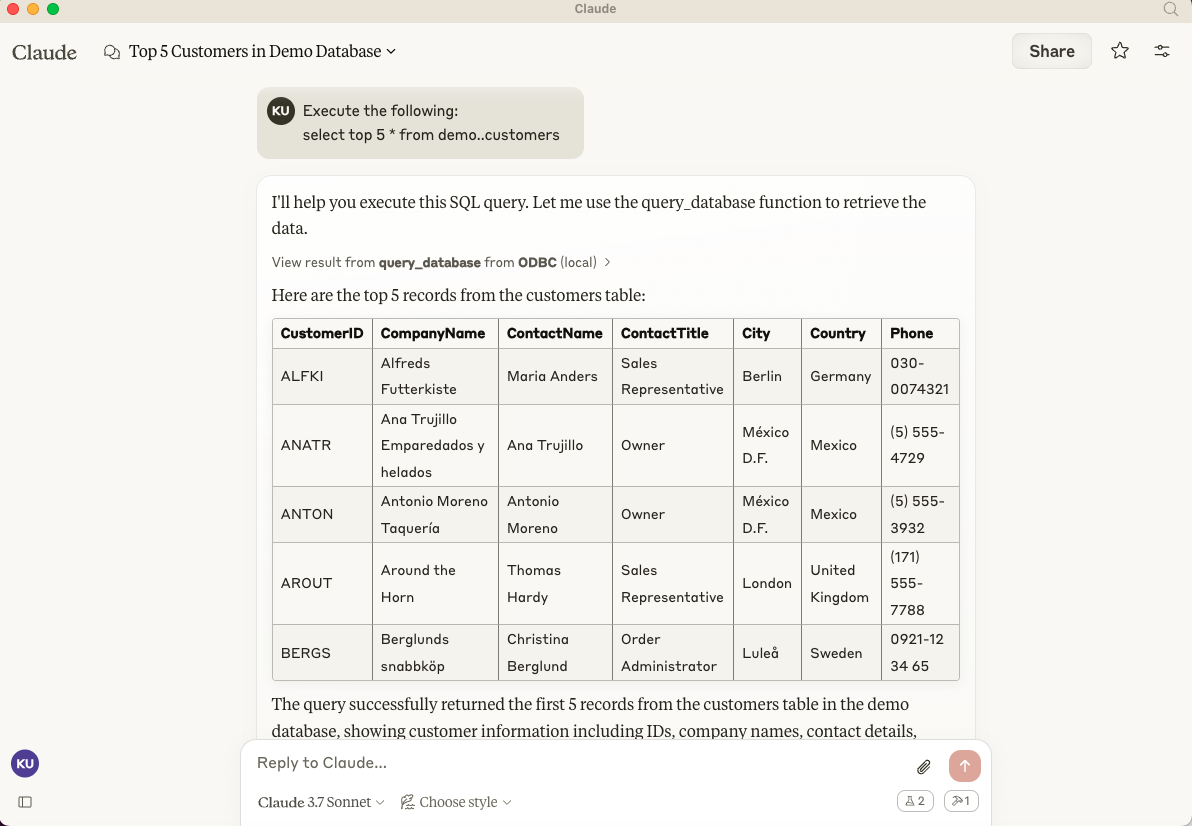
Cline (Visual Studio Extension) Configuration
The path for this config file is: ~{username}/Library/Application\ Support/Code/User/globalStorage/saoudrizwan.claude-dev/settings/cline_mcp_settings.json
{
  "mcpServers": {
    "ODBC": {
      "command": "/path/to/.nvm/versions/node/v21.1.0/bin/node",
      "args": [
        "/path/to/mcp-odbc-server/node_modules/.bin/tsx",
        "/path/to/mcp-odbc-server/src/main.ts"
      ],
      "env": {
        "ODBCINI": "/Library/ODBC/odbc.ini",
        "NODE_VERSION": "v21.1.0",
        "PATH": "/path/to/.nvm/versions/node/v21.1.0/bin:${PATH}"
      },
      "disabled": false,
      "autoApprove": []
    }
  }
}
Cline (Visual Studio Extension) Usage
1. Use Shift+Command+P to open the Command Palette.
2. Type in: Cline.
3. Select: Cline View, which opens the Cline UI in the VSCode sidebar.
4. Use the four-squares icon to access the UI for installing and configuring MCP servers.
6. Apply the Cline Config (from above).
7. Return to the extension's main UI and start a new task requesting processing of the following prompt:
"Execute the following query: SELECT TOP 5 * from Demo..Customers" 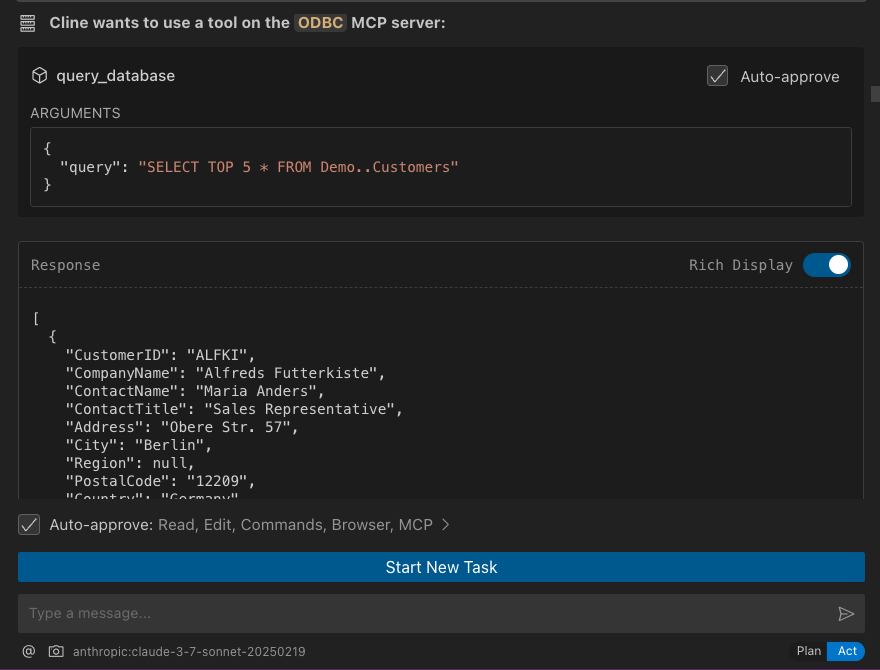
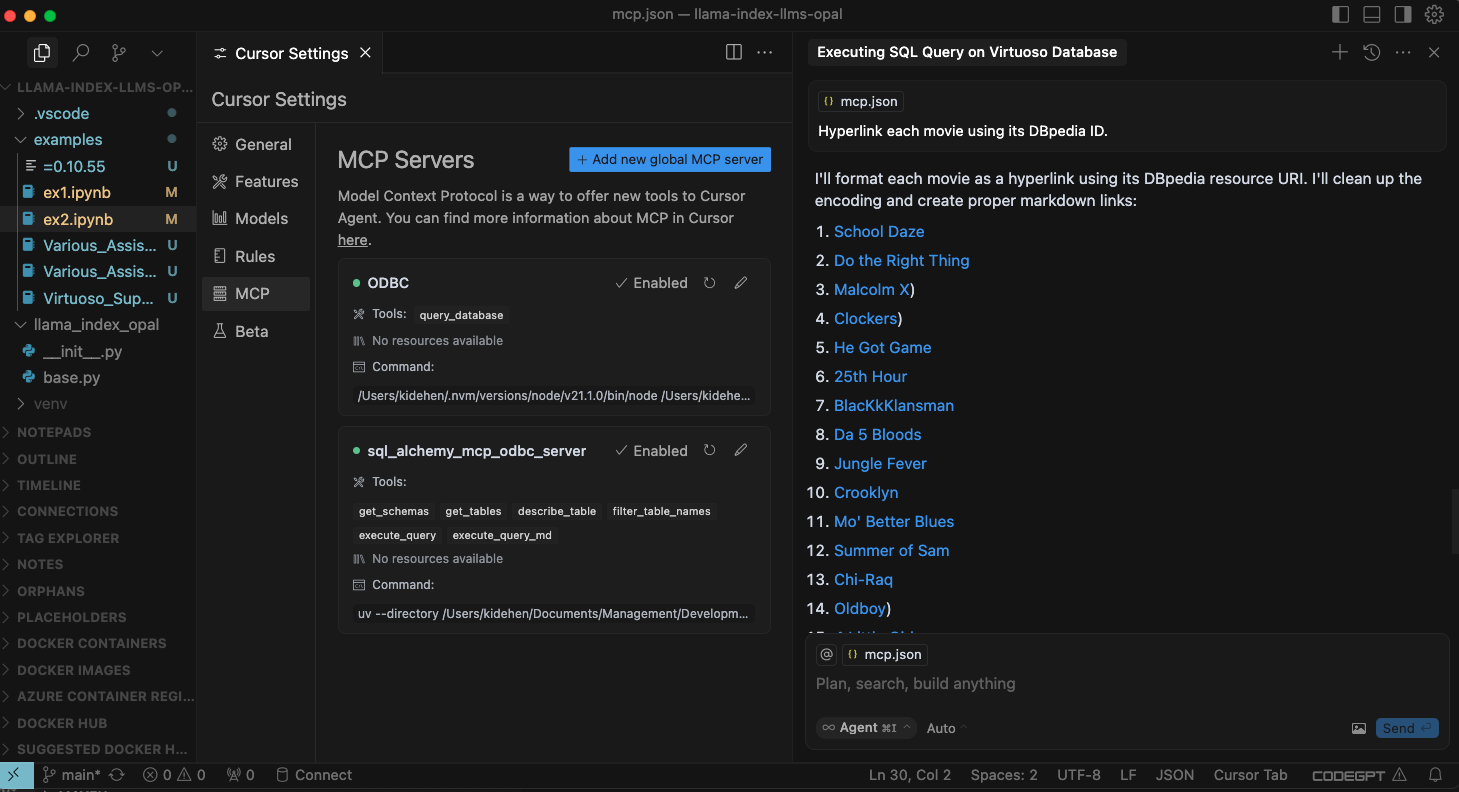
Cursor Configuration
Use the settings gear to open the configuration menu that includes the MCP menu item for registering and configuring mcp servers.
Cursor Usage
1. Use the Command+I or Control+I key combination to open the Chat Interface.
2. Select Agent from the drop-down at the bottom left of the UI, where the default is Ask.
3. Enter your prompt, qualifying the use of the mcp-server for odbc using the pattern: @odbc {rest-of-prompt}.
4. Click on "Accept" to execute the prompt.
Related
Similar MCP
Based on tags & features
Trending MCP
Most active this week