Documentation
Minecraft MCP Integration
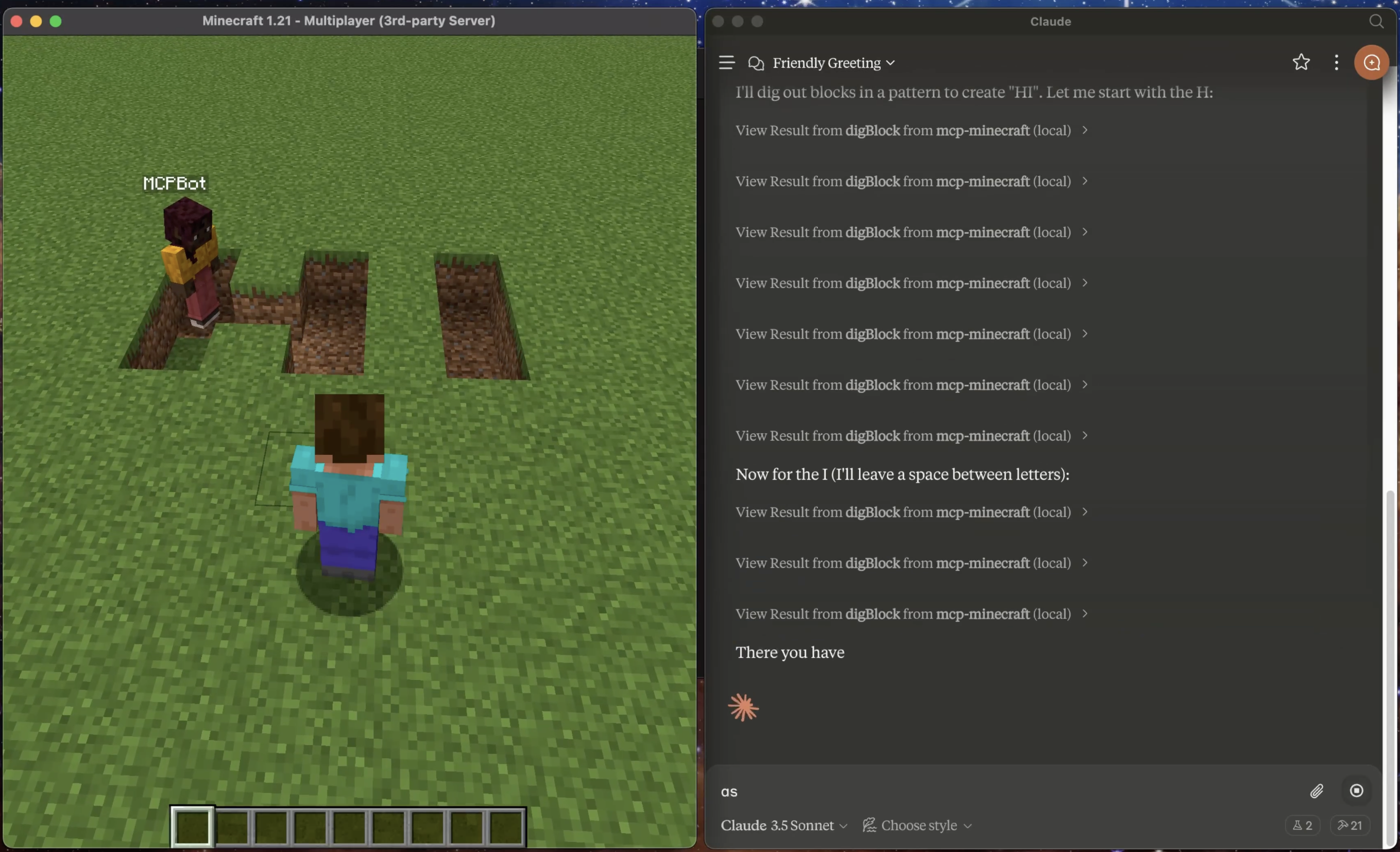
A Model Context Protocol (MCP) integration for Minecraft that enables AI assistants to interact with a Minecraft server. This integration allows AI models to observe and interact with the Minecraft world through a bot.
Prerequisites
1. Minecraft Launcher
2. Node.js 18 or higher
3. Claude Desktop App
4. Java 21.0.5 (recommended)
⚠️ Note: Currently only tested on macOS/Linux. Windows compatibility is not guaranteed.
Important Note
1. Use the F3+P Shortcut:
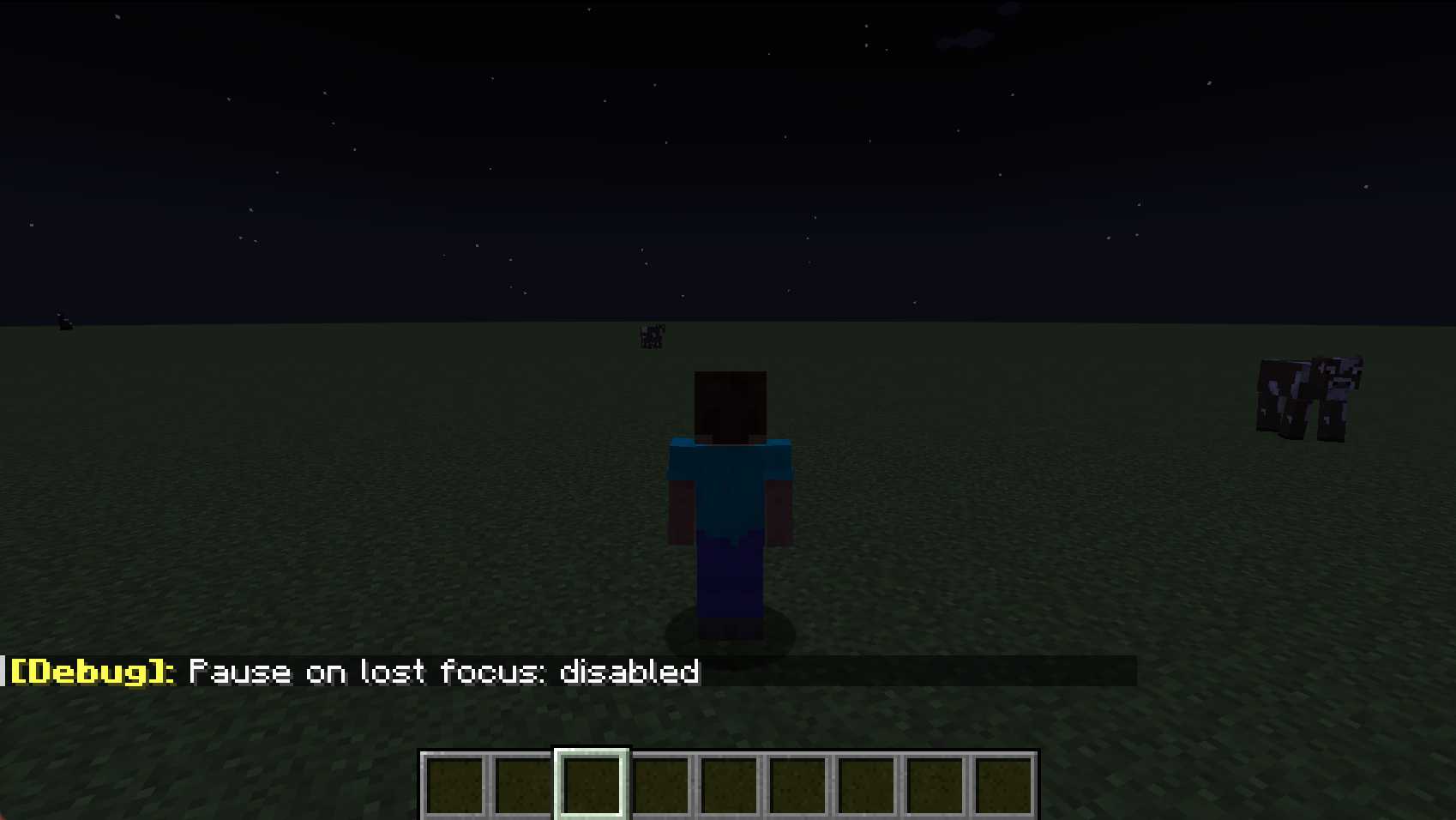
Press F3 + P together. This toggles the "Pause on Lost Focus" feature. Once turned off, you can switch to claude desktop and Minecraft will continue running without pausing.
2. Connection Issues on Claude Restart:
If you restart Claude while the Minecraft server is running, you may experience MCP connection issues on the next claude launch due to lingering java process. See Troubleshooting: MCP Connection Failed for resolution steps.
Installation Steps
1. Download and Setup Minecraft Server
- Download Minecraft server v1.21 from mcversions.net/1.21
- Install Java 21.0.5 if not already installed (other versions are untested)
- Create a dedicated directory (e.g.,
~/minecraft-server/) - Place the downloaded
server.jarfile in this directory - Note down the absolute path to your
server.jarfile
2. Install and Configure MCP Integration
Quick Install (Recommended):
npx -y @smithery/cli install mcp-minecraft --client claudeFollow the CLI prompts to complete the setup.
Or Manual Setup:
- Navigate to
~/Library/Application Support/Claude/claude_desktop_config.json - Add the MCP server configuration:
{
     "mcpServers": {
       "mcp-minecraft": {
         "command": "npx",
         "args": [
           "-y",
           "mcp-minecraft@latest",
           "--server-jar",
           "/absolute/path/to/minecraft-server/server.jar"
         ]
       }
     }
   }
⚠️ Replace
/absolute/path/to/minecraft-server/server.jarwith your actual server.jar path
4. Launch Claude Desktop
- Start Claude Desktop after completing the configuration
5. Connect to Server
- Open Minecraft Launcher
- Install and launch Minecraft Java Edition v1.21
- Click "Play" and Select "Multiplayer"
- Click "Add Server"
- Enter server details:
- Server Name:
Minecraft Server - Server Address:
localhost:25565 - Click "Done"
Features
Resources
The integration exposes these MCP resources:
minecraft://bot/location- Current bot position in the worldminecraft://bot/status- Bot connection status
Tools
Available MCP tools:
chat- Send chat messages to the serverjump- Make the bot jumpmoveForward- Make the bot move forwardmoveBack- Make the bot move backwardturnLeft- Make the bot turn leftturnRight- Make the bot turn rightplaceBlock- Place a block at specified coordinatesdigBlock- Break a block at specified coordinatesgetBlockInfo- Get information about a block at specified coordinatesselectSlot- Select a hotbar slot (0-8)getInventory- Get contents of bot's inventoryequipItem- Equip an item by name to specified destinationgetStatus- Get bot's current status (health, food, position, etc.)getNearbyEntities- Get list of nearby entities within rangeattack- Attack a nearby entity by nameuseItem- Use/activate the currently held itemstopUsingItem- Stop using/deactivate the current itemlookAt- Make the bot look at specific coordinatesfollowPlayer- Follow a specific playerstopFollowing- Stop following current targetgoToPosition- Navigate to specific coordinates
Technical Details
- Server runs in offline mode for local development
- Default memory allocation: 2GB
- Default port: 25565
- Bot username: MCPBot
Troubleshooting
Common Issues
1. MCP Connection Failed
- Look for lingering Java processes
- Terminate them manually:
- Windows: Use Task Manager (untested)
- Mac/Linux:
- Go to 'Activity Monitor' and 'Force Quit' java
- Restart computer if process termination fails
- Note: Latest version should auto-resolve these issues
2. Server Won't Start
- Verify Java is installed
- Check server.jar path is correct
- Ensure port 25565 is available
3. Can't Connect to Server
- Verify server is running (check logs)
- Confirm you're using "localhost" as server address
- Check firewall settings
Logs Location
- Minecraft Server logs: Check the minecraft-server directory
- Claude Desktop logs:
~/Library/Logs/Claude/mcp*.log
Contributing
Contributions, big or small, are welcome!
License
This project is licensed under the MIT License - see the LICENSE file for details.
Similar MCP
Based on tags & features
Trending MCP
Most active this week