A Mattermost integration that connects to Model Context Protocol (MCP) servers, leveraging a LangGraph-based Agent.
Documentation
Mattermost MCP Host
A Mattermost integration that connects to Model Context Protocol (MCP) servers, leveraging a LangGraph-based AI agent to provide an intelligent interface for interacting with users and executing tools directly within Mattermost.




Demo
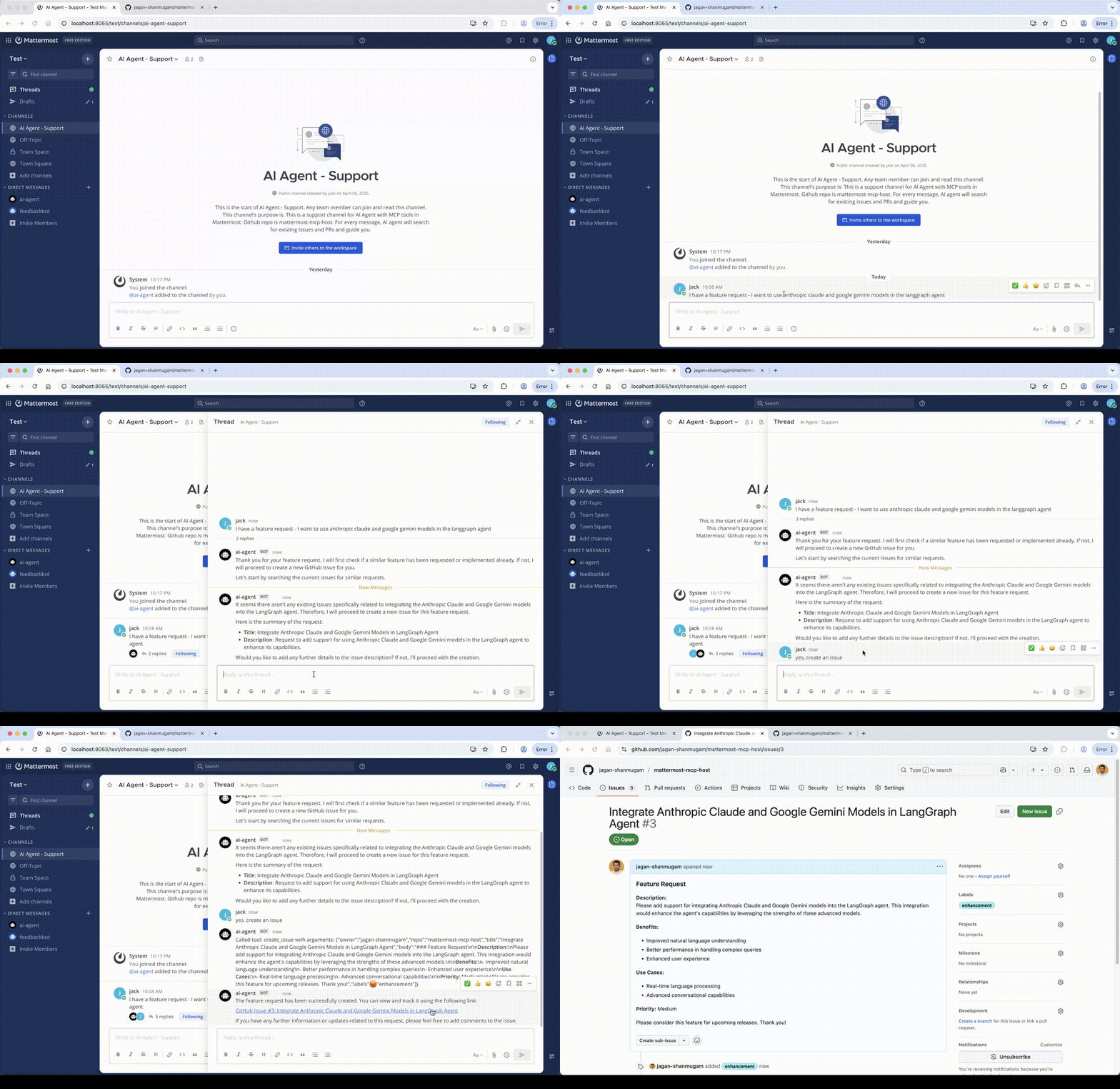
1. Github Agent in support channel - searches the existing issues and PRs and creates a new issue if not found
2. Search internet and post to a channel using Mattermost-MCP-server
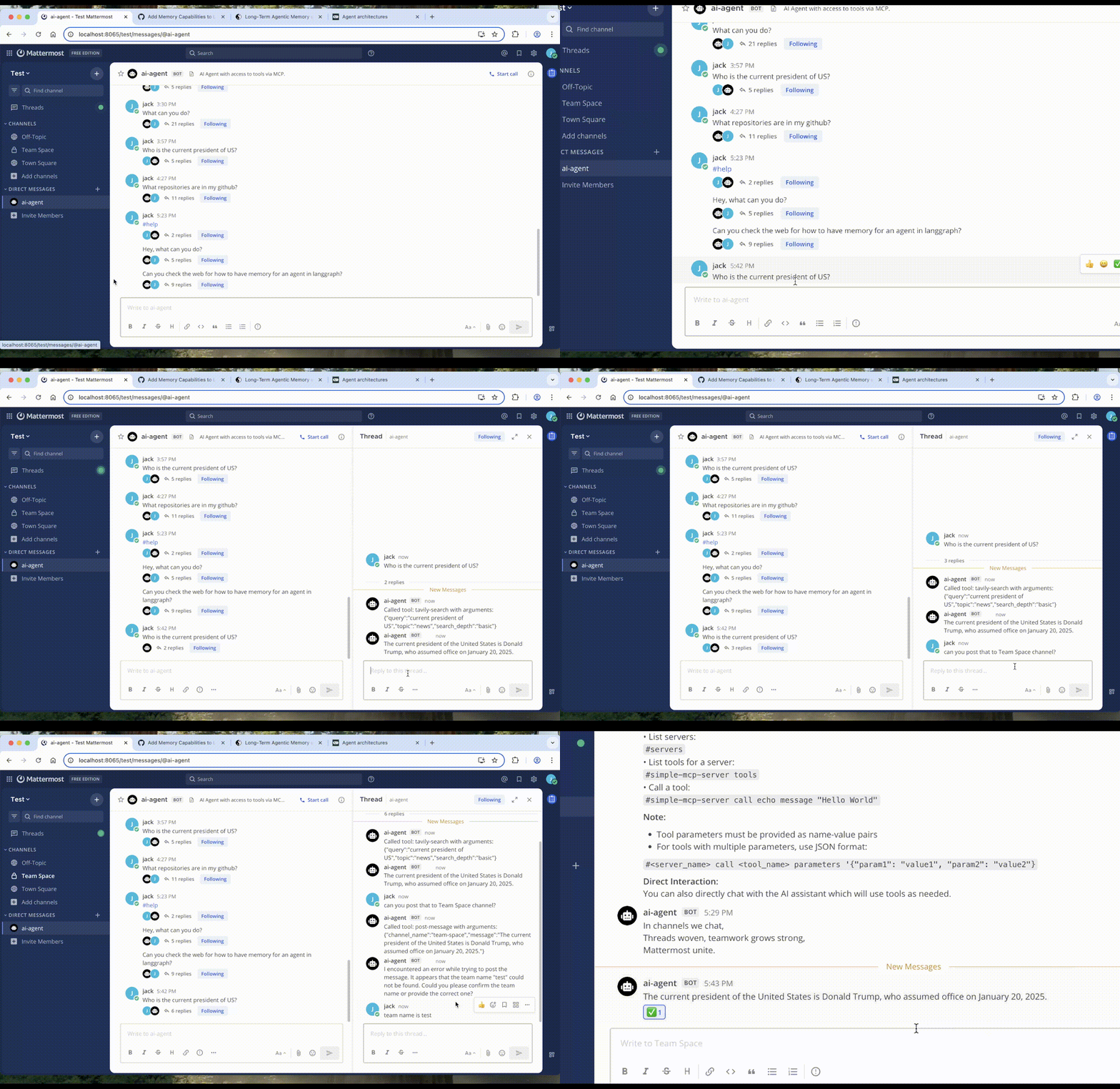
Scroll below for full demo in YouTube
Features
- 🤖 Langgraph Agent Integration: Uses a LangGraph agent to understand user requests and orchestrate responses.
- 🔌 MCP Server Integration: Connects to multiple MCP servers defined in
mcp-servers.json. - 🛠️ Dynamic Tool Loading: Automatically discovers tools from connected MCP servers and makes them available to the AI agent. Converts MCP tools to langchain structured tools.
- 💬 Thread-Aware Conversations: Maintains conversational context within Mattermost threads for coherent interactions.
- 🔄 Intelligent Tool Use: The AI agent can decide when to use available tools (including chaining multiple calls) to fulfill user requests.
- 🔍 MCP Capability Discovery: Allows users to list available servers, tools, resources, and prompts via direct commands.
- #️⃣ Direct Command Interface: Interact directly with MCP servers using a command prefix (default:
#).
Overview
The integration works as follows:
1. **Mattermost Connection (mattermost_client.py)**: Connects to the Mattermost server via API and WebSocket to listen for messages in a specified channel.
2. **MCP Connections (mcp_client.py)**: Establishes connections (primarily stdio) to each MCP server defined in src/mattermost_mcp_host/mcp-servers.json. It discovers available tools on each server.
3. **Agent Initialization (agent/llm_agent.py)**: A LangGraphAgent is created, configured with the chosen LLM provider and the dynamically loaded tools from all connected MCP servers.
4. **Message Handling (main.py)**:
- If a message starts with the command prefix (
#), it's parsed as a direct command to list servers/tools or call a specific tool via the correspondingMCPClient. - Otherwise, the message (along with thread history) is passed to the
LangGraphAgent.
5. Agent Execution: The agent processes the request, potentially calling one or more MCP tools via the MCPClient instances, and generates a response.
6. Response Delivery: The final response from the agent or command execution is posted back to the appropriate Mattermost channel/thread.
Setup
1. Clone the repository:
git clone
    cd mattermost-mcp-host
2. Install:
- Using uv (recommended):
# Install uv if you don't have it yet
        # curl -LsSf https://astral.sh/uv/install.sh | sh

        # Activate venv
        source .venv/bin/activate

        # Install the package with uv
        uv sync

        # To install dev dependencies
        uv sync --dev --all-extras
3. **Configure Environment (.env file):**
Copy the .env.example and fill in the values or
Create a .env file in the project root (or set environment variables):
# Mattermost Details
    MATTERMOST_URL=http://your-mattermost-url
    MATTERMOST_TOKEN=your-bot-token # Needs permissions to post, read channel, etc.
    MATTERMOST_TEAM_NAME=your-team-name
    MATTERMOST_CHANNEL_NAME=your-channel-name # Channel for the bot to listen in
    # MATTERMOST_CHANNEL_ID= # Optional: Auto-detected if name is provided

    # LLM Configuration (Azure OpenAI is default)
    DEFAULT_PROVIDER=azure
    AZURE_OPENAI_ENDPOINT=your-azure-endpoint
    AZURE_OPENAI_API_KEY=your-azure-api-key
    AZURE_OPENAI_DEPLOYMENT=your-deployment-name # e.g., gpt-4o
    # AZURE_OPENAI_API_VERSION= # Optional, defaults provided

    # Optional: Other providers (install with `[all]` extra)
    # OPENAI_API_KEY=...
    # ANTHROPIC_API_KEY=...
    # GOOGLE_API_KEY=...

    # Command Prefix
    COMMAND_PREFIX=#
See .env.example for more options.
4. Configure MCP Servers:
Edit src/mattermost_mcp_host/mcp-servers.json to define the MCP servers you want to connect to. See src/mattermost_mcp_host/mcp-servers-example.json.
Depending on the server configuration, you might npx, uvx, docker installed in your system and in path.
5. Start the Integration:
mattermost-mcp-hostPrerequisites
- Python 3.13.1+
- uv package manager
- Mattermost server instance
- Mattermost Bot Account with API token
- Access to a LLM API (Azure OpenAI)
Optional
- One or more MCP servers configured in
mcp-servers.json - Tavily web search requires
TAVILY_API_KEYin.envfile
Usage in Mattermost
Once the integration is running and connected:
1. Direct Chat: Simply chat in the configured channel or with the bot. The AI agent will respond, using tools as needed. It maintains context within message threads.
2. Direct Commands: Use the command prefix (default #) for specific actions:
-
#help- Display help information. -
#servers- List configured and connected MCP servers. -
# tools- List available tools for ``. -
# call- Call `on` with arguments provided as a JSON string. - Example:
#my-server call echo '{"message": "Hello MCP!"}' -
# resources- List available resources for ``. -
# prompts- List available prompts for ``.
Next Steps
- ⚙️ Configurable LLM Backend: Supports multiple AI providers (Azure OpenAI default, OpenAI, Anthropic Claude, Google Gemini) via environment variables.
Mattermost Setup
1. Create a Bot Account
- Go to Integrations > Bot Accounts > Add Bot Account
- Give it a name and description
- Save the access token in the .env file
2. Required Bot Permissions
- post_all
- create_post
- read_channel
- create_direct_channel
- read_user
3. Add Bot to Team/Channel
- Invite the bot to your team
- Add bot to desired channels
Troubleshooting
1. Connection Issues
- Verify Mattermost server is running
- Check bot token permissions
- Ensure correct team/channel names
2. AI Provider Issues
- Validate API keys
- Check API quotas and limits
- Verify network access to API endpoints
3. MCP Server Issues
- Check server logs
- Verify server configurations
- Ensure required dependencies are installed and env variables are defined
Demos
Create issue via chat using Github MCP server
(in YouTube)
Contributing
Please feel free to open a PR.
License
This project is licensed under the MIT License - see the LICENSE file for details.
Similar MCP
Based on tags & features
Trending MCP
Most active this week