Cleric - Configure Claude settings for MCP servers through a simple GUI
Documentation
Cleric
Cleric is a desktop application that helps you manage Model Context Protocol (MCP) servers for Claude desktop. It provides an easy-to-use interface for adding, removing, and configuring your MCP servers.
Builds are available for MacOS and Windows at: https://github.com/pcarion/cleric/releases
Note: The version
0.3.0is available for Windows but has not been tested on Windows. Any feedback is welcome. The code related to starting and stopping the MCP Inspector should be looked at.
How It Works
Cleric manages two configuration files:
1. A personal server list at $HOME/.cleric.json
- Stores all your available MCP servers
- Acts as a backup of your server configurations
2. The Claude Desktop configuration at /claude_desktop_config.json
- Contains the active MCP servers currently used by Claude Desktop
Key Features
- Seamlessly switch MCP servers in and out of Claude Desktop
- Automatically preserves server configurations when making changes
- Syncs with Claude Desktop: Any servers you manually add to Claude Desktop will be automatically added to your Cleric server list on next launch
- Real-time saving: Changes are saved automatically as you make them
- Test any server by launching the MCP Inspector
How to use
On the left side of the application, you can see the list of MCP servers that you have configured.
The servers with a checkmark are the ones that are currently configured in Claude desktop.
The right side of the application shows the information about the selected server:
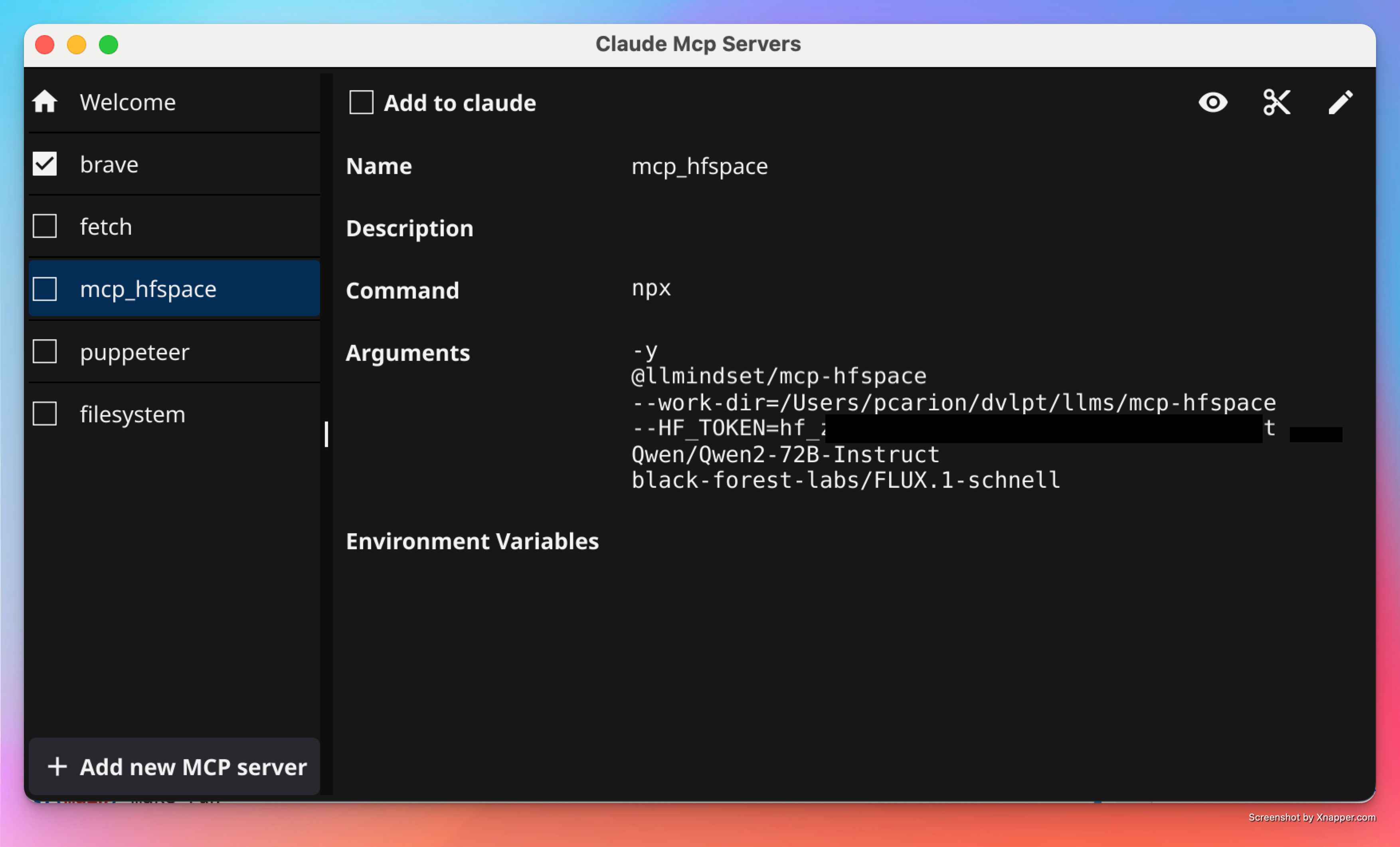
The Remove From Claude button will remove the server from Claude desktop but the server will remain in your personal server list.
The ✄ button will remove the server from both your personal server list and the list of servers that are currently configured in Claude desktop.
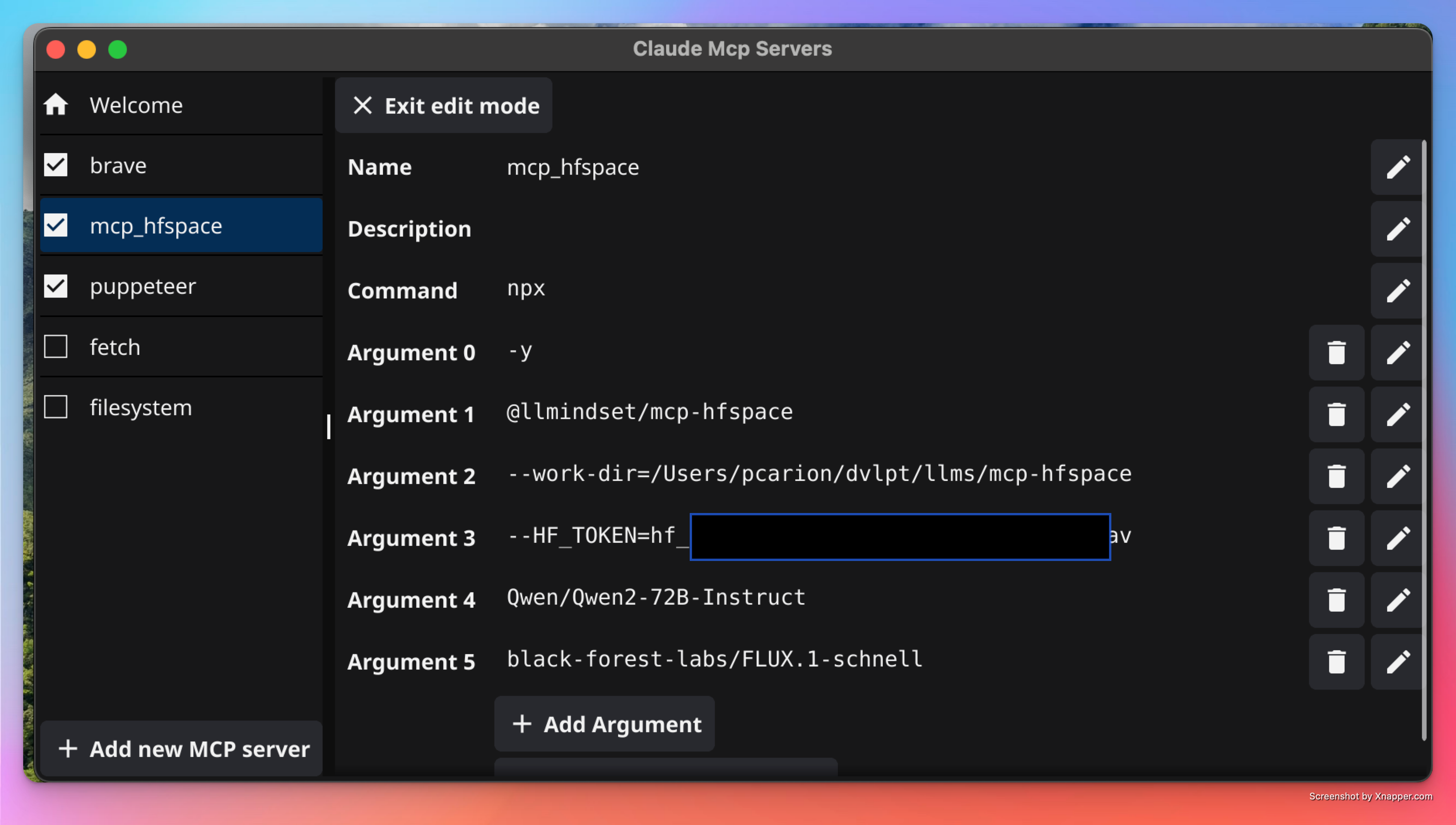
The 🖊️ button will allow you to edit the server information:
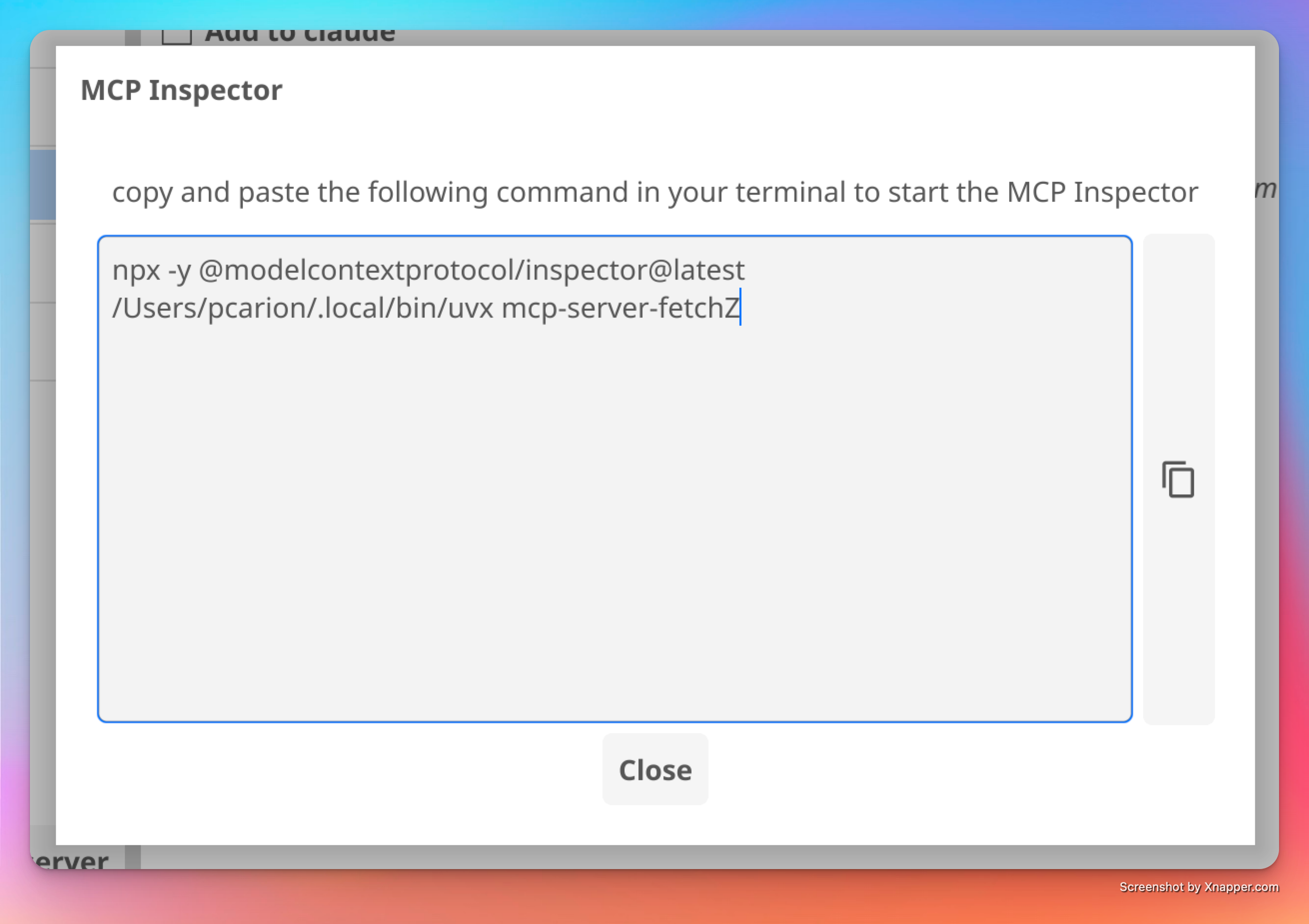
The 👁️ button will show you the command to start the MCP Inspector in the terminal:
Important Note
Before using Cleric for the first time, please back up your claude_desktop_config.json file if you have manually configured MCP servers in Claude Desktop.
Don't forget to restart Claude Desktop after you have made changes to the server list.
MacOS issue when launching the app
If you get the "cannot be opened because the developer cannot be verified" error, you can apply the following workaround.
- Control-click the app icon, then choose Open from the shortcut menu.
- Click Open.
If you get the "cleric is damaged and can't be opened. You should move it to the Bin." error you can apply the following workaround.
Launch Terminal and then issue the following command: xattr -cr /path/to/cleric.app.
Changelog
0.5.0- 2025-01-25- remove capabilities to start the MCP Inspector. Instead, display the command to start the MCP Inspector in a dialog with a copy button to copy the command to the clipboard.
0.4.0- 2025-01-17- start using light theme
0.3.0- 2025-01-16- fix issue with MCP Inspector on Windows - the Windows version has NOT been tested yet. Any feedback is welcome.
0.2.0- 2025-01-14- all toolbar button to start the MCP Inspector
- add version checker on Welcome page
- add help text when hovering over the toolbar buttons
0.1.0- 2025-01-09- Initial release
Coming Soon
- [ ] Add a button to open the Claude Desktop configuration file in the user's default text editor.
- [ ] Add a button to open the Cleric configuration file in the user's default text editor.
Development
Prerequisites
To build and run this project, you need:
- Go 1.23.4 or later
- Fyne toolkit and its dependencies - read the Getting Started with Fyne documentation for more information
Installation
- Clone the repository:
git clone https://github.com/pcarion/cleric.git
cd cleric
2. Build the project:
make buildThe built binary will be available in the build directory.
Running the Application
To run the application directly:
make runProject Structure
.
├── cmd/
│   └── cleric/          # Main application entry point
├── internal/
│   └── ui/             # UI components and logic
│   └── config/         # Code to manage the list of MCP servers
└── build/              # Build artifacts
Contributing
1. Fork the repository
2. Create your feature branch (git checkout -b feature/amazing-feature)
3. Commit your changes (git commit -m 'Add some amazing feature')
4. Push to the branch (git push origin feature/amazing-feature)
5. Open a Pull Request
License
This project is licensed under the terms found in the LICENSE file in the root directory.
Version
The application version information is embedded at build time from cmd/cleric/version.txt.
Documentation
Acknowledgments
This project was my introduction to the Fyne toolkit. Special thanks to Alex Ballas's go2tv project, which served as an excellent reference. His well-structured codebase demonstrates Fyne's capabilities beautifully and provided valuable insights for building this application.
Similar MCP
Based on tags & features
Trending MCP
Most active this week